Archiving and Restoring
Set aside orders, routes, people, teams, and shifts you no longer use, and bring them back from the Archive Bin.
Last updated 29 days ago
Introduction
You don’t want to trash what you’ve done; that’s your history. - Pat Benatar
Archiving lets you set aside shops, projects, orders, routes, people, teams, and shifts that are no longer active, without permanently removing them from Building Swell. Anything archived can be brought back.
This guide covers both halves: putting something into the archive, and getting it back out.
Before you start. At least one shop, project, order, route, person, team, or shift.
Step-by-Step Guide
Archive Something
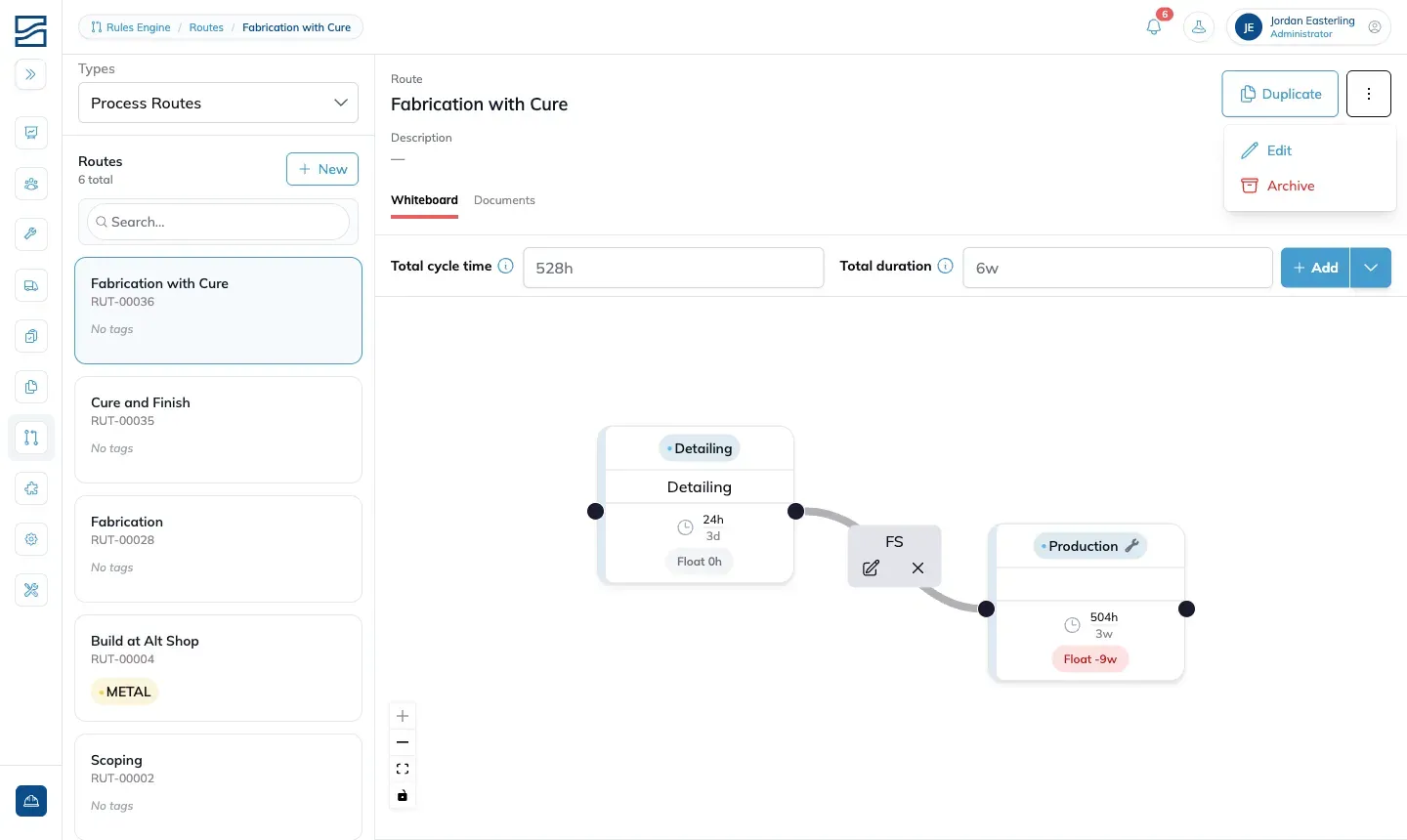
To the right of shops, projects, orders, routes, people, teams, and shifts, either in clear view or behind the three-dot menu, the archive icon sets the object aside. Clicking the icon or the word Archive asks you to confirm, and on confirmation the object is archived.
Open the Archive Bin
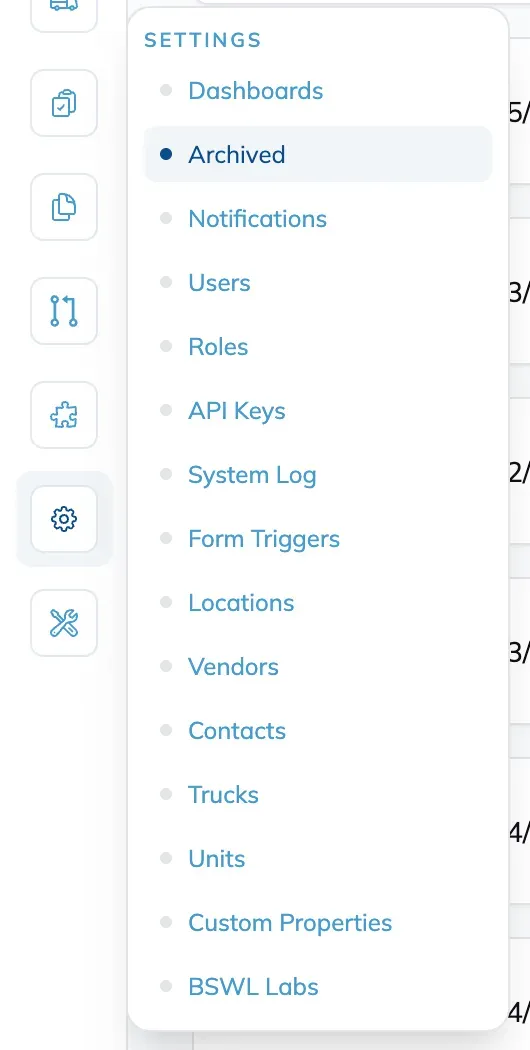
Choose Archived from Settings to open the Archive Bin. Everything you have archived is listed here.
Find What You Archived
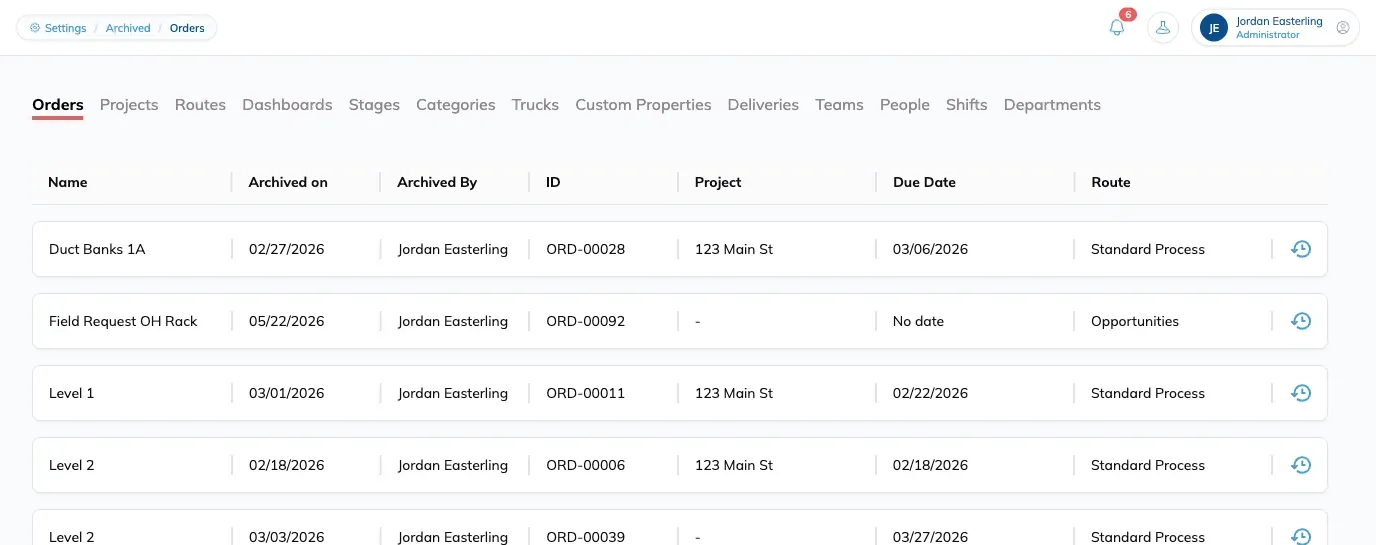
Click the tag for the kind of object you are after: a route, a person, a team, an order. There is a search in the Bin too, which is quicker than scrolling when you know the name.
Restore It
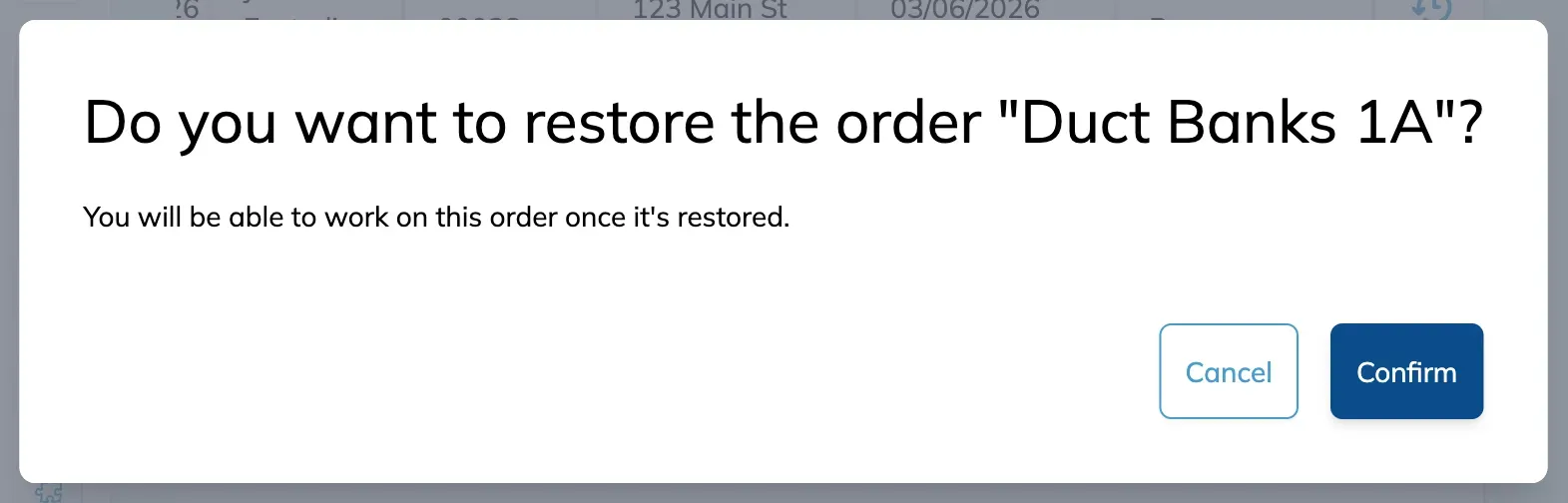
Click the restore icon on the far right of the row. A confirmation appears; confirm it and the object returns to where it was before you archived it.
Tips
-
Steps and comments cannot be archived.
-
Check you have the right row before restoring. Restoring the wrong object is easier to do than to notice.
-
Use the search in the Bin rather than scrolling.
-
If an archived person, order, or project has an ID, that ID cannot be reused on a new object. Restore the archived one and remove the ID, or repurpose the restored object.
FAQ
Where does a restored item go?
Back to its original place in Building Swell. Restoring does not move anything.
Is archiving the same as deleting?
No. Archiving takes something out of pickers and active views and keeps its history. It is reversible.
Can I archive a step or a comment?
No. Those two cannot be archived.
Conclusion
Nothing you archive is gone. Set aside what you are not using, and pull it back from the Bin when you need it.
Video walkthrough
Was this helpful?
Still need help? Ask the team