Notifications
Set your subscription template once, follow the work you care about, and only hear what matters.
Last updated 1 day ago
Introduction
Notifications tell you what moved on the work you're responsible for. You get one because you're assigned to something, because you chose to follow it, or because someone tagged you by name.
What you can change is how much you hear, and where. Set that up once in Settings, then point it at whatever work you want to watch.
Step-by-Step Guide
Where to configure notifications
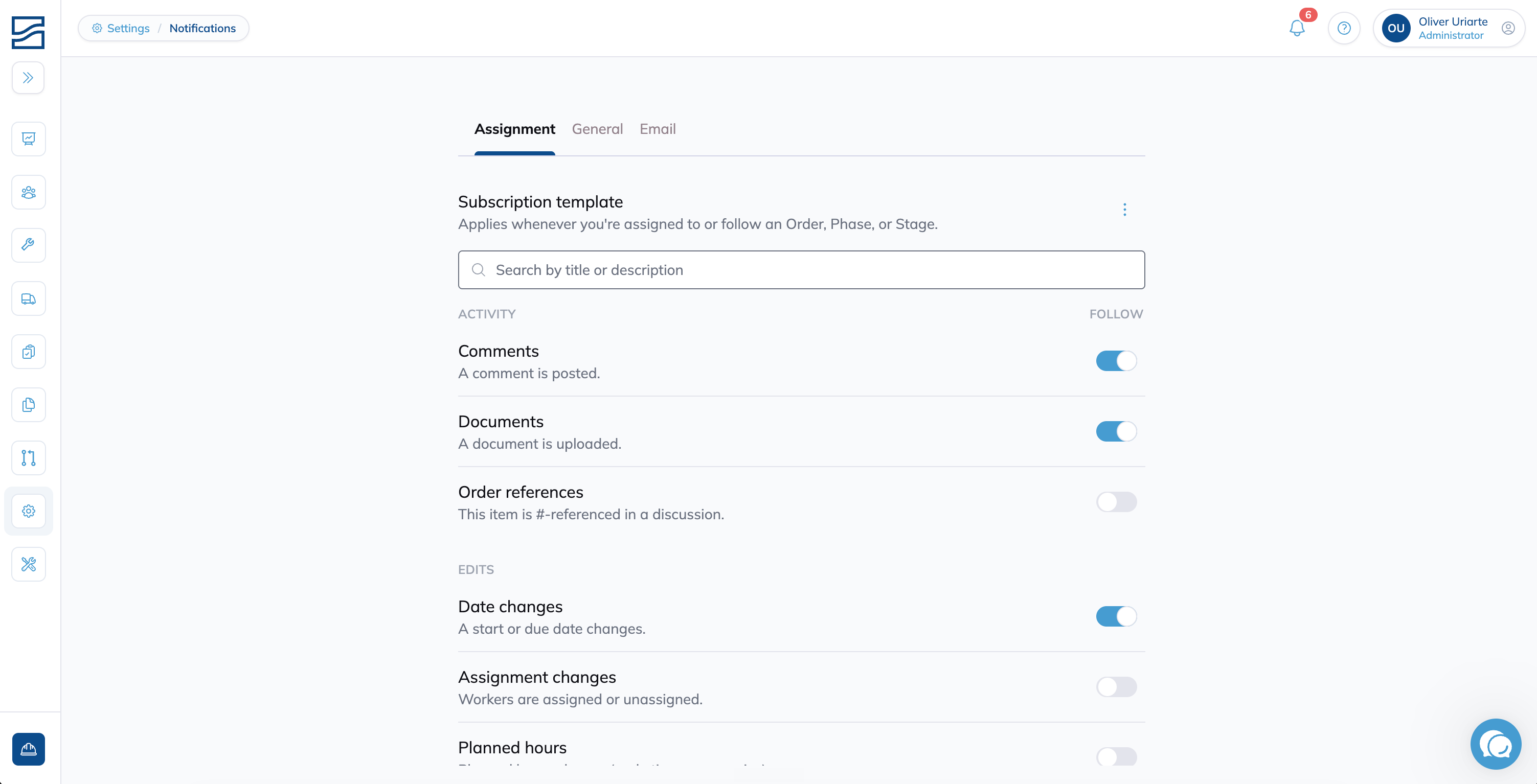
Go to Settings > Notifications. This is where your subscription template lives, and it's the one screen that decides what you hear about everywhere else.
Your feed lives separately, in the bell at the top right of the app. Open it from anywhere to see what's come in.
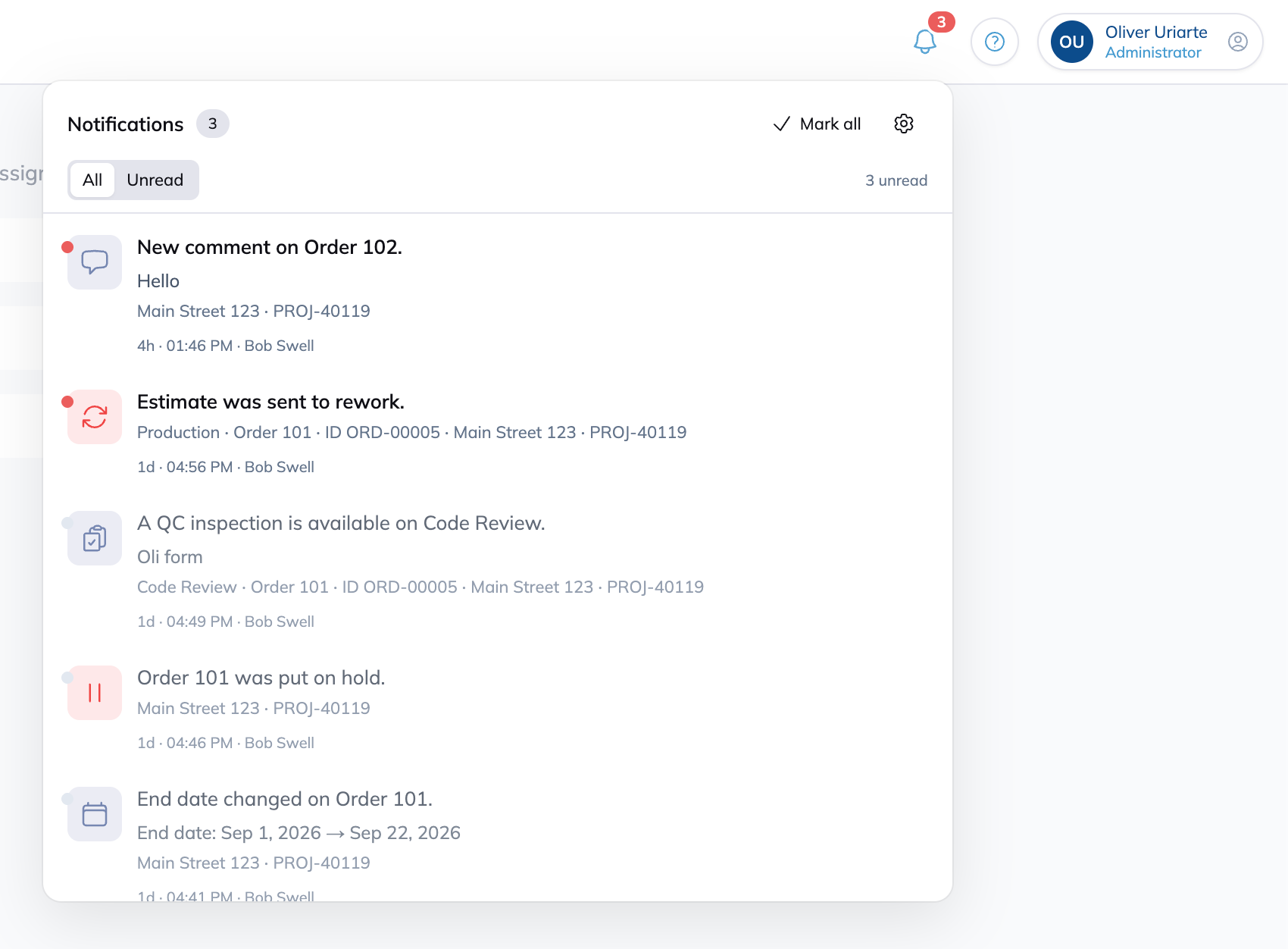
Reading a notification without opening it
Every notification is built to be understood before you click it. Each one shows:
An icon and color for the kind of event
What happened and who did it
Where it happened: the nearest parent, the order, and the project
Click one, and you land on the item itself.
The subscription template
The Assignment tab is your subscription template. It answers one question: when you get assigned to an order, a phase, or a stage, or when you follow one, what do you want to hear about?
Whatever you switch on here turns on every time, automatically, without you setting anything up on the item itself.
Five are on for you to start:
Comments
Documents
Date changes
On hold
Status changes
Everything else is off until you turn it on. Switch one on and it applies going forward, to every order you follow and every phase or stage you get assigned to from then on. It doesn't change what you're already following.
Mentions and assignments always reach you
If someone tags you by name, or you're assigned to something, you'll hear about it. These two can't be turned off from the template. The Email tab is the only control you have over them.
What you can be notified about
Every channel available in your template, grouped the way Settings groups them.
Following a job
To put your template to work:
Go to Planning.
Open the menu on any order, phase, or stage.
Click Follow.
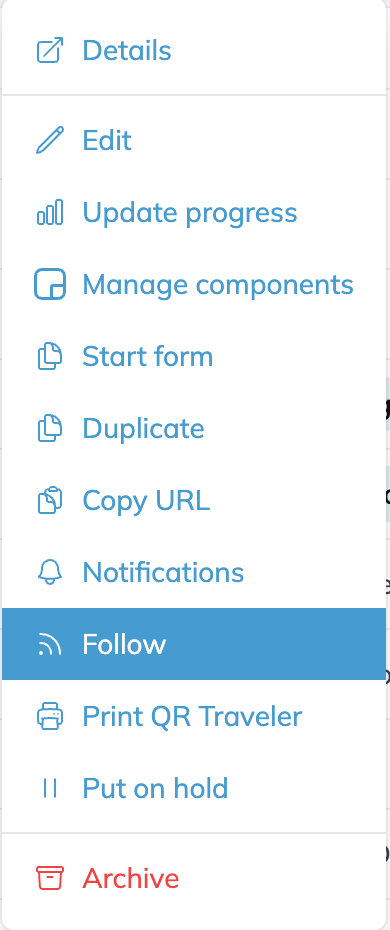
That's the whole action. Everything switched on in your template is now live for this item.
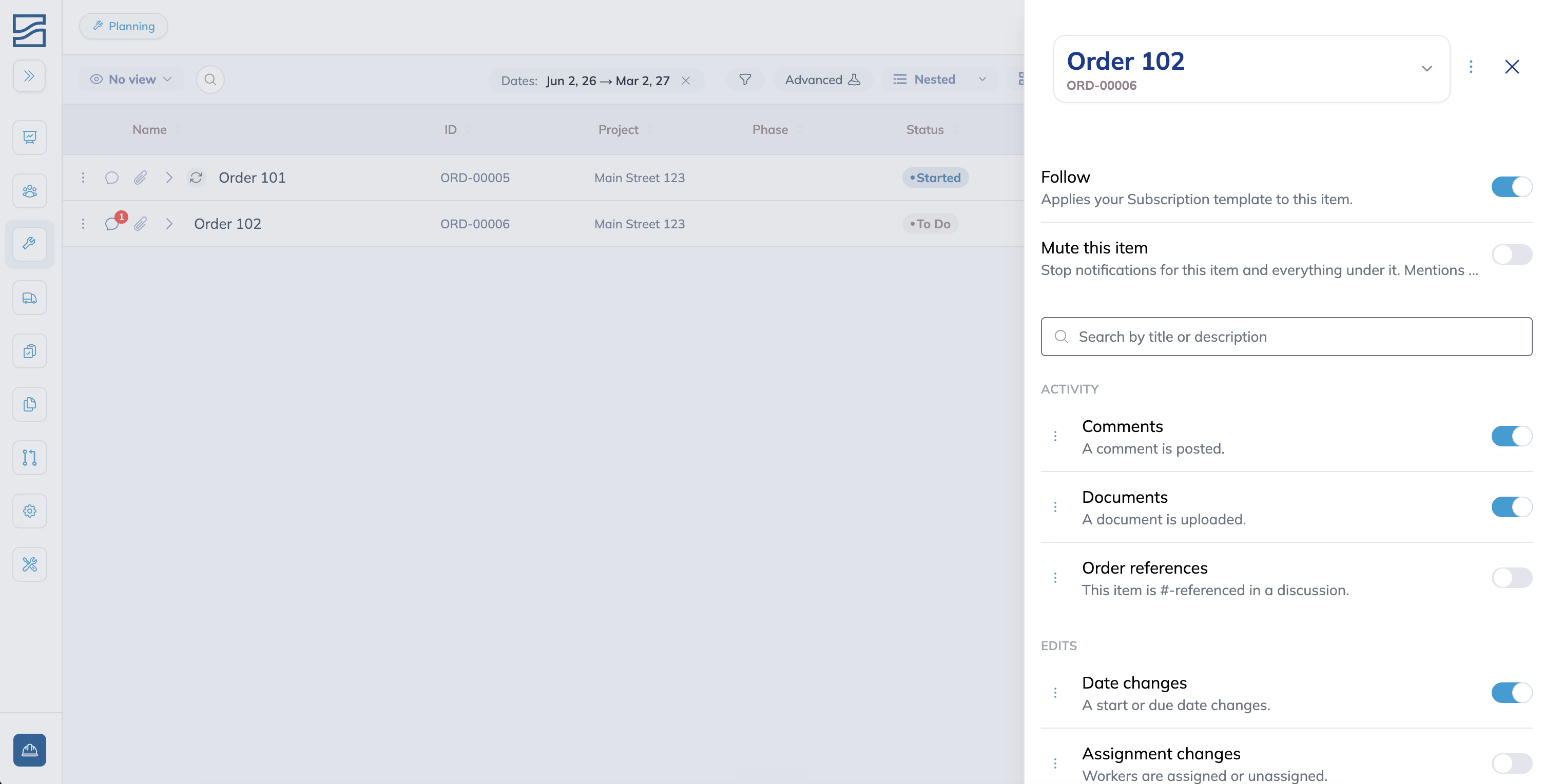
To see what you're actually getting, open Notifications from the same menu. By default, each channel covers only the item itself. If you're following comments on an order, you hear about comments posted on that order, not its phases or stages.
Changing the reach of one channel
For a lot of work, only-this-item is all you want. When you need more, open the drawer's menu and turn on Advanced settings. Every channel now has its own scope, set separately:
Only this order: the order itself
This order and its phases: the order plus everything directly under it
The entire order: the order and everything within it, all the way down
A phase offers the same three choices, worded for the phase. A stage offers two, since a stage has only one level beneath it.
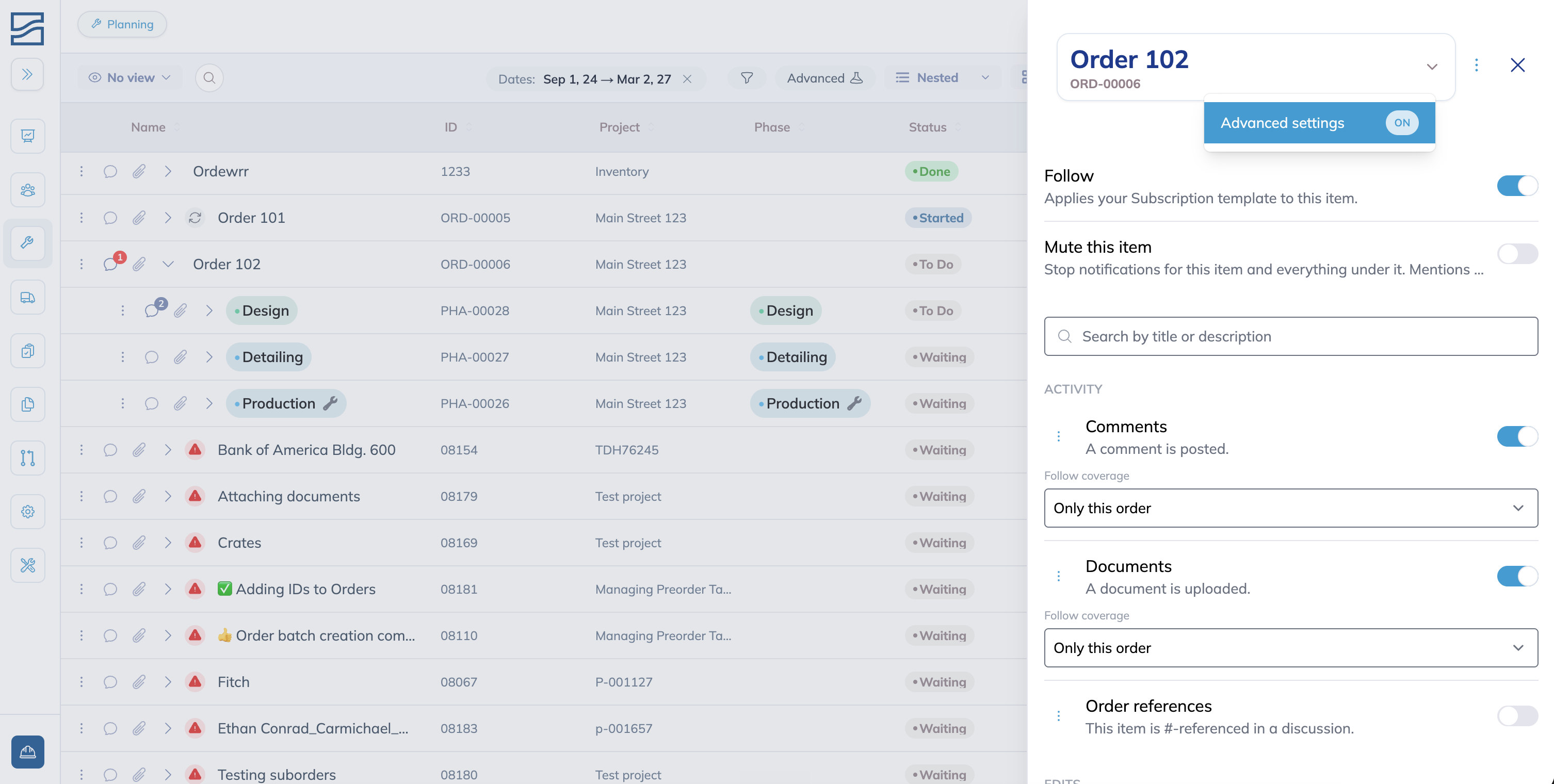
A few channels don't offer all three, and each one says why:
QC available is fixed to the entire item. Route QC becomes ready on a stage's checklist steps, so hearing it at all means hearing the whole subtree.
Planned hours is fixed to only this item. Hour changes below roll up into a single event on the item you followed.
Rework starts at direct children. It fires on stages, never on the order or phase you followed, so "only this item" is a dead choice.
Order completed fires on the order itself, once.
Muting an item
Muting overrides everything you're currently getting on that item, everything you're following, and everything switched on through your template, in one move. It's for a job that's gotten loud and needs to stop, not for turning off one channel at a time.
Unmute whenever you want and you are right back where you were.
Nothing you were following is lost while it is muted, so there is nothing to set up again afterwards.
Mentions and assignments still reach you even while an item is muted.
Other notifications
General
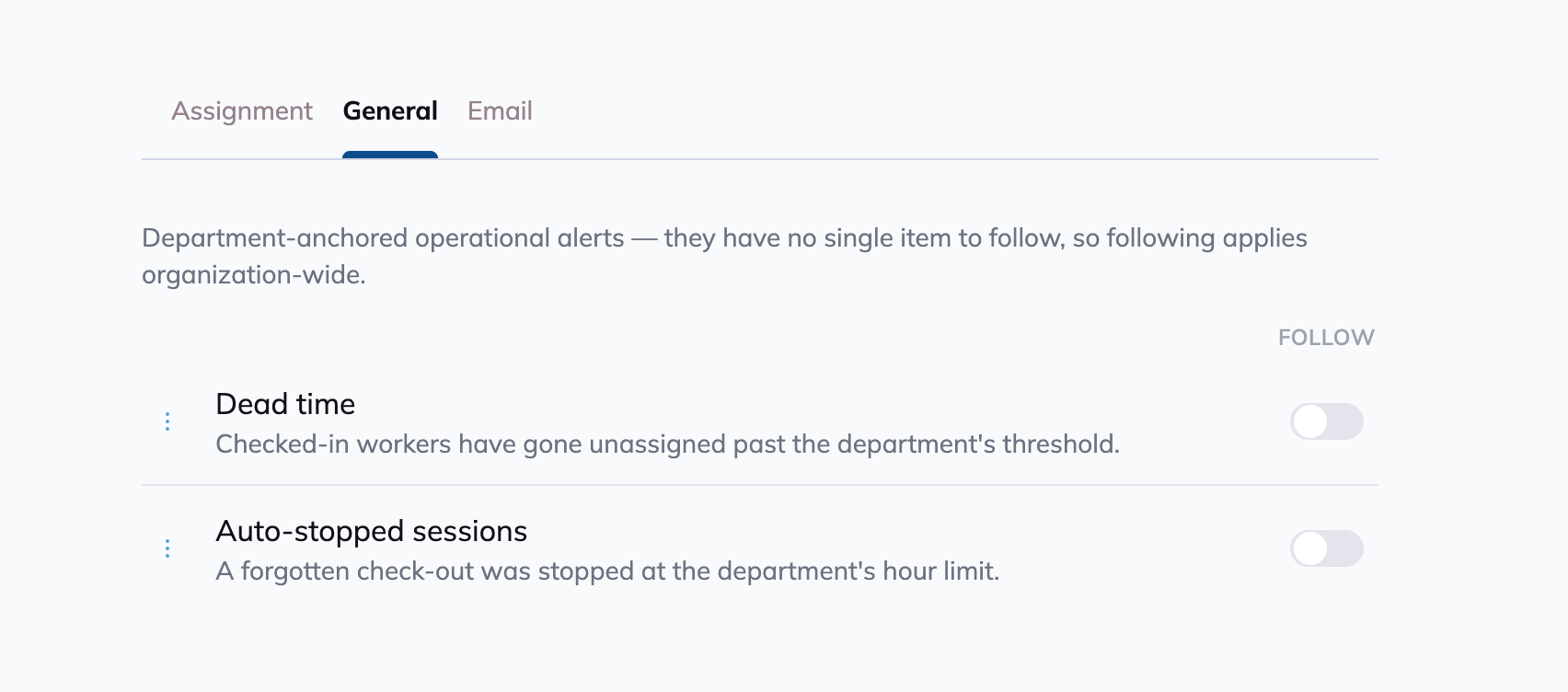
Two alerts don't belong to any single job, so they live on their own tab.
Dead time tells you when checked-in workers have gone unassigned past your department's threshold. See Dead Time Alerts.
Auto-stopped sessions cover the other side of a forgotten check-out. A worker's session and attendance time keep running until your shop's auto-stop setting closes it at the hour limit you have configured, and this tells you when that has happened.
Both are shop-wide, and both thresholds are set per department. See Departments.
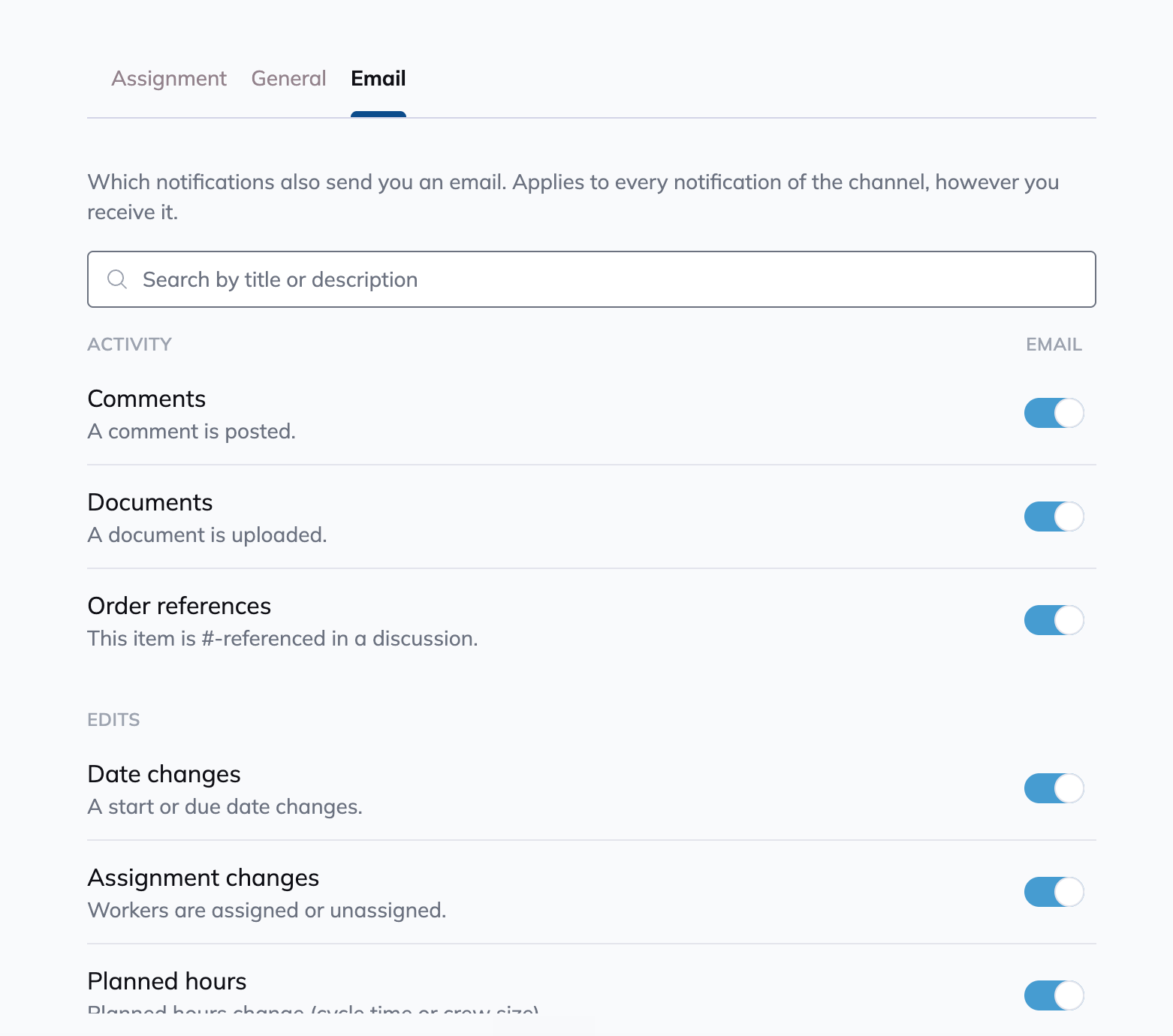
Every notification also emails you by default. Turn a channel off here if you'd rather keep it in-app only. This is the only place email is controlled, and it's the only live control for mentions and assignments.
Beyond orders: projects, phases and stages
Follow isn't limited to orders. From Rules Engine > Projects, Rules Engine > Phases, or Rules Engine > Stages, open the row menu and click Notifications to follow every instance of that project, phase, or stage, across every order, without following each one by hand.
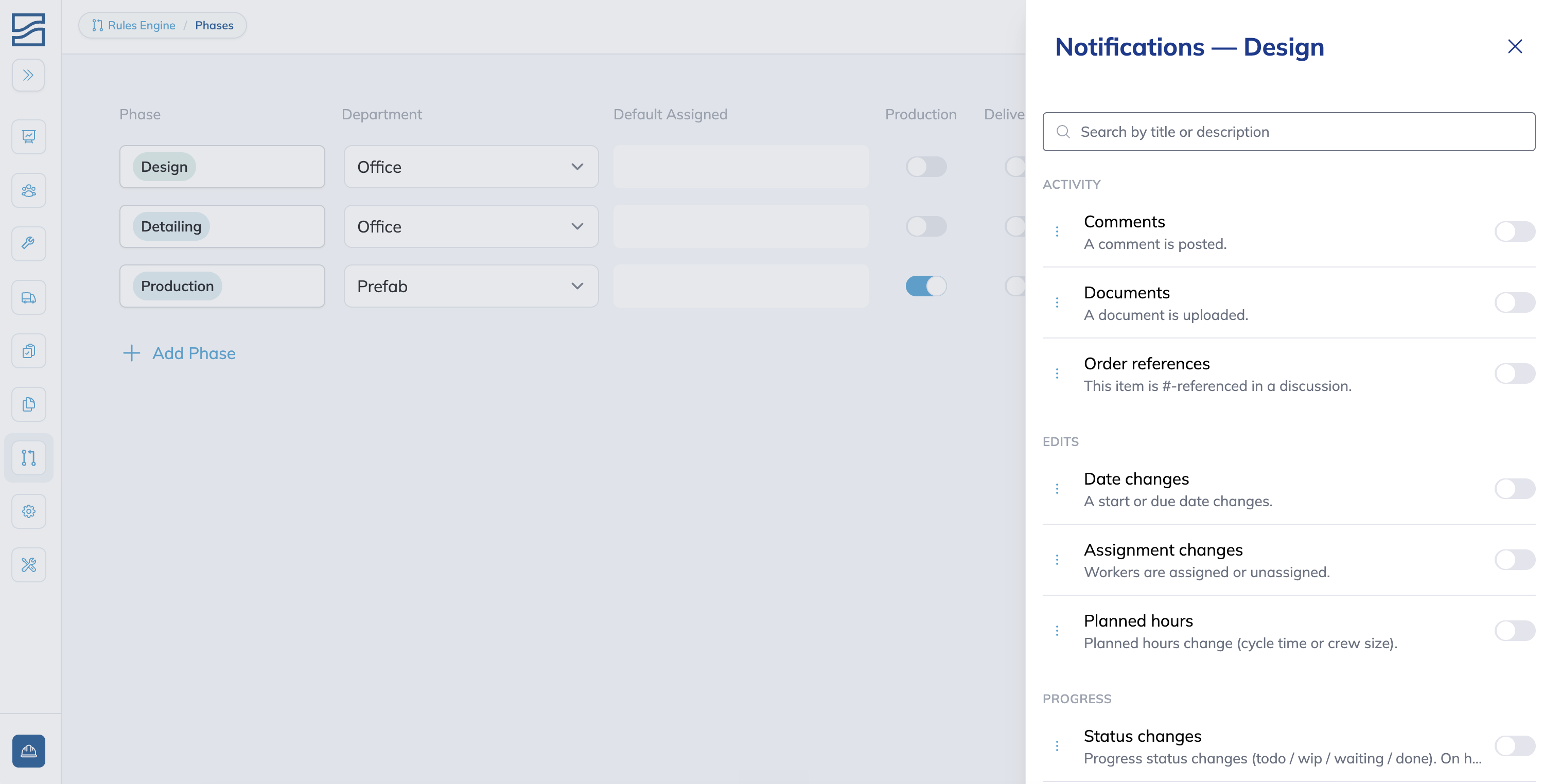
Two examples:
A QC manager follows QC available on the Production phase. They hear about every QC inspection that becomes ready in that phase, on any order, without being assigned to each one. See Forms.
A foreman responsible for rework on one stage follows Rework on that stage template. They hear about every rework event on that stage, regardless of which order or project it's on.
Tips
Set your template before you start following work. It's what turns on every time, so getting it right once saves you from tuning every item by hand.
Start with only-this-item and widen it deliberately. It's easier to notice you're missing something than to mute a job that got loud.
Follow a project, phase, or stage template instead of assigning yourself to every order that uses it. One follow covers all of them, now and later.
FAQ
Can I turn off mentions?
Not in-app. Mentions always reach you there. Email is the only control, in the Email tab.
I'm following an order. Why am I not hearing about its phases?
By default, following an item only covers that item. Open the drawer, turn on Advanced settings, and widen the channel's reach to include phases or the entire order.
Why can't I set Rework to "only this item"?
Rework fires on stages, never on the order or phase you followed, so that option would never do anything. The picker starts at the next level down.
I lost access to something I was following. What happens?
Your follow is kept, not deleted. Delivery is paused until your access returns.
Conclusion
Set your subscription template once in Settings, follow the work you care about, and widen a channel’s reach only when you need it. Mentions and assignments will always reach you, and muting an item is the one move that quietens a job without unpicking anything.
Have additional questions? Contact Us
Video walkthrough
Setting Up Notifications
Still need help? Ask the team