Catalogs
Set up your vendors, contacts, locations, trucks, and units of measure so Building Swell picks values from a list instead of retyping them.
Last updated 22 days ago
Introduction
Five catalogs in Settings exist for the same reason: so a value gets picked from a list instead of retyped. Vendors, Contacts, Locations, Trucks, and Units of Measure.
Set them up once and you stop finding "ft", "FT", and "feet" in three different records, or the same supplier spelled two ways. That consistency is what makes reporting on any of it possible later.
Not seeing these pages? Reach out to your company admin to update your permissions. See the Roles guide.
The Pattern All Five Follow
Learn it once and every list works the same way.
Add creates an entry.
Import loads a list in bulk rather than typing entries one at a time, and Export pulls the current list out as a spreadsheet. Use import when you are setting up for the first time.
Edit changes details.
Archive retires an entry. It stays on historical records and drops out of pickers.
Archive, do not repurpose
Editing "Boxes" into "Bundles", or renaming a vendor to reuse the row, changes the meaning of everything already recorded against it. Archive the old entry and add a new one instead. Archiving is reversible.
Vendors
Vendors are the suppliers you buy from. Keeping them here gives you somewhere to record how long each one actually takes to deliver.
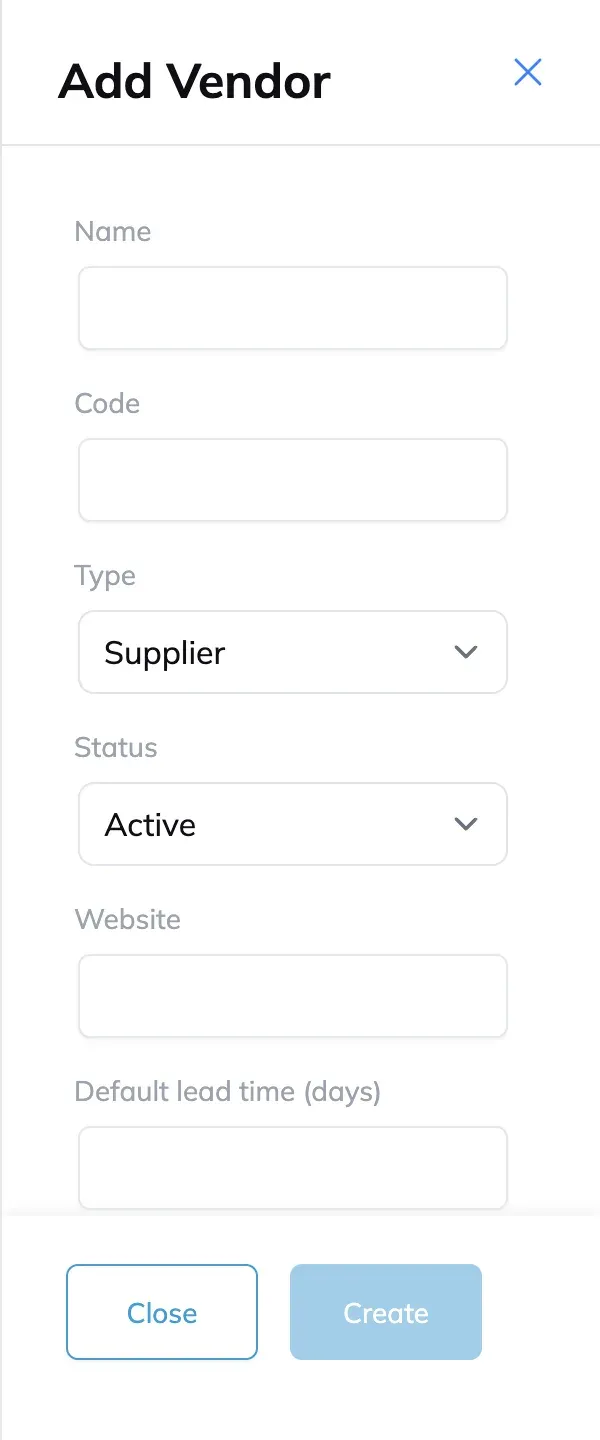
Add a Vendor
Go to Settings and open Vendors.
Click Add Vendor.
Enter a Name and a Code. The code is the short handle that shows up elsewhere in the app.
Set the Default lead time (days). Use the number you would actually plan against, not the one they quote.
Click Create.
Attach Contacts to a Vendor
A vendor is an organization. The people you actually email live in Contacts, below.
Open the vendor and click Link contact to attach someone already on your contact list.
If they are not on it yet, Create & link adds and attaches them in one step.
Use Make primary on whoever should be the default point of contact. Always set one. It is the difference between "email the vendor" and "email a person".
Contacts
Contacts are the people outside your own team: vendor reps, customer contacts, drivers, whoever signs for a delivery. Each one gets an identifier, like CON-00001, so you can refer to them unambiguously.
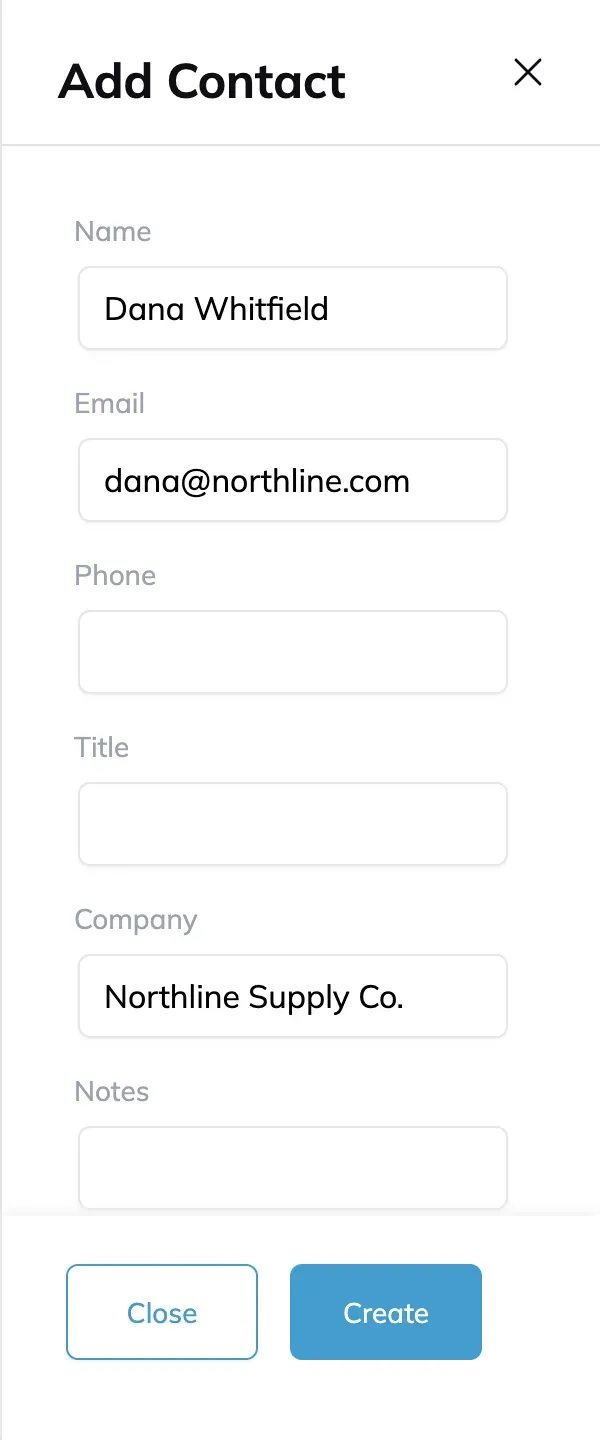
Add a Contact
Go to Settings and open Contacts.
Click Add Contact.
Enter their Name, Email, and Company. Fill in the company every time. A name with no company is unusable a year later.
Click Create.
Use a Contact Elsewhere
Once someone is on the list they can be linked to a vendor with one marked primary, added to a project with Add to project so the people on a job are recorded with it, or named on a delivery as the driver or the person receiving.
Locations
Locations are the places your work goes to and comes from: job sites, plants, bays, receiving docks. They nest, so you can model a site and the specific bays inside it.
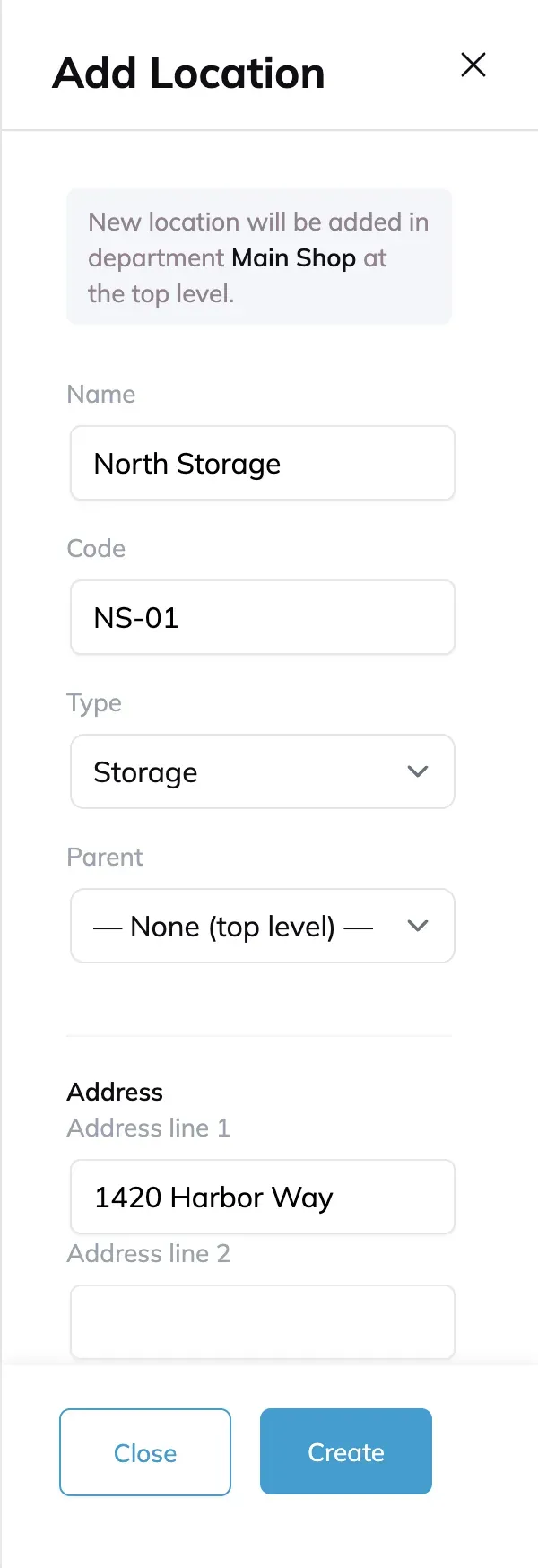
Add a Location
Go to Settings and open Locations.
Click Add Location.
Enter a Name and a Code. Use codes people already say out loud. If the crew calls it "Bay 4", the code should be recognisable as Bay 4.
Fill in Address line 1, City, and Country.
Link any Departments that operate from here.
Click Create.
Nest a Location
Click Add child on an existing location to put something inside it. A site with four bays is one parent and four children, which keeps the picker readable and lets a delivery point at the exact bay. Nest rather than duplicate: four separate top-level entries for one site makes the picker worse for everyone.
Import a List
Setting up for the first time, do not type them one at a time. Click Download a template to get the spreadsheet in the right shape, fill it in, then import it back.
Trucks
Trucks are the vehicles you deliver on. Recording their real deck dimensions means a delivery can be assigned to a truck that will actually take the load, rather than finding out at the dock.
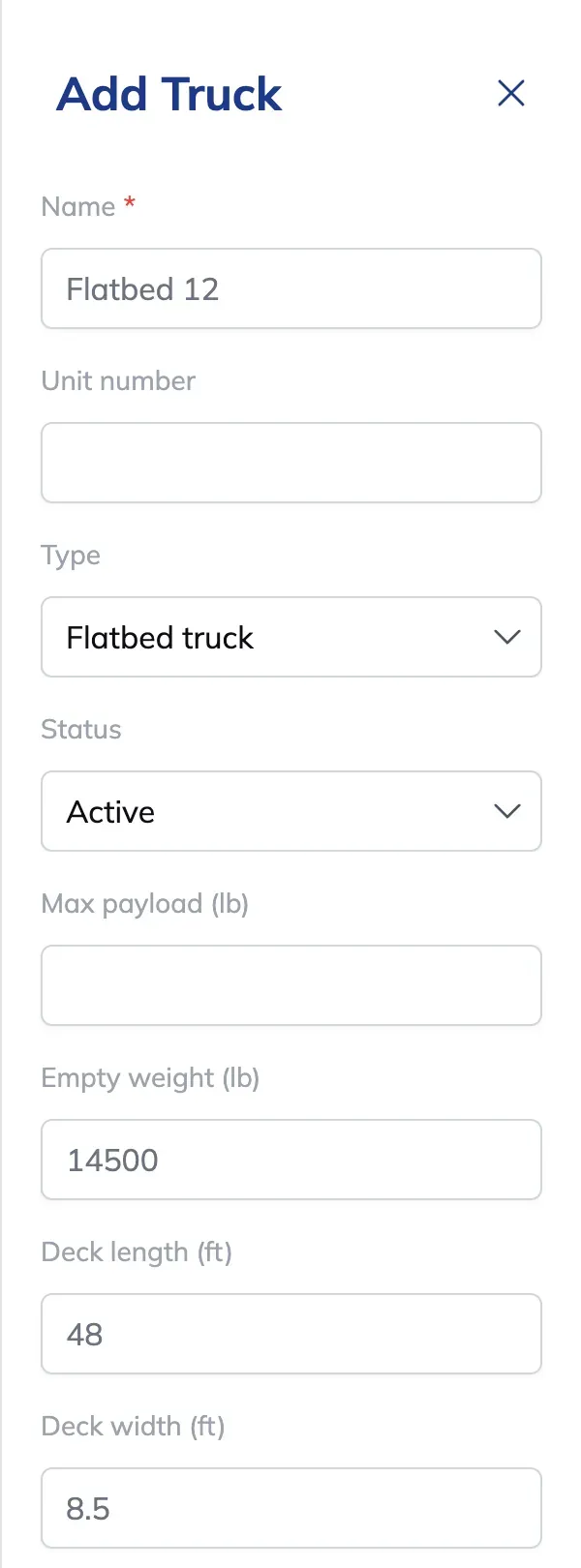
Add a Truck
Go to Settings and open Trucks.
Click Add Truck.
Enter the name the crew uses for it. If everyone calls it "Big Blue", call it Big Blue.
Pick the type, for example box truck or double drop.
Enter Deck length (ft), Deck width (ft), and Empty weight (lb). Length and width must be positive numbers, and empty weight must be a whole number. Measure the deck rather than copying the brochure, because the usable deck is what decides whether a load fits.
Click Create.
One-Off Trucks
For a rental or a subcontractor’s vehicle you will not use again, enter a one-time truck on the delivery itself rather than adding it to the permanent catalog. That keeps the list to vehicles you actually run.
Units of Measure
Units of measure are how you count things: each, feet, pounds, boxes. This list defines what is available wherever a quantity is entered.
Add a Unit
Go to Settings and open Units.
Click Add Unit.
Enter the Name, the full word, for example Feet.
Enter the Short name, the abbreviation shown in tight spaces, for example ft.
Click Save. Both fields are required.
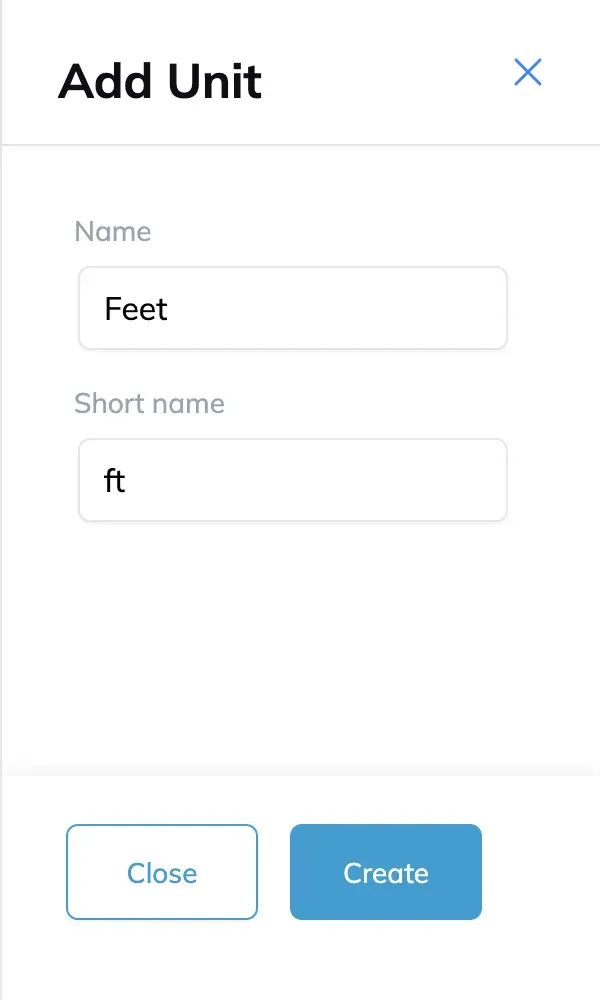
Agree the short names once. This list is your chance to settle whether it is "ea" or "each" before it is in a thousand records.
Tips
Search before you add. Two rows for the same thing is what these lists exist to prevent.
Keep them short. A short list gets picked correctly. A long one gets guessed at.
Use the words the crew already uses. Names and codes that match what people say out loud avoid mistakes at dispatch.
Archive when things retire. It keeps pickers clean without losing the record.
FAQ
Do I have to use these lists?
Mostly no. You can type an address on a delivery, or create a delivery without picking a truck. The lists save the typing and keep the spelling consistent, which is what matters once you start reporting on any of it.
Why are vendors and contacts separate?
So one person can be reached across more than one context, and so a vendor survives its staff turning over.
Is a contact the same as a user?
No. Users log in to Building Swell and have roles. Contacts are people you record and communicate with, and they have no account. To add someone to your team, see Managing Users.
What is the difference between a location and a department?
A department is an operating unit with people, shifts, and hours. A location is a place. A department can be linked to a location, and a location can exist with no department at all, like a customer’s receiving dock.
What happens to records that used something I archived?
They keep it. Archiving only removes the entry from future selection.
Can Building Swell convert between units?
No. Units are labels for quantities, not a conversion system. Record the quantity in the unit you actually work in.
Why record a truck’s empty weight?
So loaded weight can be reasoned about against what the vehicle can legally carry.
Conclusion
Get these five in early, keep them short, and archive rather than repurpose. Every picker that draws on them stays clean, and every report built on them means something.
Need help? Hit the chat button or click "Ask" in the app. You can also reach us at support@buildingswell.com.
Was this helpful?
Still need help? Ask the team