Custom Properties
Add your own fields to orders, and get them onto exports and dashboards.
Last updated 25 days ago
Introduction
Custom Properties let you add your own fields to orders. If your shop tracks something Building Swell has no box for, square footage, gauge, a finish code, this is where you add it.
You define a property once for the whole organization, then fill in a value per order. Those values come back out on exports and can be totalled on a dashboard, so they are worth setting up properly instead of keeping in a side spreadsheet.
Not seeing this page? Reach out to your company admin to update your permissions. See the Roles guide.
Step-by-Step Guide
Add a Custom Property
Go to Settings and open Custom Properties.
Click Add Custom Property.
Enter a Name. This is the label people see, for example Square Footage.
Pick a Type, listed below.
Pick a Unit if the figure needs one, or leave it on No unit.
Click Create.
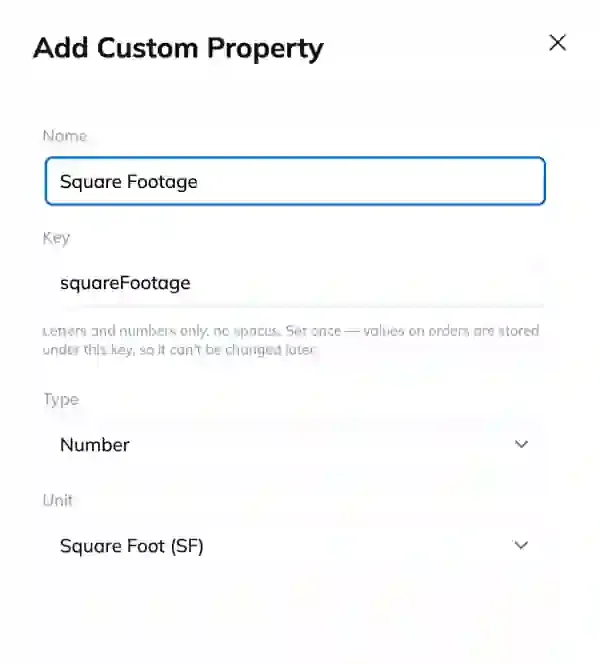
The Types
Number. A figure, optionally with a unit. This is the type a dashboard can total.
Text. Free text.
Yes / No.
Single select. One choice from a list you define.
Multi select. Any number of choices from that list.
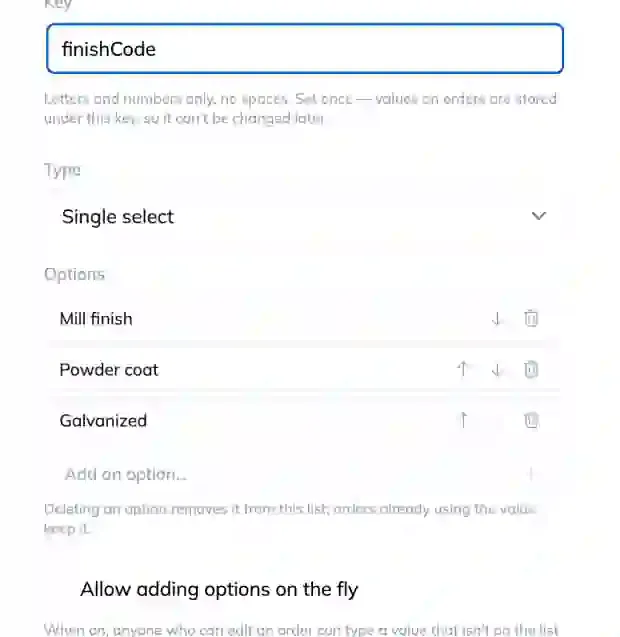
Set Up the Options on a Select
The two select types carry a list of options.
Use Add an option for each choice.
Move up and Move down set the order people see them in, so put the common ones first.
Turn on Allow adding options on the fly if people should be able to enter a value that is not on the list yet. What they type is added to the list for everyone.
An option cannot be renamed
The option text is the value stored on the order, so there is no rename. To change the wording, add the new option, move the orders across, then delete the old one. Deleting an option does not wipe values already saved on orders, it just takes it off the list for new ones.
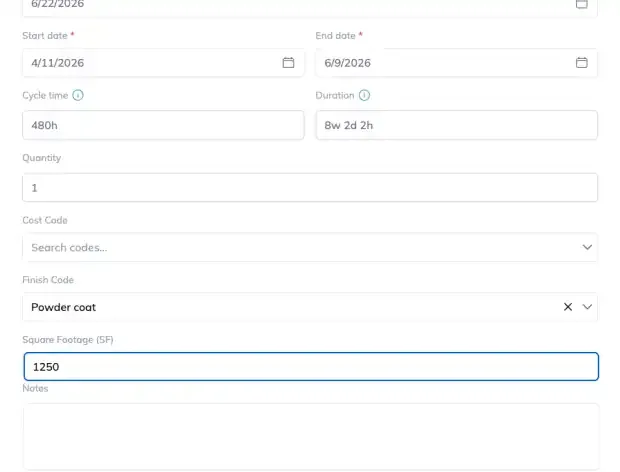
Fill In a Value on an Order
Open the order and your properties appear as fields alongside the built-in ones. Fill them in and save the order as normal.
Archive One You No Longer Use
On the property, choose Archive custom property.
It stops appearing on orders, and drops off imports and exports.
Values already stored on orders are kept. Archiving hides the field, it does not erase your history.
Archived properties stay listed with the date they were archived, and archiving frees the name for reuse.
Tips
Custom properties are on orders. Other record types do not carry them yet.
On an export each one arrives as its own column, named Property: followed by the property name, for example "Property: Square Footage". The same columns import, so you can fill a property in for hundreds of orders in the sheet and bring it straight back.
Use Number for anything you will want to add up. Text will not total.
Settle the options list before people start using a select, and leave Allow adding options on the fly off where the list needs to stay tidy. It is the difference between four finish codes and forty spellings of the same four.
FAQ
Can I rename a property?
Yes. The name is a label and you can change it whenever you like. Individual options on a select are the exception, those cannot be renamed.
What happens to my data when I archive a property?
It is kept. The field stops appearing on orders and stops getting an import or export column, but the values stay on the orders that had them.
Why is my property missing from the export?
Archived properties get no column. Check that it is still active.
Can I total a custom property?
Number properties can be summed on a dashboard. The other types cannot.
Conclusion
Add the fields your shop actually tracks, use Number for anything you want to total, and archive rather than delete when something falls out of use.
Was this helpful?
Still need help? Ask the team