Availability
Record time off and extra hours for one person or a whole team, and see it before you plan around them.
Last updated 1 day ago
Introduction
The Availability tab records the days somebody’s hours are not their normal hours. That runs both ways.
Time off: they are away for a day, part of one, or a stretch of them.
Extra hours: they are working longer than usual, and those hours become the day.
Both are the same kind of record, made the same way. Once one is in, it shows up beside that person’s name on the Build board and on the Planning timeline, so you find out before you plan around them rather than when they do not turn up.
It is per person, and that is what separates it from a department holiday. A holiday closes the whole department, or shortens its day for everyone in it. A record here is one person, or a named group of them.
Not seeing this tab? Reach out to your company admin to update your permissions. See the Roles guide.
Step-by-Step Guide
Record a Schedule Change
Go to Rules Engine, open Departments, and pick the Availability tab. It sits next to Holidays.
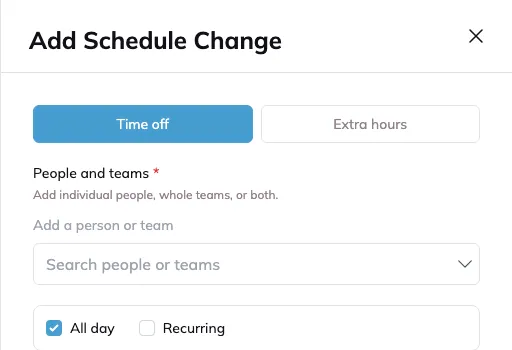
Click Add schedule change.
Choose the Record type: Time off or Extra hours.
Under People and teams, add who it covers. You can pick a team instead of a person, or several at once, which saves doing them one at a time when a whole crew is affected.
Set the days. All day is already ticked, so time off takes a First day and a Last day and a whole week is one record rather than five. Extra hours take the same pair.
For part of a day, clear All day. The record narrows to a single Date and asks for a Start time and an End time. Extra hours always ask Works from and Works until.
Pick a Reason. The list follows the record type, below.
Add a Manager note if you need to. It is optional, and it is visible only to managers who can edit Timesheets or Departments, so it is the right place for detail you would not put on a shared calendar.
Click Create.
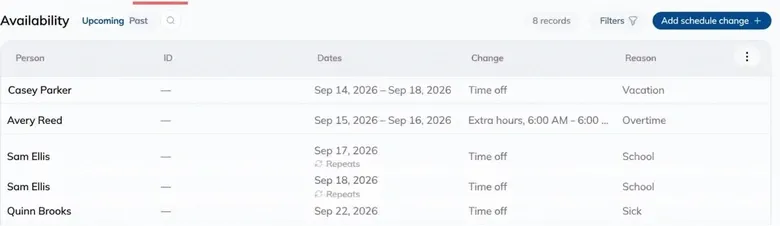
The tab lists what you have recorded under Upcoming and Past, with the person, their ID, the dates, what the change does and the reason. Search by name, or filter by reason and date range. A record that repeats carries a Repeats mark under its dates.
The Reasons
Each record type has its own list.
Time off: Vacation, Sick, School, Other.
Extra hours: Overtime, Coverage, Other.
Extra hours replace the day, they do not add to it
The hours on an extra hours record become that person’s hours for that day. A ten-hour Friday is one record from Works from to Works until, not two hours bolted onto a normal shift. A shorter span shortens the day the same way, and an end time before the start time is an overnight day.
Their breaks come along. Somebody whose regular day is 08:00 to 16:00 with a half hour for lunch still gets that half hour on a 06:00 to 16:00 day, so the day counts as nine and a half hours worked rather than ten.
Working a Saturday, or Any Day Off the Rota
Extra hours land on the days somebody already works. A day nobody normally works has to be said out loud: tick Include days they do not normally work and a Saturday becomes a working Saturday.
Leave it clear and a record that happens to span a weekend leaves the weekend alone, which is what you want when you are changing a week around a holiday.
Repeat It Every Week
For something standing, like a college day every Thursday or a regular Saturday shift, tick Recurring while you are adding the record.
Tick Recurring.
Under Repeats on, pick the weekdays it applies to, Mon through Sun.
Give it a Starts and an Ends date. The drawer tells you how many occurrences it will create per person before you save.
Set the type and the repeat when you create it
Record type and Recurring are only offered while you are adding a record. Editing an existing one does not let you change what it does or turn it into a repeat, so archive it and add it again. A repeating window also cannot span more than 366 days.
Change One Day, or the Whole Series
Open a record to change its hours, reason or note. A record that repeats asks how far the change should reach before it saves.
This occurrence: only the day you opened.
This and following occurrences: that day and every later one.
All occurrences: the whole series, however many days that is.
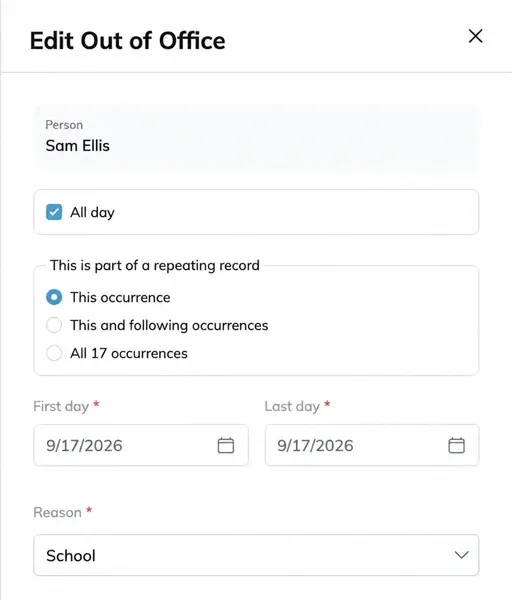
Archive removes a record, and it follows the same choice. Use it when somebody comes back early or the overtime is cancelled. Moving a standing Wednesday off school no longer means opening twenty-six records.
The dates are the one thing a series edit cannot move
Every occurrence keeps its own day, so there is no single date an edit across the series could show, and the date fields go away as soon as you pick anything past This occurrence. To move the days themselves, edit one occurrence, or archive the repeating record and record it again.
Where It Shows Up
Recording it is only half the point. It has to be visible to whoever is planning the day.
On the Build Board
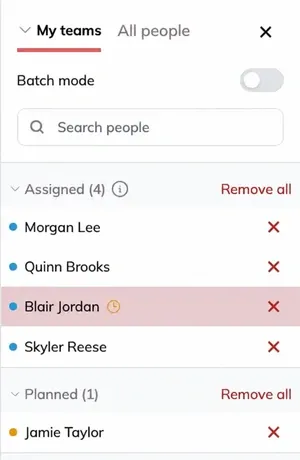
Anyone whose hours are not normal today carries a small yellow clock beside their name, on the Build cards and in the assign panel. Hover it for the reason, the window, and how many hours of their day it changes. It is deliberately an icon rather than a label, because those lists get dense. See Build.
On the Planning Timeline
A person’s row on the People timeline is marked across the days their hours change, whichever way it moves the day: their own time off, a longer or shorter day of their own, and their department’s closures and shortened days. Hover a mark for the reason, or click it to pin the reason open.
A full day off is a solid tint. A partial day is the same colour at a lighter weight, so you can tell a whole day away from a couple of hours at a glance. Days somebody was never scheduled for are not marked, and weekends already read as weekends across the whole timeline.
On Timesheets
Check-ins show it too, so a day somebody was away reads correctly when you are reviewing hours instead of looking like a missed punch. A longer day expects longer hours, so somebody who works eight of a ten-hour day reads as short rather than as done. See Timesheets.
You can also record a change from here. Open a person’s check-in day on Timesheets and add or edit it with the person and the date already filled in, which is quicker when you are reconciling hours and spot a day that should not be empty.
It tells you, it does not stop you
A schedule change is information, not a lock. Assigning somebody who is marked away still works, because sometimes they come in anyway and the schedule has to reflect what really happened. The icon is there so it is a decision rather than a surprise.
When more than one thing applies to a day
A person’s own record wins over their department’s. Give somebody hours on a day their department is closed and they are on the schedule for those hours, which is exactly what covering a shutdown looks like. An absence then wins over everything, so a sick day still comes off a longer day.
That order decides the hours a day is measured against everywhere: the Build board, the Planning timeline, the timesheet and the payroll push.
Tips
Use a team for a shutdown or a push. One record against a team beats twenty against individuals, and it is far easier to undo.
Put it in as soon as you know. The value is in it being there before somebody plans tomorrow around a person whose hours have changed.
Part days are worth recording. A morning appointment changes the hours available that day, and the tooltip shows them, so it is not wasted detail.
Record a long week as one entry. A week of doubles is one record from 06:00 to 18:00 across the days it covers, not a record per day.
Record overtime rather than letting it turn up in the timesheet. A ten-hour day that was planned reads differently from one that just happened.
Archive rather than leave it. When somebody returns early, archiving keeps the board honest.
FAQ
How is this different from Holidays?
Holidays close or shorten the day for a whole department. A record here is one person or a named group. Both live on the Departments page, on tabs next to each other.
Do extra hours add to somebody’s normal day?
No. They replace it. The hours you enter become that person’s hours for the day, and their usual breaks carry over onto them.
Somebody has extra hours on a day their department is closed. Which wins?
Their own record. They are on the schedule for the hours you gave them. Covering a closure is one of the reasons the record exists.
Can I change one day of a repeating record?
Yes. Open that day and pick This occurrence. You can also take it and every later day, or the whole series. The one exception is the dates, which each occurrence keeps for itself.
Can I change a record from time off to extra hours?
No. Record type is set when the record is created. Archive it and add a new one.
Can I make an existing record repeat weekly?
No, for the same reason. Archive it and add a new recurring one.
My record skipped the weekend.
That is the default. Tick Include days they do not normally work to cover days off the rota.
It says the person already has a record.
They have one covering some of the same dates, and the message tells you which window. Edit the existing record rather than adding a second over the top.
I cannot record it for somebody.
A schedule change can only be recorded for an active person. If they have been archived, restore them first.
Conclusion
Record it on the Availability tab under Departments, pick Time off or Extra hours, use a team when a group is affected, and trust the clock icon on Build to keep you from planning around hours that have changed.
Need help? Hit the chat button or click "Ask" in the app. You can also reach us at support@buildingswell.com.
Was this helpful?
Still need help? Ask the team