Overhead
Set up overhead tasks so time not tied to an order still gets logged somewhere.
Last updated 25 days ago
Introduction
You can use Overhead tasks in Building Swell to manage and categorize time spent on work not directly relating to project orders, such as R&D, clean-up, maintenance, etc.
Step-by-Step Guide
Managing Overhead
Head to the Overhead page under the Rules Engine section to create overhead tasks. Overhead is the page where you can manage all the Overhead tasks for your team.

Create a category the first time you create an Overhead task.
- Click on the New Overhead + button in the top right-hand corner
- Select the Manage Categories button in the middle of the list
- Click on the Add new button to create a new category of the overhead tasks.
Once you've created the category, you will see it in the drop-down list.
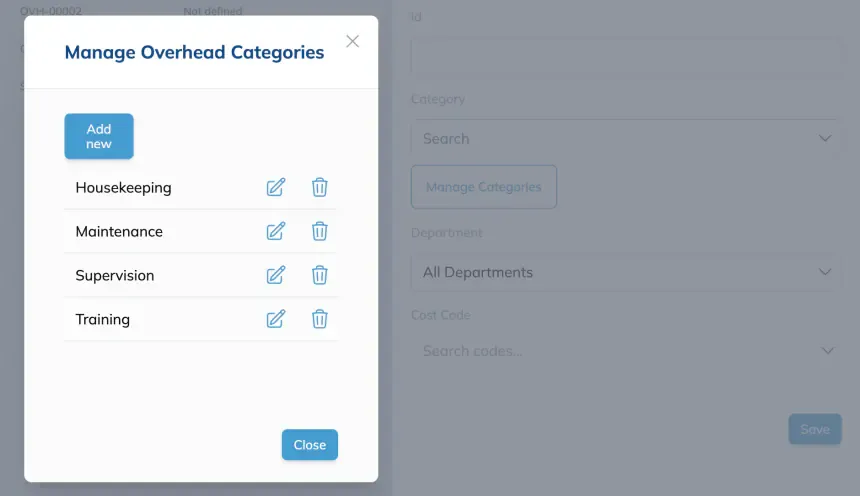
- Fill in the rest of the details of the Overhead task, including the Department and Cost Code. The ID, Department, and Cost Code fields are optional.
- Click Save to create the new Overhead task.
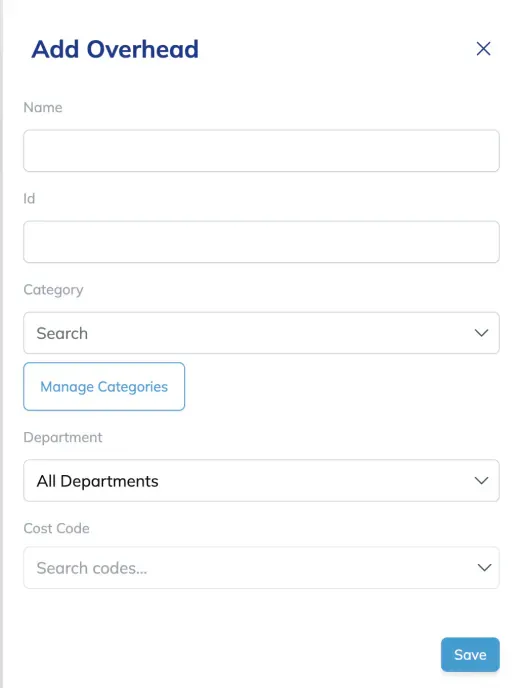
These overhead tasks are now available to be assigned to crew members.
Assigning Overhead
Once the Overhead tasks are created, you can assign crew members in Build.
In Build
Head to Build by clicking the hard hat icon at the bottom left corner. On a phone or tablet, tap the Build circle in the bottom navigation bar.
- Click the Overhead tab in the toolbar. On a phone or tablet, tap Controls and use Show to switch to Overhead.
- Select the overhead task, then add crew members as you would any order.
- Then click Save.
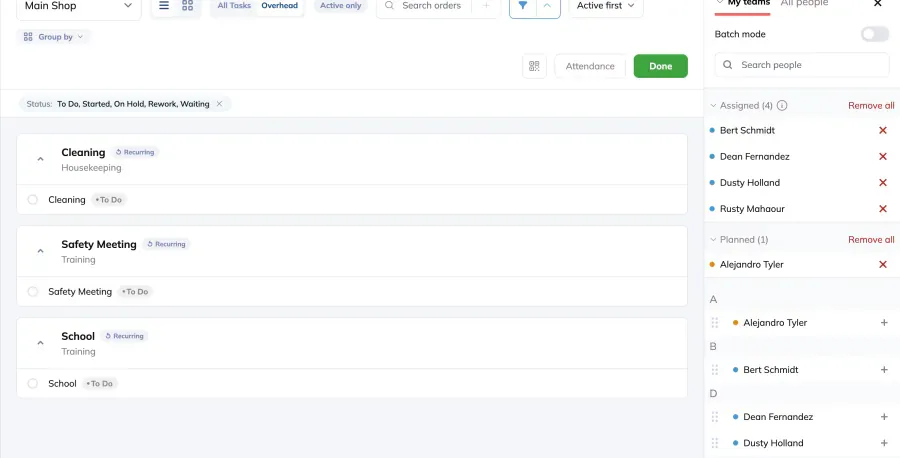
Once assigned, you can see the Overhead tasks being worked on.
Tips & Tricks
- Overhead tasks can be department-specific. During the creation of the Overhead task, the "All Departments" option is selected by default, but you can select a department to make it visible only to the team in that department.
-
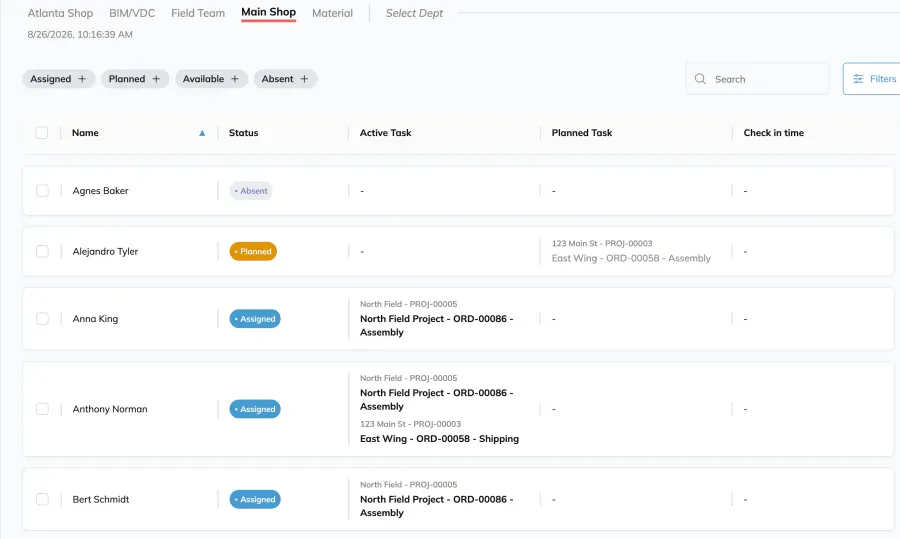
It's easy to differentiate crew members working on Overhead tasks vs Orders in the Active Task column in Staff Overview.
FAQ
Are the Overhead tasks included in the crew member's timesheet?
Yes, Overhead tasks are logged in the timesheet the same way the Orders are. You can see the Overhead tasks each crew member performed in the Timesheet page.
Who can manage the list of available Overhead tasks for the department?
The manager account role has special permission to access the Overhead page in Building Swell. If you don't see the Overhead page in the left-hand menu bar, please contact our support team via the in-app support button.
Have additional questions? Contact Us
Still need help? Ask the team