Build Plan
Plan your crews' week ahead of time.
Last updated About 2 hours ago
Introduction
Most foremen plan the week on a whiteboard: the shop's areas across the top, the days down the side, and magnets for the people and the jobs. Build Plan puts that board in Building Swell. Each work location in your department is a column, each day is a row, and you drop this week's orders where they'll be built.
The board also does the math. Every location adds up the hours its crew brings from their shifts and sets them against the man-hours of the work planned there, so you see the week doesn't fit before Monday, not on Thursday. When you save, the plan becomes the work each person picks up when they check in, and Build can show each crew only their own short list.
Before you start. Your work locations need to be set up in Settings → Locations, and your people need shifts in Departments. Stages need man-hours on their routes for the capacity numbers to mean anything. Not seeing Plan? Reach out to your company admin to update your permissions. See the Roles guide.
Video walkthrough
Watch Walkthrough for Daily Shop Management (2:34)
Step-by-Step Guide
1. Opening Build Plan
Open Build.
Click Plan in the toolbar.
Pick your department.
Pick the week with the arrows, or click Today to come back to this one.
The dropdown at the top of the page opens on Plan, the board. The same dropdown has Schedule change, Holidays, Shifts and Teams, so you can change hours and crews without leaving the plan.
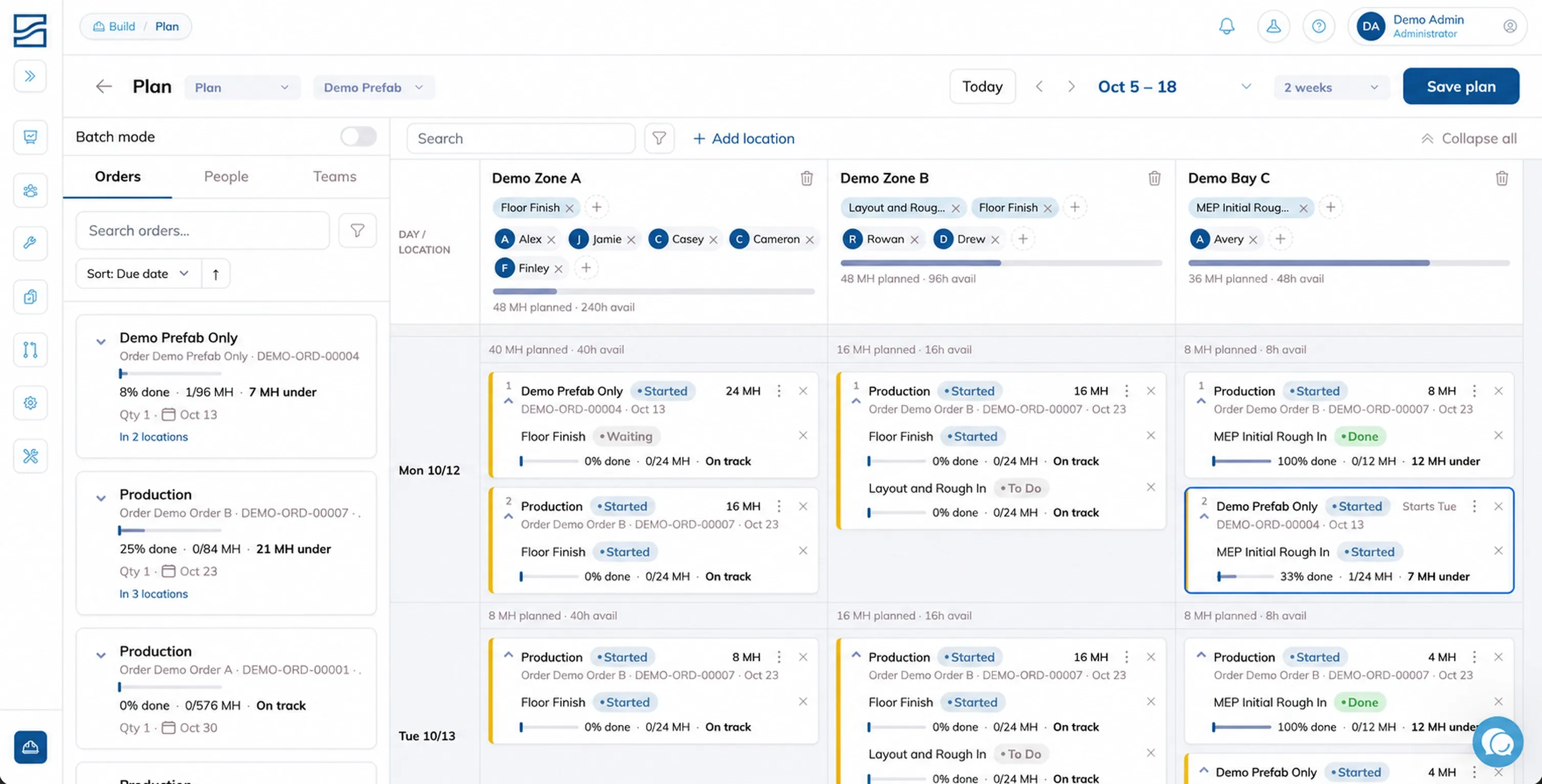
2. Adding Locations to the Board
With Plan selected in the dropdown, click Add location.
Search your department's work locations by name or code.
Pick one. It becomes a column on the board.
Only places where work gets done show up: work centers, zones, stations, bays, booths, cells and build bays. Storage, staging and yard locations don't. If the place you need isn't there yet, click New location in the same window to create it. It's saved to Settings → Locations like any other location. See Storage and Locations.
To take a location off the board, choose Remove from board in its column header. Its planned days from today on are cleared and its crew is released. The location itself stays in Settings.
3. Setting Up Each Location
A location needs the stages it handles and the people who work there.
In the column header, click the + next to the stages and pick the ones done there, like Cutting or Welding.
Click the + next to the crew and pick the people. You can also drag a person from the People list in the left panel onto the column.
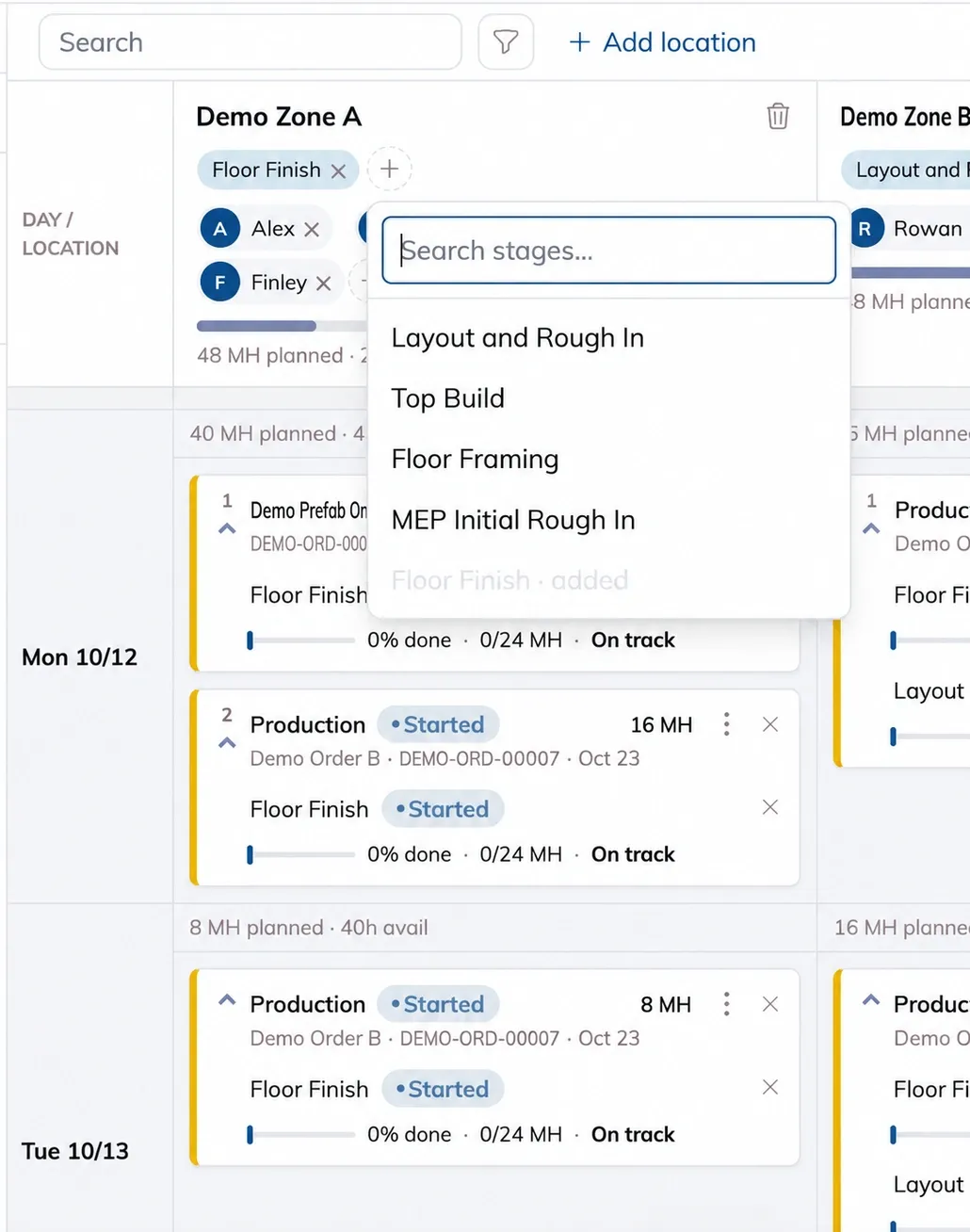
The capacity bar under the header updates as you go, with the crew's available hours against the man-hours planned. The stages you tag also show on the location's own page and in the route editor's Locations tab. A location with no stages tagged takes every stage.
One person, one location. Someone can only be crewed in one location at a time. Adding them to a new one takes them off the old one, and both columns' capacity updates.
4. Placing the Week's Work
The left panel lists your orders. Search by order or component name or ID, or by project, and sort by Due date, Name or Progress.
Drag an order onto a day in a location's column. Every stage that location handles is placed, shown as one card.
To place a single stage, expand the order and drag just that stage.
Drag cards up or down within a day to set what comes first.
On a phone, tap Place on an order or stage, then tap the cell where it goes.
Work that needs more hours than the crew has left that day continues into the next days, and whatever doesn't fit by the end of the week carries into the next one. The card shows how much, for example "40 MH carries into next week".
The board warns, it doesn't block. If a day is already full, or the same stage is planned in two locations on one day, the board flags it and leaves the work where you put it. You decide whether to move the work or add people.
5. Checking the Warnings
The banner above the board sums up where the plan doesn't add up. Click Show to open it.
Over capacity. A location has more man-hours planned on a day than its crew has. That day turns red.
Behind schedule. Work planned for a day that has already passed is still open.
Past due date. The plan finishes the work after its due date.
Out of sequence. A stage is planned ahead of an earlier stage on its route.
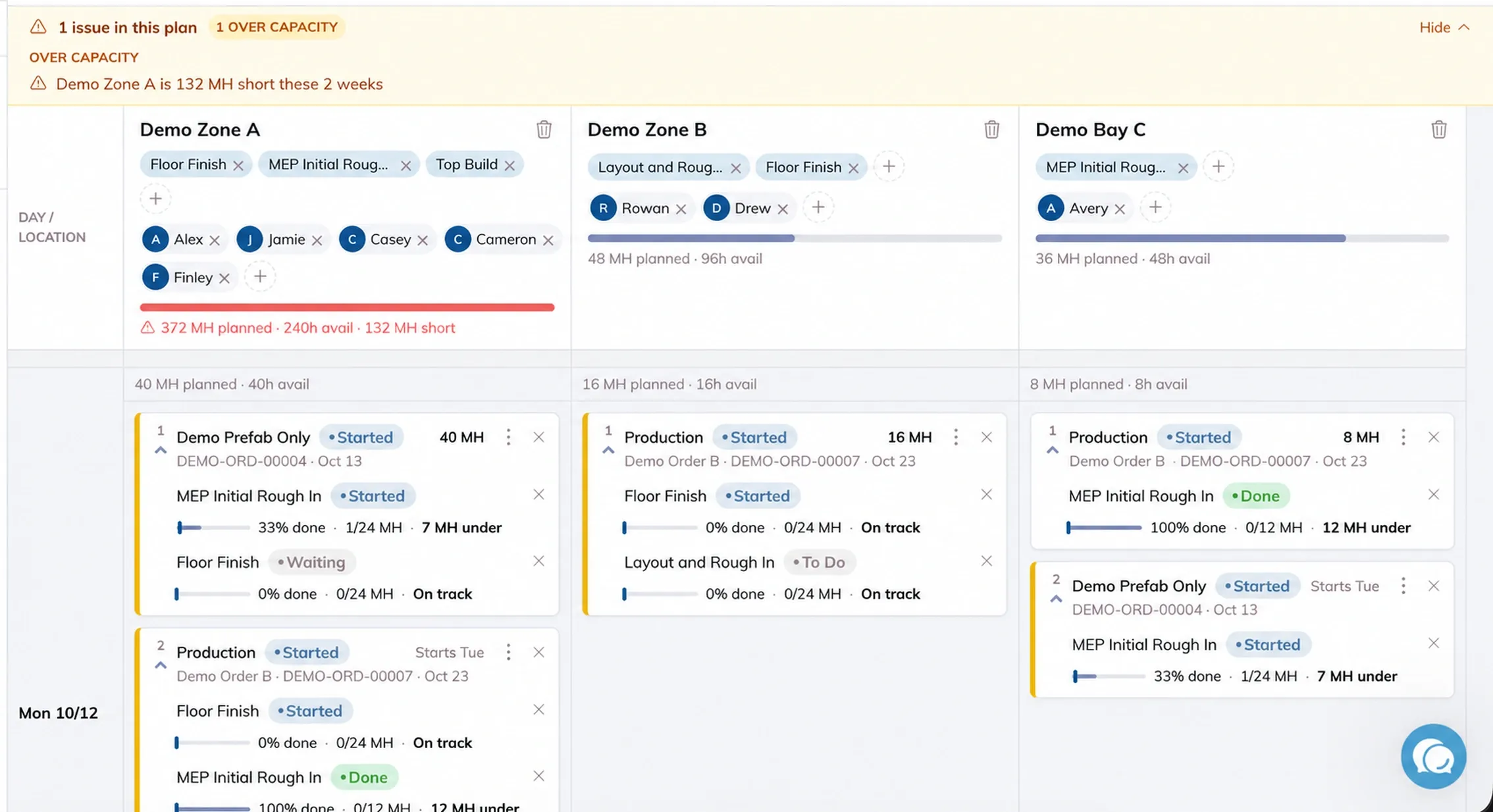
Holidays count too. A day the department is closed shows Closed and won't take work. A short day shows Short day and counts only the hours worked. Hover either one to see the holiday's name.
6. Adjusting Shifts and Teams
When the plan needs more hours than the crew has, the fix is usually a shift change or overtime for a few people.
In the dropdown at the top, pick Shifts.
Drag people from one shift to another, or click Add shift to make a new one.
To change the department's hours for a day or a holiday, pick Schedule change or Holidays in the same dropdown. They work the same as in Departments.
Pick Teams in the dropdown to drag people between teams or click Add team. These are your real teams, so a change here shows everywhere teams appear. See Planning Shop Teams.
7. Planning a Batch
When several orders get built together as one run, plan them as a batch.
Click Create batch.
Tick the orders or stages that go together, on the board or in the left panel.
Search for the location and pick it.
The work lands there as one batch, marked with the batch icon, and the crew starts it together.
8. Saving the Plan
Click Save plan.
Each person in a crew gets their first unfinished task for today, or the whole batch if that task is part of one. The rest of their work is queued in plan order. When they check in at Attendance, they pick up what's planned for them instead of hunting through the whole shop's backlog.
The floor gets the plan when you save. Everything you place or move stays on the board as you go, but people's assignments only change when you click Save plan.
9. Using the Plan in Build
In Build, open the filters and choose Plan.
Pick a location and apply it.
Build shows only the work planned for that location this week, sorted by Plan priority: by day, then by order within the day. Clear the filter to see the whole backlog again.
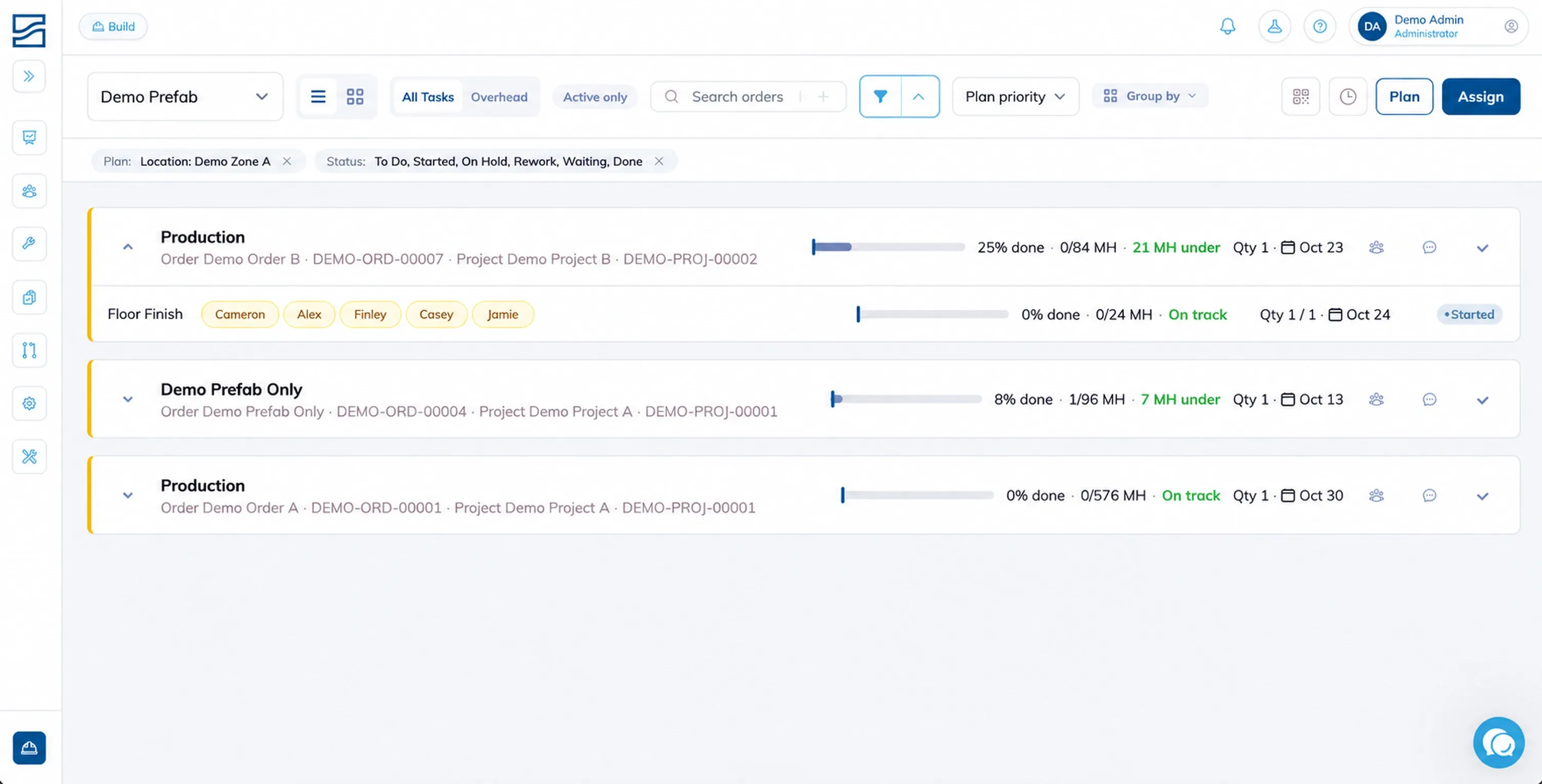
If you assign someone in Build to work that isn't in their plan, Build asks whether to add it. If the stage belongs to another location, it offers to move the person there, or you can choose Just for now to treat it as a loan for the day.
10. Changing the Plan Mid-Week
Move work by dragging a card to another day or location.
Remove work with Remove from location on the card. For work that spans several days, choose Only that day, and its hours move to the next day, or Every day.
Unfinished work comes forward. Work from a past day that isn't done shows on today, marked Pushed from the day it was planned. Take it off today and it comes back the next working day if it's still not done, or choose Off the plan.
Update progress or open the comments from the card's menu, with Check to update or Comments.
Click a card to open its order. Hold Cmd or Ctrl while you click to open it in a new tab.
11. Where the Plan Shows Up
Every screen that shows where a stage is planned reads the same answer as the board.
On the order, the Stage locations tab lists each stage's days on the board, for example Welding Bay A Monday to Wednesday and Welding Bay B from Thursday, with a link to that week on the board.
On the location's page, the Foreman tab shows Planned here today: the work in plan order, and the crew.
At check-in, the stage's planned location is recorded as where the work happened, with no move or scan needed. Scanning a location's QR code still records that location.
Changing a stage's location on the order moves its days on the board from today on. You're asked to confirm first, and the message names the days that move.
Tips
Set up the locations once. Tag each location's stages and crew, and every week after that is just dropping orders in.
Fix capacity with people first. If a location is red, try adding someone or moving a shift before you move work. The card length shows the effect straight away.
Watch the carry-over line. "MH carries into next week" is what next week already owes.
Plan with your team in the room. Use Comments on a card to record why something moved or who asked for more people.
FAQ
Is a location on the board the same as the one in Settings?
Yes. The board plans into your department's real locations, so the order, the route and the location's own page all show the same plan. A location you create from the board shows up in Settings → Locations too.
Why is a day red?
The work planned there needs more hours than the location's crew has that day. Add people, move a shift, or drag some of the work to another day.
What happens to work that isn't done by the end of the week?
It comes forward as Pushed from the day it was planned, so nothing drops off the plan unless you take it off.
Can someone work in two locations?
Not in the plan. A person is crewed in one location at a time. If you lend someone to another area in Build for a few hours, choose Just for now and the plan stays as it is.
Conclusion
Build Plan gives your foremen the whiteboard they already use, with the hours checked for them, and turns it into each crew's short list the moment people check in.
Have additional questions? Contact Us
Was this helpful?
Still need help? Ask the team