Company & People

Roles

Control what each person can see and do, using Admin or a custom role built from read, create, update, and delete permissions.

Last updated 16 days ago

Introduction

In Building Swell, every user belongs to an organization and is assigned a role. Roles control what users can see and do across the product. This guide explains role types, how permissions work, how to manage roles, and common permission setups by team type.

Video walkthrough (1 min 20 sec): how to open Roles in Settings, create a role, edit its permissions, and delete a role.

Step-by-Step Guide

Navigating to Roles

  1. Go to the Settings tab.

  2. Click on the Roles tab.

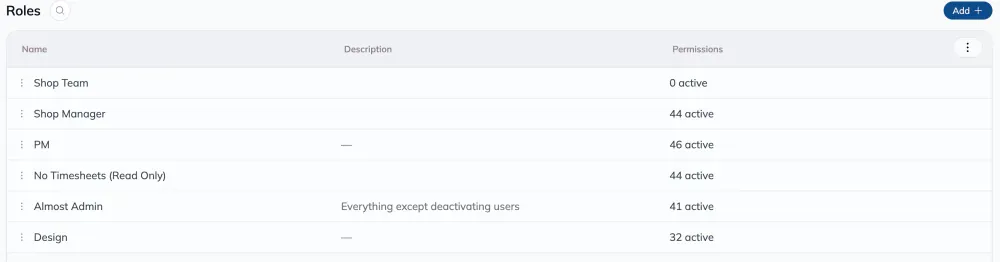
The Roles page under Settings, listing roles such as Shop Team, Shop Manager, PM, No Timesheets (Read Only), Almost Admin and Design, with a Description column and a count of active permissions for each, plus an Add button.

Creating a New Role

  1. Click the 'Add' button at the top right corner of the screen.

  2. Enter a 'Name' and 'Description' for the new role.

  3. Adjust permissions as required. For instance, you can provide read-only access for a particular module or allow full access.

  4. Save your settings.

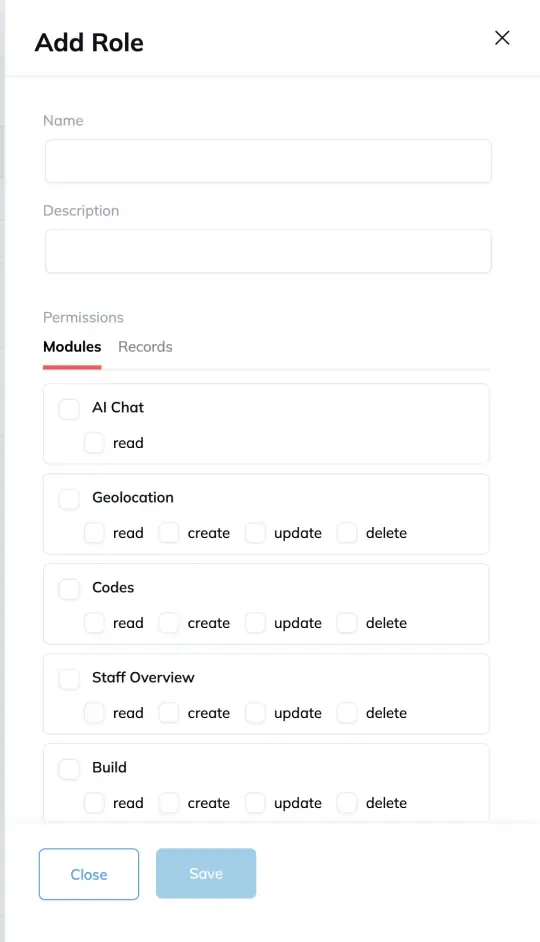
The Add Role drawer, with Name and Description fields above a Permissions section split into Modules and Records tabs, each module offering read, create, update and delete checkboxes.

Editing an Existing Role

  1. Find the role you wish to edit and click the 'Edit' button.

  2. Modify permissions as needed.

  3. Click 'Save'.

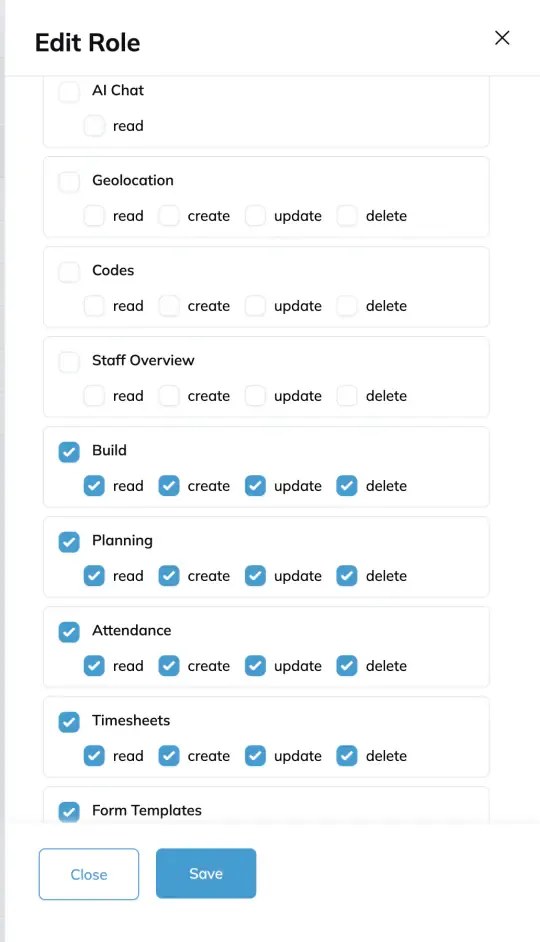
The Edit Role drawer for the Shop Manager role, with the Modules permission list showing Build ticked for read, create, update and delete.

Deleting a Role

  1. Locate the role you wish to delete.

  2. Click the archive bin icon.

  3. Confirm the deletion.

How Permissions Work

Every user is assigned a role: either Admin or a Custom Role.

  • Admin: Full access to everything in the organization. No permission restrictions apply.

  • Custom Role: Access is defined by a specific set of permissions granted to that role.

Permissions come in four types:

  • Read: View-only access to a module or feature.

  • Create: Ability to add new records or entries.

  • Update: Ability to modify existing records or entries.

  • Delete: Ability to remove records or entries.

When editing a custom role, you'll see checkboxes next to each permission for Read, Create, Update, and Delete. Simply check or uncheck the boxes to control what users on that role can do.

Important: Removing Read access from a module will hide that entire section of the product for users on that role. They won't see an error: the page or feature simply won't appear.

Permission Reference

The table below lists every permission module in Building Swell. For each module, the description explains what users can see and do when that permission is enabled.

Module Description

Staff Overview

Access the Staff Overview page, which shows team members and their assignments. Without Read access, this page is hidden.

Build Planning

Access the Build Planning tools for scheduling and coordinating production work. Without Read access, Build Planning is hidden.

Attendance

Record and manage attendance for team members: marking them as present, absent, or on leave. Without Read access, Attendance is hidden.

Time Sheets

Access the Time Sheets report showing time entries, build order time, and overhead time across the organization. With Update access, users can correct or modify time entries. Without Read access, Time Sheets is hidden.

Form Templates

Access the form template library where QC checklists and inspection forms are built and managed. This is the configuration side: creating and editing the templates themselves. Without Read access, Form Templates is hidden.

Form Entries

View and complete form entries (e.g. QC inspections) on actual production orders. With Create/Update access, users can fill out and submit inspection forms on orders. Without Read access, the form entries section on orders is hidden.

Orders

Access the Orders list, showing all open orders, their status, project assignment, and details. With Create/Update access, users can create, edit, and reschedule orders. With Read access, users can also open individual order detail pages to view stage steps, assigned team members, and route information. Without Read access, the Orders list is hidden entirely.

Documents

View and manage documents (attachments, drawings, photos) attached to orders. With Create/Update access, users can upload, replace, and delete files. This permission is also required for uploading photos anywhere in the app, including within QC forms. Without Read access, the Documents tab on orders is hidden.

Discussion

Access the Discussion/Comments panel on an order. Users can view and post messages in the order's comment thread. Without Read access, the Discussion button on orders is hidden.

Routes

View and manage Build Routes: the sequences of stages that define how orders flow through the shop. Without Read access, Routes is hidden.

Projects

View and manage project records. Without Read access, Projects is hidden.

Overhead

View and manage Overhead items: non-production work categories such as training, meetings, and downtime. Without Read access, Overhead is hidden.

People

View and manage people records, including their attributes, shifts, and dynamic values. Without Read access, People is hidden.

Teams

View and manage teams, including team membership, shifts, and assignments. Without Read access, Teams is hidden.

Departments

View and manage department records and their organizational structure. Without Read access, Departments is hidden.

Stages

View and manage production stages and their parameters and route associations. Without Read access, Stages is hidden.

Template

View and manage templates used across the system. Without Read access, Templates is hidden.

Phases

View and manage production phases. Without Read access, Phases is hidden.

Users

View and manage all users in the organization's Settings. With Create/Update access, users can invite new users and modify user details. Without Read access, the Users list in Settings is hidden.

Roles

View and manage custom roles and their permission assignments. With Create/Update access, users can create, modify, and delete roles. Without Read access, the Roles section in Settings is hidden. Treat Update access on Roles as administrator-level access. A user with this permission can change role permissions, including their own role, and grant permissions they do not currently have. Give it only to trusted administrators.

Recommended Role Setups

The following are suggested starting points for common role types. Adjust as needed for your organization.

A ✅ means the box should be checked; a ➖ means leave it unchecked.

Shop Floor Team

Module Read Create Update Delete

Orders

✅

➖

➖

➖

Documents

✅

✅

➖

➖

Form Entries

✅

✅

✅

➖

Discussion

✅

✅

➖

➖

Attendance

✅

➖

➖

➖

QC Inspector

Module Read Create Update Delete

Orders

✅

➖

➖

➖

Documents

✅

✅

✅

➖

Form Entries

✅

✅

✅

➖

Form Templates

✅

➖

➖

➖

Discussion

✅

✅

➖

➖

Team Lead / Supervisor

Module Read Create Update Delete

Orders

✅

➖

✅

➖

Documents

✅

✅

✅

➖

Form Entries

✅

✅

✅

➖

Discussion

✅

✅

✅

➖

Attendance

✅

✅

✅

➖

Staff Overview

✅

➖

➖

➖

Stages

✅

➖

➖

➖

Teams

✅

➖

➖

➖

Production Manager

Module Read Create Update Delete

Orders

✅

✅

✅

✅

Documents

✅

✅

✅

✅

Form Entries

✅

✅

✅

✅

Form Templates

✅

✅

✅

➖

Discussion

✅

✅

✅

✅

Build Planning

✅

✅

✅

➖

Attendance

✅

✅

✅

➖

Time Sheets

✅

➖

✅

➖

Staff Overview

✅

➖

➖

➖

Routes

✅

➖

➖

➖

Projects

✅

➖

➖

➖

Stages

✅

➖

➖

➖

Teams

✅

➖

➖

➖

People

✅

➖

➖

➖

Planner / Scheduler

Module Read Create Update Delete

Orders

✅

✅

✅

➖

Build Planning

✅

✅

✅

➖

Projects

✅

✅

✅

➖

Routes

✅

✅

✅

➖

Stages

✅

✅

✅

➖

Phases

✅

➖

➖

➖

Time Sheets

✅

➖

➖

➖

Staff Overview

✅

➖

➖

➖

IT / Operations Admin

Module Read Create Update Delete

Users

✅

✅

✅

✅

Roles

✅

✅

✅

✅

People

✅

✅

✅

✅

Teams

✅

✅

✅

✅

Departments

✅

✅

✅

✅

Routes

✅

✅

✅

✅

Stages

✅

✅

✅

✅

Overhead

✅

✅

✅

✅

Template

✅

✅

✅

✅

Phases

✅

✅

✅

✅

Projects

✅

✅

✅

✅

Granular Permissions

The above permissions are a good starting point, but sometimes teams need to go even more granular. Maybe only the PM should edit the order due date. Maybe a Designer should edit the Design phase and only read everything else. Granular permissions let you scope a role down to specific properties or specific phases, so each team stays focused on the work they own.

Locking due dates

To make a due date editable by only one role (e.g., the order due date only by the PM), restrict every other role from editing it.

For roles that need to modify the due date:

  1. Go to Settings → Roles.

  2. Click on the ellipsis in the role and select “Edit.”

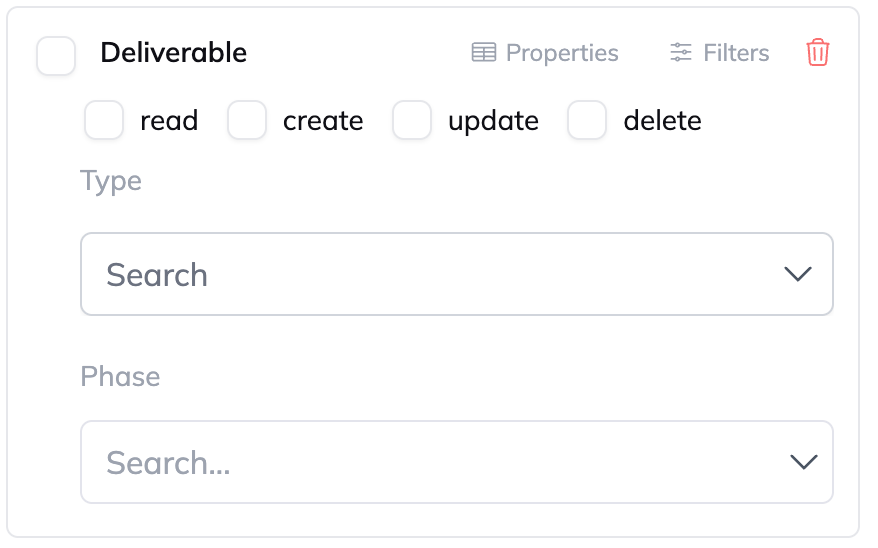
  3. Make sure that the Deliverable: Orders card looks like this, with any extra property permissions enabled.
A Deliverable permission card with read, create, update and delete all ticked, Type set to Orders, and a dot on the Filters button showing a filter is active - how the card should look for a role that is allowed to edit the due date.

Preventing other roles from editing the due date:

  1. Go to Settings → Roles.

  2. Click on the ellipsis in the role and select “Edit.”

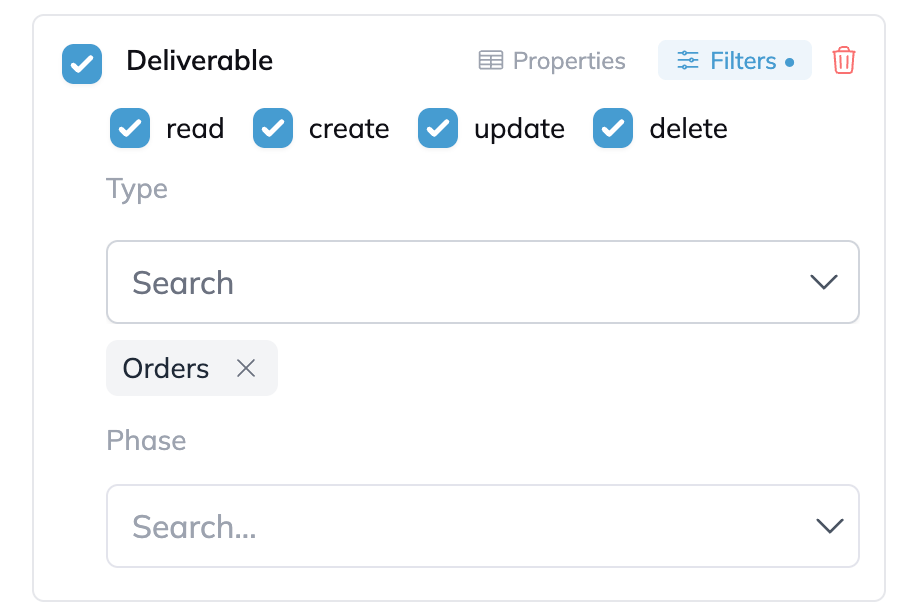
  3. Go to the Records tab and scroll down until you find the “Deliverable: Orders” card.
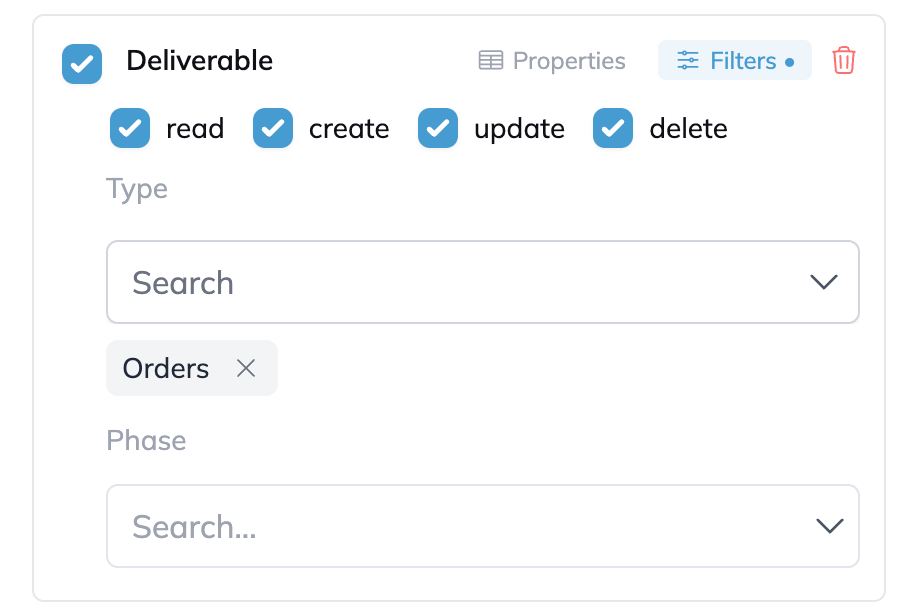
The Deliverable: Orders permission card as it appears in the Records tab, with read, create, update and delete ticked and Type set to Orders. This is the card to open when locking the due date for other roles.
  1. Click Properties, and click on “+ Add property.”
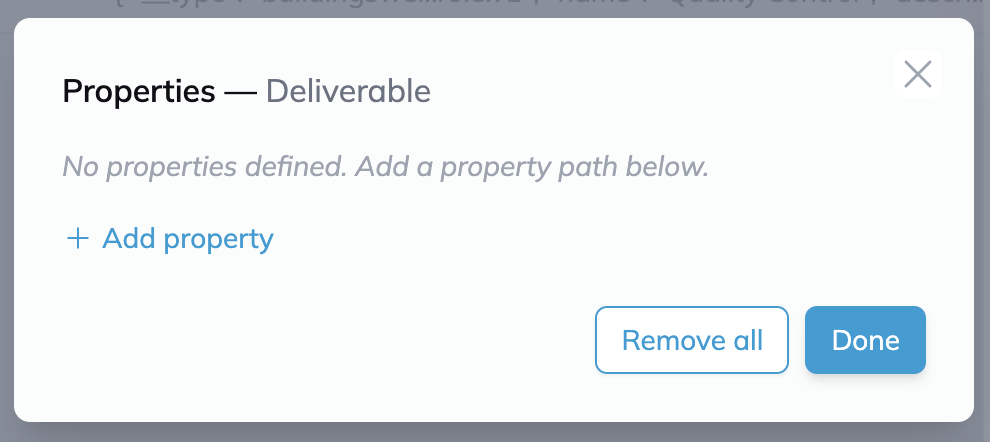
The Properties dialog for the Deliverable card, reading “No properties defined. Add a property path below”, with an Add property link and Remove all and Done buttons.
  1. Type data.dueDate, check the Read box, and click Done.
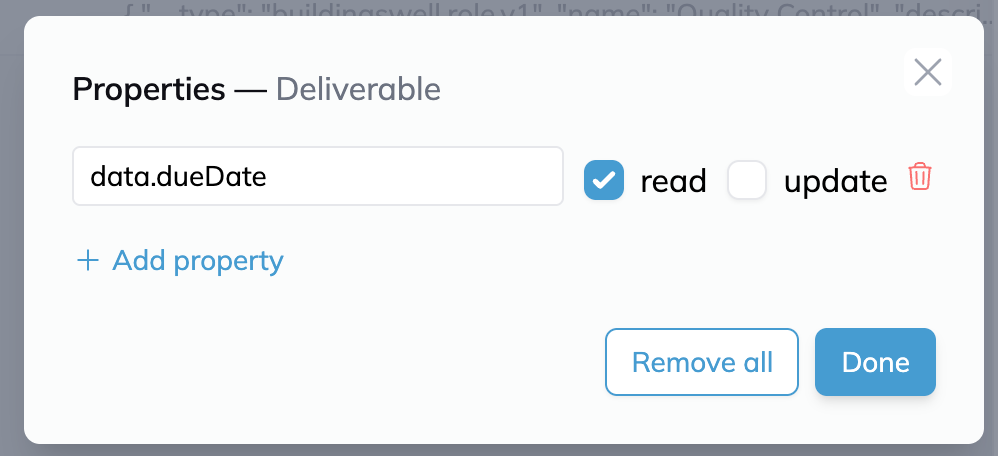
The Properties dialog with the property path data.dueDate entered, the read box ticked and update left unticked, above the Remove all and Done buttons.
  1. The card will show the Properties with a dot to indicate that you have a property permission active.
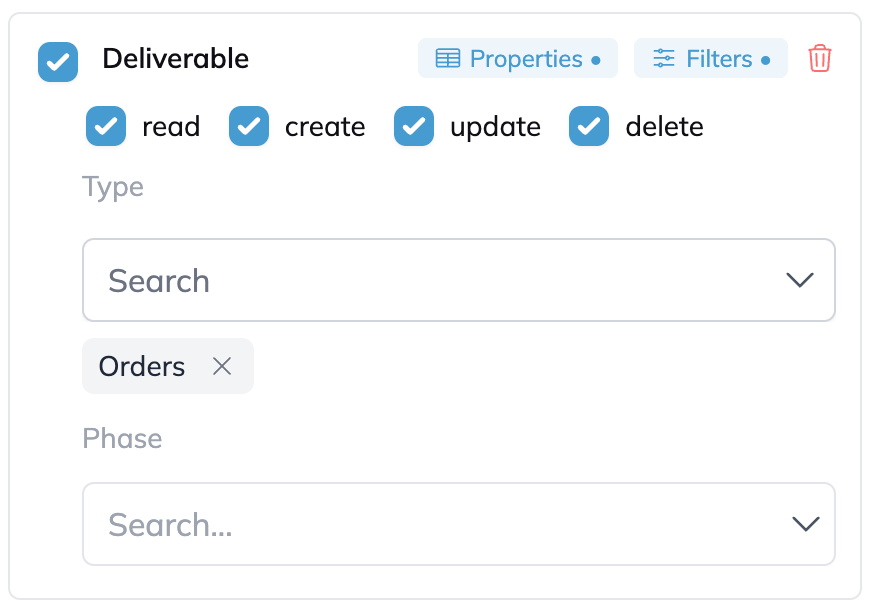
The Deliverable card after the property is saved, with a dot beside the Properties button indicating a property permission is now active.

Locking other phases

To let a role see every phase but update only its own, give it two things: read access to all orders, and update access on the phases it owns. For example, a BIM team that updates BIM but only reads Detailing and Production.

Permissions only add access. A role can do anything any one of its entries allows. A read-only entry never takes access away. If any entry gives Update on all orders, the role can update every phase. Start with Update off, then add it back for the role's own phases only.

Video walkthrough (1 min 49 sec): build a role that sees every phase and updates only its own, test it, and duplicate it for the next team.

1. Turn off Update for all orders

  1. Go to Settings → Roles.

  2. Click the ellipsis on the role and select Edit.

  3. On the Modules tab, uncheck Update on Orders and on Planning. Leave Read checked so the role still sees every order.
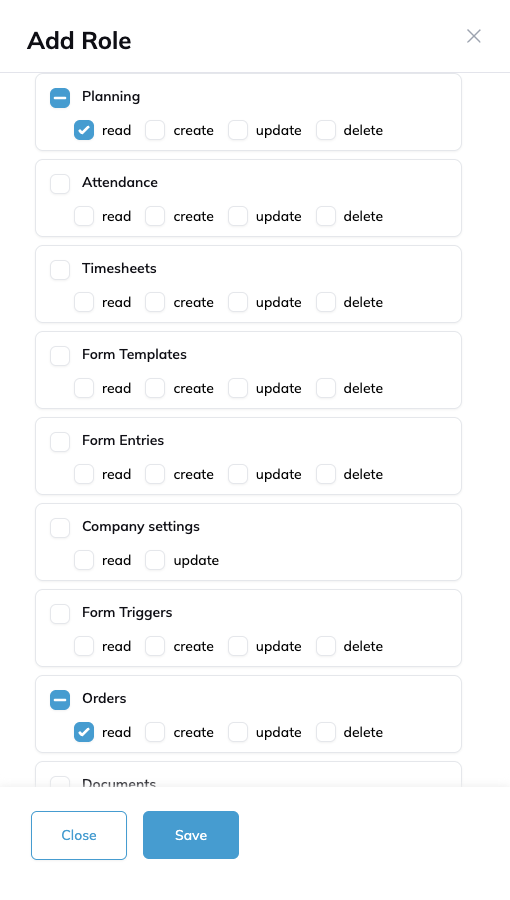
The Modules tab of a role, with Planning and Orders set to read only and update left unchecked on both.

2. Add Update for the role's own phases

  1. Go to the Records tab and scroll to the bottom. Click + Add section.

  2. Select Deliverable.

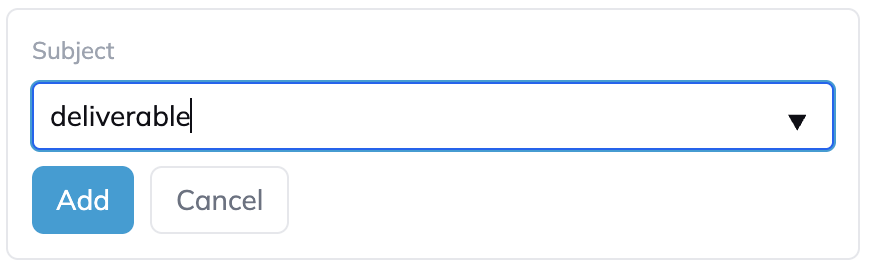
The Add section control, with Subject set to deliverable and Add and Cancel buttons beneath it.
  1. You'll get a card like this.

A newly added Deliverable card with read, create, update and delete all unticked and the Type and Phase pickers still empty.
  1. Set Type to Orders and check only Update.

  2. In Phase, select the phases this role owns, for example BIM. The Records tab now shows two Deliverable cards: the Orders card with Read and no phase, which keeps every phase visible, and the new card with Update on BIM only.
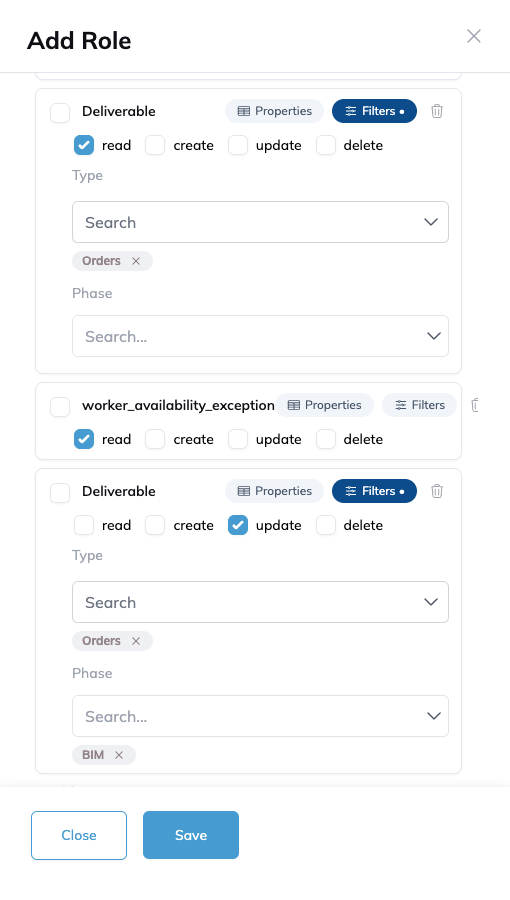
The Records tab with two Deliverable cards: one with read and Type set to Orders, and one with only update checked, Type set to Orders and Phase set to BIM.
  1. Click Save.

3. Check it

Click the ellipsis on the role and select Test. Updating progress works on BIM and is refused on Detailing and Production with a Permission denied message.

Use Orders, not Phases. The Phases option under Type is for the phase templates in Settings, not the phases on your orders.

If you rename a phase template, update any role scoped to it. Phase scoping matches on the phase's name.

Frequently Asked Questions

  1. A user can't upload a photo in QC or on a form. What permission are they missing?

    They need Create access on the Documents module. Photo uploads route through the file upload endpoint, which requires this permission regardless of where in the app the upload is triggered.

  2. How can I make sure my team doesn't change due dates we've already committed to the field team?

    See the guide above for more information and a step-by-step walkthrough. Contact Us and we'd be happy to schedule a guided configuration session.

  3. A user can see a QC form but can't submit answers. What's missing?

    They need Create or Update access on the Form Entries module.

  4. A user can't see any orders at all. What's the minimum they need?

    At minimum, they need Read access on the Orders module. This will let them see the orders list and open individual order detail pages.

  5. Can a user with a custom role change their own permissions?

    Only if they have Update access on the Roles module. This permission should be treated with the same caution as admin access, since it can be used to self-escalate privileges.

  6. What's the difference between Form Templates and Form Entries?

    Form Templates is the configuration side: building and editing QC checklists and their questions. This is typically an admin task. Form Entries is the day-to-day usage: completing those forms on actual production orders. These are independent. A shop floor team member needs Form Entries permissions, not Form Templates permissions.

  7. How do I let a role see every phase but update only its own?

    Give the role Read on Orders, leave Update unchecked on the Orders and Planning modules, then add a Deliverable card with Type set to Orders, only Update checked, and the role's own phases picked. See Locking other phases above for the steps.


Have additional questions? Contact Us

Was this helpful?

Still need help? Ask the team