Storage and Locations
Find where stock is sitting, scan straight to a location, and know what moves a quantity.
Last updated About 1 month ago
Introduction
Storage answers the question the catalog cannot: where is it. Materials and Parts tells you what an item is and how much you have. Storage tells you which location it is sitting in.
It matters most when the same material is spread across a yard, a warehouse and a couple of staging areas, and somebody needs to know which pile to walk to.
Not seeing this page? Reach out to your company admin to update your permissions. See the Roles guide.
The Storage Screen
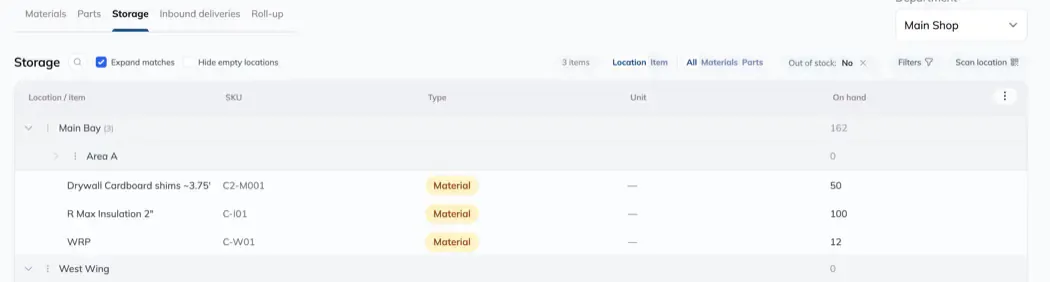
Open Inventory and pick Storage. The list groups by Location / item, so you read down a location and see what is in it, with the item, its type, its unit and the quantity on hand.
Stock that has not been put anywhere shows under Unassigned. A long Unassigned list usually means material is being received without a location, which is worth fixing at the source.
Scan Straight to a Location
Use Scan location and scan the code on a rack, bay or bin. The screen jumps to that location and shows what is in it, which is the point of the feature: you are standing in front of the shelf, not looking for it in a list.
If nothing matches you get No location matched that scan. Check the code belongs to a location rather than to an item or an order.
From any location, Location details opens the full page for it.
Locations themselves are set up under Settings, and they nest, so a warehouse can hold bays and a bay can hold racks. See the locations section of the Catalogs guide.
Location Details
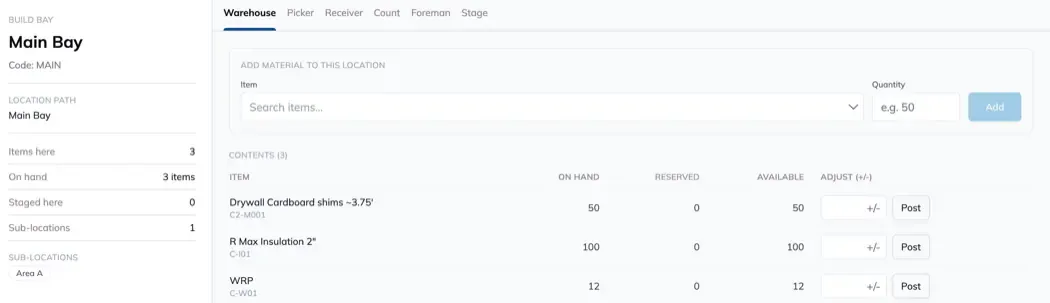
A location page has several views, and they exist because very different people need very different things from the same shelf. Pick the one that matches what you are doing.
What Actually Moves Stock
Four things change a quantity, and each one is recorded so a number can always be explained.
-
Adding or removing on the Warehouse view adjusts what is here.
-
Applying a count sets on hand to what you counted and records the difference.
-
Picking transfers material out of this location to the pick list’s staging location.
-
Receiving an inbound delivery increases what is here.
Nothing else moves stock. Editing an item in the catalog changes its details, not its quantities.
Reserved on a location is not reserved out of this location
The Reserved and Available figures on a location’s contents are the item’s own figures, counted across your organization or across the department. They are not pinned to the pile in front of you.
So an item can read as Reserved while sitting in a location nobody has picked from. The reservation belongs to the item, not to the shelf.
Picking From a Location
The Picker view shows the lines that source from here, under the pick list each belongs to, so you can see the list you are contributing to rather than a flat pile of lines.
Two cases will stop you, on purpose.
-
A blocked list shows a warning and its Pick buttons are switched off. Clear whatever blocked it before picking against it.
-
Backorder lines cannot be picked at all. There is nothing here to pick yet, which is what put them on backorder.
Tips
-
Put codes on your locations and scan them. Scanning is faster than any list, and it removes the chance of updating the wrong bay.
-
Keep an eye on Unassigned. It is stock nobody can find. Treat a growing Unassigned list as a receiving habit to fix, not a list to tidy.
-
Nest locations the way your crew talks. If people say "Bay 4", there should be a location recognisable as Bay 4.
-
Count the location, not the item, when you are walking a shelf. The Count view is scoped to where you are standing.
FAQ
My scan did not find anything.
You get No location matched that scan. The code probably belongs to an item, an order or a person rather than a location.
Why is material showing as Reserved when it is sitting untouched on a shelf?
Reserved belongs to the item across your organization or department, not to that shelf. Something has been reserved against the item by a project or an order.
What is Unassigned?
Stock recorded against an item with no location. It counts towards on hand, but nobody can be told where to go and get it.
Why can I not pick a line?
Either its list is blocked, or the line is on backorder. Backorder lines are never pickable.
Which view should most people use?
Warehouse. The others exist for a specific job: picking, receiving, counting, or looking at what work is happening at that location.
Conclusion
Give your locations codes, scan them rather than hunting through a list, and keep Unassigned close to empty. When a number looks wrong, the four things that move stock are an adjustment, a count, a pick and a receipt, and all four leave a record.
Need help? Hit the chat button or click "Ask" in the app. You can also reach us at support@buildingswell.com.
Was this helpful?
Still need help? Ask the team