Dead Time Alerts
Set a dead time threshold per department and get told when someone is on the clock but not on work.
Last updated 19 days ago
Introduction
Dead time is the gap between “on the clock” and “clocked into real work.” It is when someone is not tied to a project, work order, or overhead code. Dead Time Alerts in Building Swell help you spot those gaps fast so you can nudge people to log time correctly and keep labor reports clean.
Before you start. You have permission to edit Departments and Notifications in Building Swell. Your teams are using Building Swell to track time to projects, work orders, or overhead.
Step-by-Step Guide
Set a dead time threshold for each department
Best for leads who know how their crews work.
Open the Rules Engine.
Go to Departments and select a department.
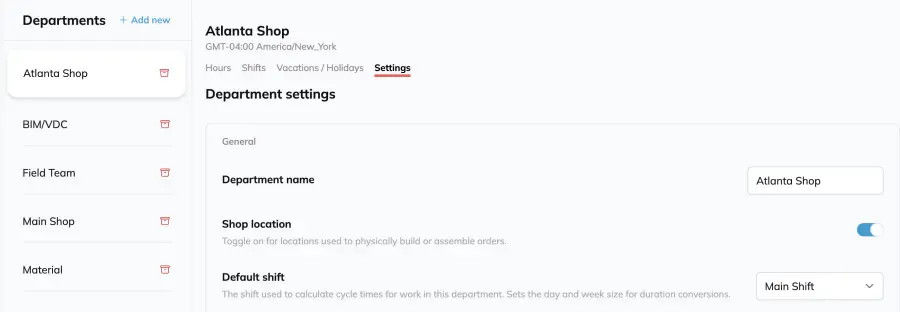
Open Settings for that department.
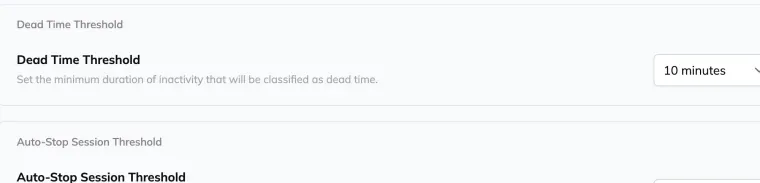
Find Dead Time Threshold.
Choose how long someone can sit without a time entry before they are flagged.
Repeat this for every department you want to monitor.
Turn on dead time notifications
For leads or managers want real-time alerts as the work is happening.
Go to Settings, then open Notifications.

Find Dead Time Alerts and turn them on.
If you want alerts in your inbox, turn on the Email toggle under Channels at the top of the page.
If you leave email off, you will still see Dead Time Alerts in the top right of Building Swell inside Notifications.
Once thresholds and notifications are set, Building Swell watches time entries in the background. If a person passes the dead time threshold without being clocked into a project, work order, or overhead, they are added to the dead time list.
You will see an alert in the Notifications area and, if enabled, in your email. Open the alert to jump straight to the people who need attention. Remind them to clock into their next task or log time to the correct overhead code. As they fix their time entries, they drop off the dead time list.
How subscriptions and delivery work is covered in Notifications.
Tips
Start with a 15 minute threshold and watch alerts for a week. Adjust up or down based on noise.
Use alerts as a coaching tool. The goal is clean data, not blame.
Teach crews that “dead time” is not bad, it is simply time that needs a home so reports stay accurate.
If you want help tuning this for your shop, send a note to support@buildingswell.com or use the help button in the top right of Building Swell and we’ll walk through it with you.
Still need help? Ask the team