BSWL Assistant
Ask the built-in AI assistant about your shop, and approve the actions it proposes before they run.
Last updated 11 days ago
Introduction
The BSWL Assistant is a chat assistant built into Building Swell. Ask it about your shop in plain language: what is in progress, who is on what, where an order stands. It answers from your organization’s own orders, routes, people, and projects rather than from general knowledge.
It can also update progress, add comments and import material lists. It shows proposed changes for you to review. Auto-approve can apply some changes in the current chat; imports, new inbound deliveries and vendor changes still need your approval.
You can also hand it a document. Attach a spreadsheet, a PDF, a scan or a photo of a page, and it reads the tables and printed text so you can ask about them or import the rows.
Not seeing the assistant? Reach out to your company admin to update your permissions. See the Roles guide.
Step-by-Step Guide
Open the Assistant
On a computer, click the round button in the bottom right corner. It is there on every page.
On a phone or tablet, tap the assistant in the bottom navigation bar.
Expand assistant widens the panel and Shrink assistant puts it back. Close assistant closes the panel without losing the conversation.
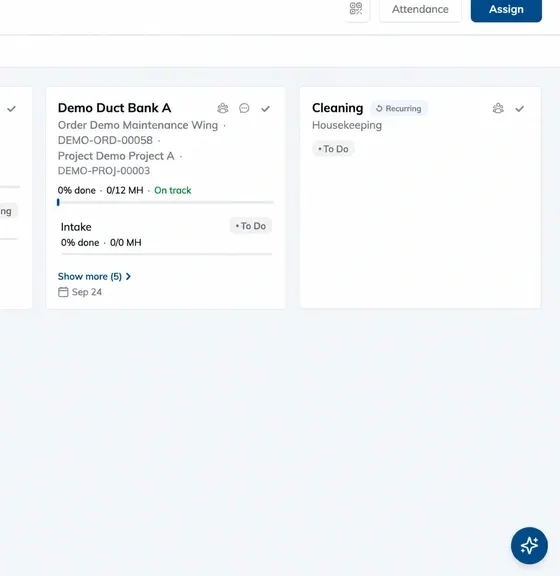
The assistant changes the bottom bar on a small screen
When it is shown, Build moves into the bar next to More, and Forms moves under More. Nothing is lost, it just sits one tap further away. See the General Navigation guide.
Ask a Question
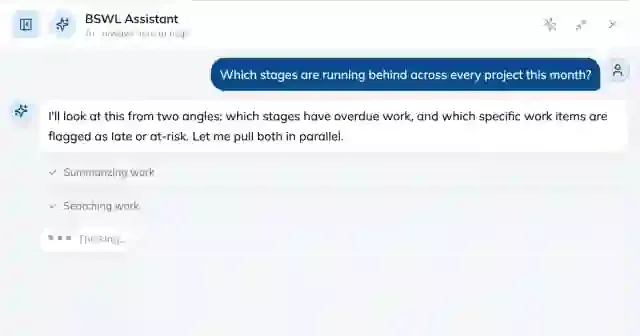
Type into the box reading Ask the assistant… and press Enter, or click Send.
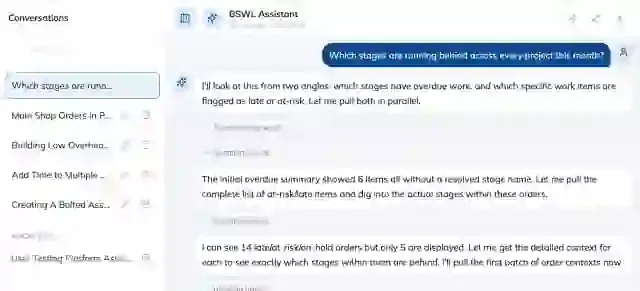
While it works it shows what it is doing: Searching work, Reading order, Querying projects, Summarizing work, and so on. These labels show what the Assistant is looking up to answer your question.
Click Stop generating to cut an answer short.
Attach a File or Photo
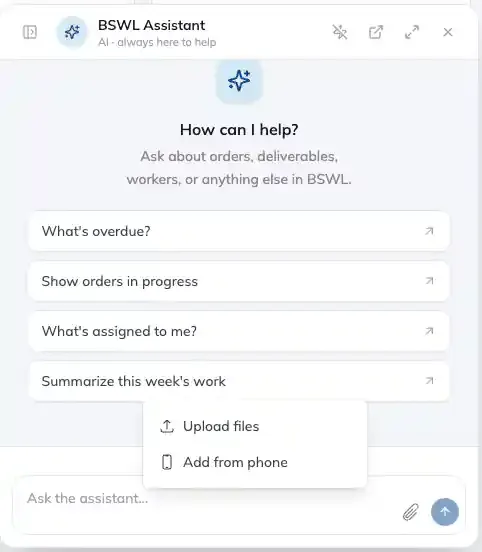
Click the paperclip in the message box. Its label is Attach files or photos.
Choose how to add the file.
Upload files picks Excel, CSV, PDF, JPG, PNG or WebP files from your computer. You can also drag files straight onto the message box.
Take a photo opens the camera. It shows on a phone or tablet.
Add from phone shows a QR code on a computer. Scan it with your phone to photograph pages there, and they show up in the chat on your computer. Copy link gives you the same link to send yourself, and the link expires after a while.
Type what you want and click Send. For example, "Add these lines to the Fabricate route's materials". If you send the files with no message, the assistant treats them as a complete batch for the page you are on.
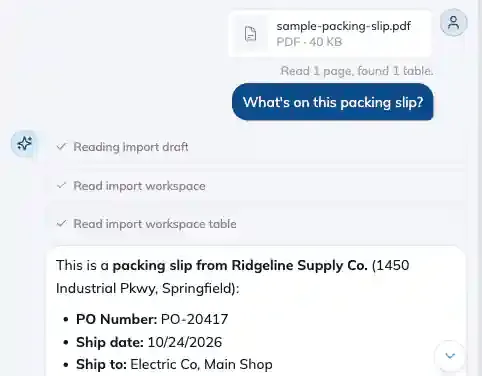
Wait for the read. The files move onto your message and show Reading the file… while it works. When it is done, a line under them says what it found, for example "Read 3 pages, found 2 tables." It also tells you about any page it could not read or that was blank.
Check the page it could not read
Tables on a page the assistant could not read may be missing rows. If the summary names one, compare that page to what the assistant found before you import anything.
Approve or Deny an Action
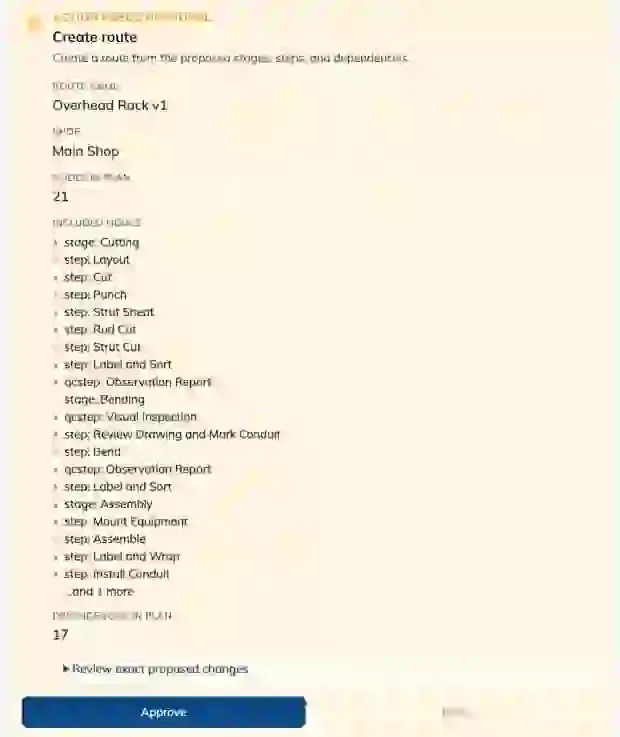
When the assistant wants to change something it stops and shows a card headed Action needs approval, or Plan needs approval when several changes go together.
Read what it proposes. Review exact proposed changes shows the detail rather than the summary.
Click Approve to let it run, or Deny to refuse it.
The card reads Applying… while it runs and Completed when it is done. A refused card reads Denied, and one that could not run reads Failed.
Route plans delete what they leave out
A proposed route change tells you that route nodes left out of the plan will be deleted. Read a route plan properly before approving it, because it is the whole route being rewritten, not just the part you asked about.
Import a material list
Attach the list and tell the Assistant where to put it. You can add materials to a project, order or route, or add the expected items to an inbound delivery. Check the proposed rows before approving the import.
Attach the file and name the destination. For example: "Import this list onto order 1234."
Read the matches it found. It looks up your materials using SKUs, descriptions and vendor part numbers, and explains the matches before you confirm.
Correct the rows it flags. Check the selected items, units and whether quantities cover one order unit or the whole order.
Choose Open import dialog from the paperclip menu when you want to review the rows in the table.
Read the import approval card and approve it. Importing still requires a click with Auto-approve on.
Open the destination after it finishes and check the saved quantities and units.
For help choosing catalog items, checking quantities and importing parts your shop makes, see Import materials and parts.
The Assistant can also create an inbound delivery from a vendor acknowledgment or packing slip. Check the vendor and destination before approving its creation.
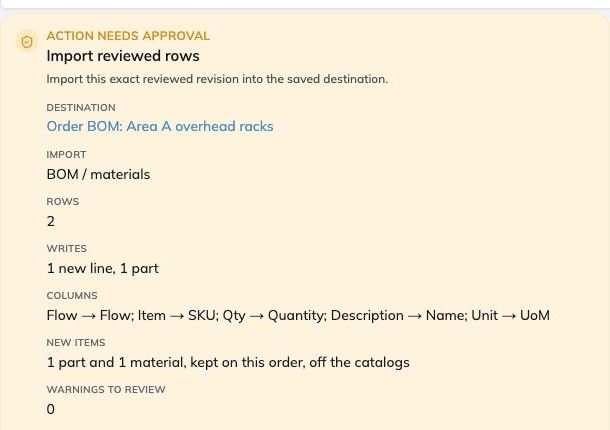
Check the destination, row count, column mappings and new items on the import approval card. Review any warnings before approving.
Manage Your Conversations
Click New chat to start fresh.
Open Conversations to switch between earlier ones. They are kept, so you can come back to an answer later.
Rename a conversation to something you will recognise, or use Archive conversation to clear it out of the list.
In a long conversation, Load older messages pulls in earlier ones and Scroll to bottom jumps back to the newest.
Tell It When It Is Wrong
Every answer carries Good response and Bad response. On a bad one you can say what went wrong, for example that it used the wrong order or missed the context. That is the feedback that makes it better at your shop, so it is worth the two seconds.
Tips
Be specific. "Show orders in progress in Main Shop" gets a better answer than "what is happening".
Read the activity labels. They are the quickest way to spot that it took your question the wrong way, before you act on the answer.
Approve nothing you have not read. That card is the last check before your data changes.
Every action you approve is recorded, including who approved it and what it touched. If you are ever unsure who changed something, that record exists.
Photograph every page flat and in good light. A clear photo reads better than a crooked one, and handwriting the assistant can make out is marked as handwritten.
One document per batch. Up to 10 files, 10 MB each and 30 MB in total. Keep a packing slip and a BOM in separate chats so the rows do not mix.
FAQ
Can it change something without asking me?
Not unless you turn on Auto-approve in the chat's header. That switch only applies to the chat you are in, and it is off whenever a chat starts. Importing rows, creating an inbound delivery and adding or changing a vendor still ask for a click, even with auto-approve on.
Where did Forms go on my phone?
With the assistant in the bottom bar, Build takes the place next to More and Forms sits under More.
Are my conversations kept?
Yes. Open Conversations to find earlier ones, and archive the ones you are finished with.
It gave me a wrong answer. What do I do?
Mark it Bad response and say what was wrong. Then check the activity labels on that answer, because they usually show where it went off.
What kinds of files can I attach?
Excel and CSV spreadsheets, PDFs, and JPG, PNG or WebP photos. The phone link takes photos only.
Why can't I add more files?
You cannot add files while the assistant is reading the ones you sent, or while an import is in review. Wait for the read to finish, or start a new chat for a new document.
Conclusion
Treat the assistant as a quick way to ask your own data a question, and as something that proposes changes rather than making them. The approval card is the part that matters: read it, then decide.
Was this helpful?
Still need help? Ask the team