Updating Your Info
Update your name, your details, and your password from your profile.
Last updated About 1 month ago
A guide to personalizing user profiles and keeping details up to date.
Introduction
Maintaining current details is essential for smooth operations and clear communication within Building Swell. Whether you're updating your username or ensuring security with a fresh password, it's a simple process. Here's a step-by-step guide to making those changes
Step-by-step Instructions:
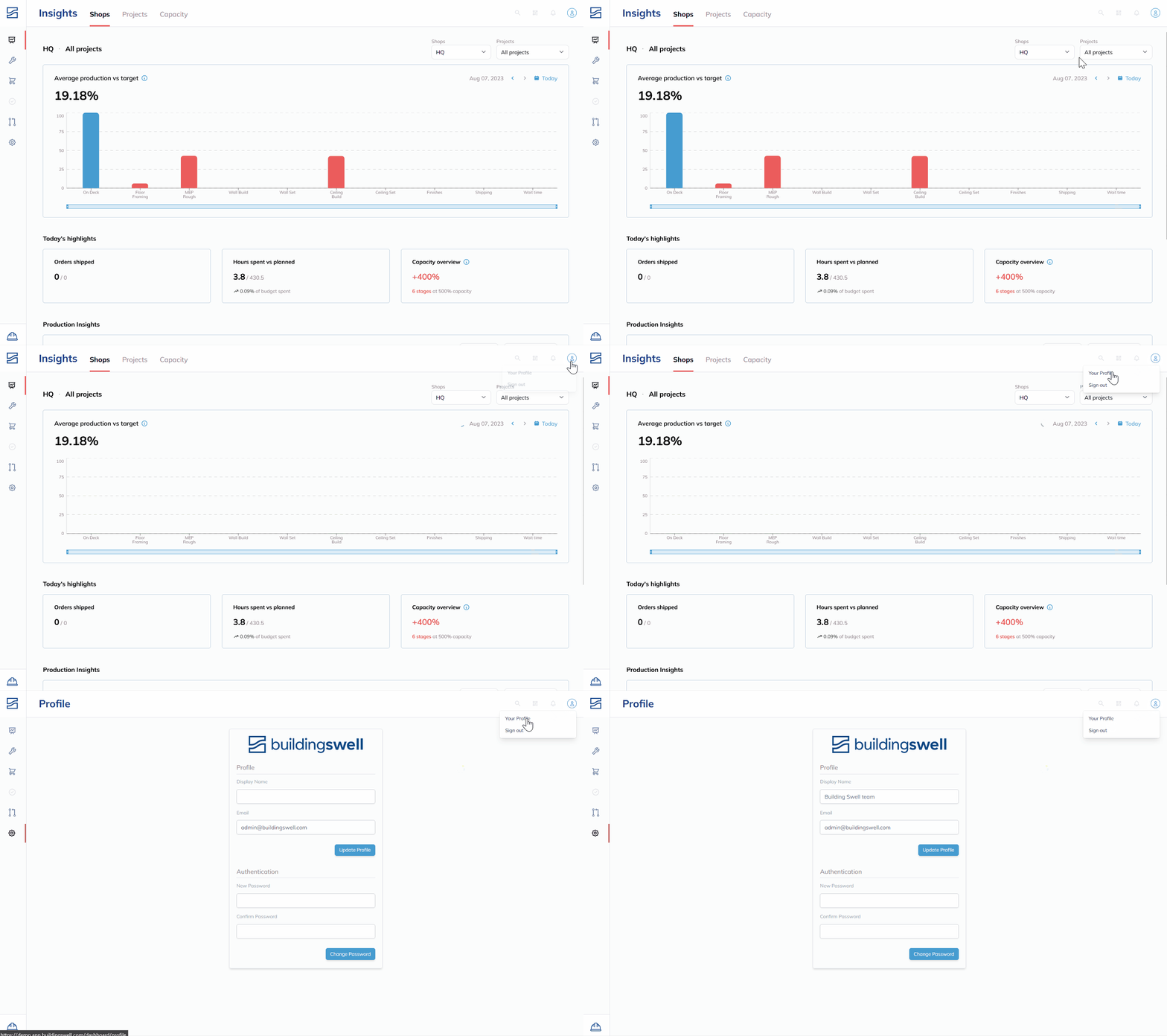
1. Accessing Your Profile
- Navigate to the top right corner of your screen.
- Click on the avatar icon.
- From the dropdown, select "Your Profile."
2. Updating Your Name
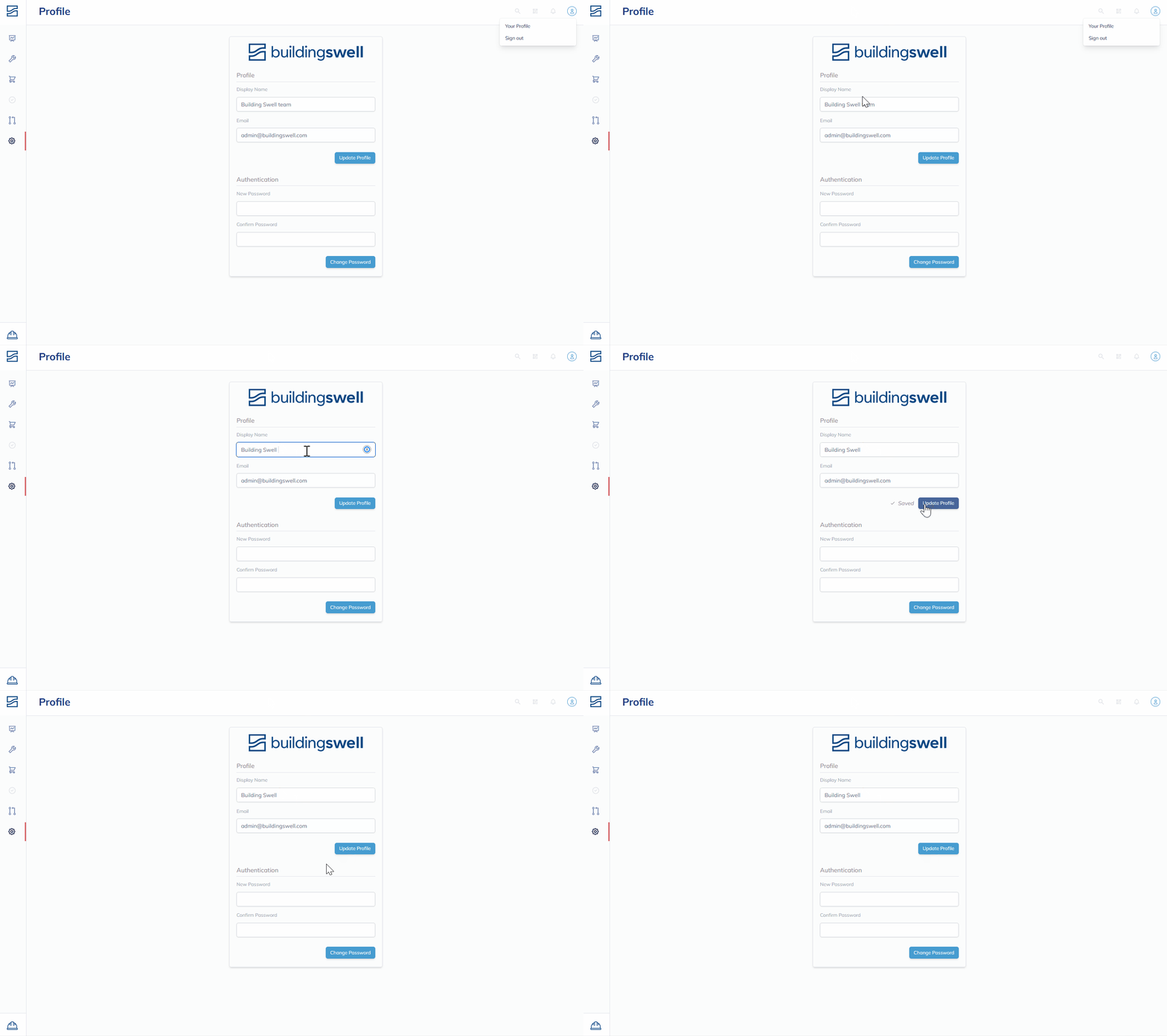
- Once in your profile, you can modify both your first and last name.
- Input your desired names, keeping in mind this is how the team will recognize you on the platform.
3. Modifying Email
- Below your name, there's an option to update your email address.
- Make your changes or retain your current email, depending on your preference.
4. Confirming Profile Changes
- After making your desired changes, click "Update Profile."
- A success message will appear, indicating your details have been successfully modified.
5. Changing Your Password
- If you wish to update your password, you'll find a designated section for this.
- Input your new password.
- Confirm your new password by re-typing it in the provided space.
- Click "Change Password."
Choosing Your Theme
Building Swell has a dark theme. If you work in a dim shop, an early shift, or you just prefer it, you can switch. It is a personal setting and nobody else is affected.
-
On your profile, find the Appearance section.
-
Under Theme, pick one of three options.
Light. Always the light theme.
Dark. Always the dark theme.
System. Follows whatever your computer or phone is set to, so it changes with your device.
The change applies straight away. There is nothing to save.
System is the low-effort choice: set your device to switch at sunset and Building Swell follows. The setting travels with your account, so pick it once and it applies on the other devices you sign in on. Shared shop tablets are the exception, because the theme belongs to the signed-in account and follows whoever that is.
Worth knowing about the theme
It changes nothing for your team, only for you. Your organization cannot currently force one theme on everyone. Printed output and exported files are never dark. And if something looks wrong in dark mode, tell us and include a screenshot, because contrast problems are easy to miss and worth fixing.
Tips and Best Practices
- For enhanced security, it's a good practice to periodically update your password and make sure it's strong.
- Ensure your profile displays the name most team members will recognize to avoid any confusion.
Conclusion
Your user details are fundamental to your experience with Building Swell. Always ensure they're up-to-date and accurate. With just a few clicks, you can seamlessly keep everything in check. If you face any issues or need further assistance, don't hesitate to reach out to our support team.
Video walkthrough
Updating Your Account
Still need help? Ask the team