General Navigation
Find your way around Building Swell, module by module, on desktop and on a phone.
Last updated 14 days ago
Introduction
Welcome to Building Swell! Let's walk through the general navigation of the platform, ensuring you can move seamlessly through our features, from gaining insights into your shop's performance to adjusting your profile settings.
Step-by-Step Instructions
Navigating Building Swell is intuitive and streamlined.
Primary Navigation
Start with the Primary Navigation Bar, prominently located on the left-hand side of your screen. Here, you're introduced to a suite of tools tailored for prefab shop management:
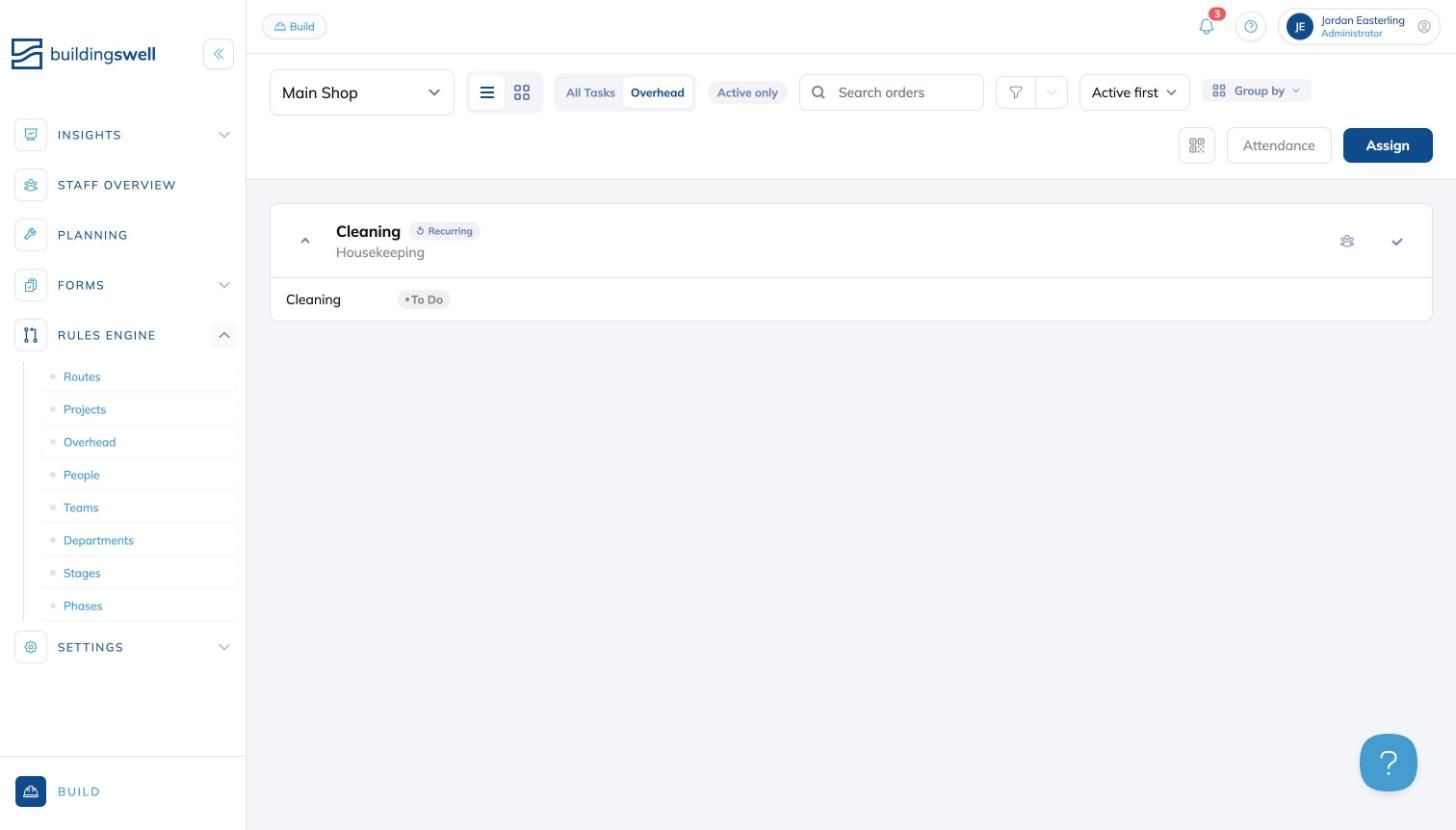
Insights
A comprehensive view of your shop's performance, helping you see where operations shine and where there is room to improve. This is where you go for feedback from your production data.
Staff Overview
A real-time snapshot of your staff's current status across departments. See who is assigned, planned, available, or absent, along with their active and planned tasks and check-in times.
Planning
View and manage your project schedules as a list, a list beside a Gantt chart, or a calendar. Track timelines, due dates, status, and progress, and organize work using grouping and nesting.

Logistics
Plan and run outbound deliveries. Build a delivery, add the orders and materials riding along, schedule the trip, and track it through transit to delivered. Drivers and receiving crews work the trip from a public page with no login.
Forms
Create and manage form templates for your shop, such as observation reports and visual inspections. View and manage submitted entries, and attach forms to specific routes.
Documents
A single home for the drawings and files your shop works from. Upload a file directly or attach one that already exists, attach it to the work it belongs to, and manage versions so the floor is always looking at the current sheet.
Rules Engine
Your control center for configuring the core elements of your shop. Sub-modules cover Routes, Projects, Overhead, People, Teams, Departments, Stages, Phases, and Categories, giving you control over production processes, workforce, and workflow configuration.
Integrations
Connect Building Swell to the other systems you run on. Link a Microsoft account to pull in drawings and documents, or connect Smartsheet. See Smartsheet Integration.
Settings
Tailor Building Swell to your shop. Manage archived items, configure notifications, onboard users, adjust roles, and set up the catalogs the rest of the app draws on.
Each primary module in the left sidebar can be expanded to reveal its Sub-Modules. Simply click on a module name to expand it and see the available sub-pages. Here is the full set:
Insights: Timesheets
Forms: Templates, Entries, Geolocation
Rules Engine: Routes, Projects, Overhead, People, Teams, Departments, Stages, Phases, Categories
Settings: Dashboards, Archived, Notifications, Users, Roles, API Keys, System Log, Form Triggers, Locations, Vendors, Contacts, Trucks, Units, and Custom Properties
Staff Overview, Planning, Logistics, Documents, and Integrations have no sub-pages. You will only see the modules and sub-pages your role gives you access to, so your sidebar may be shorter than this list.
Build
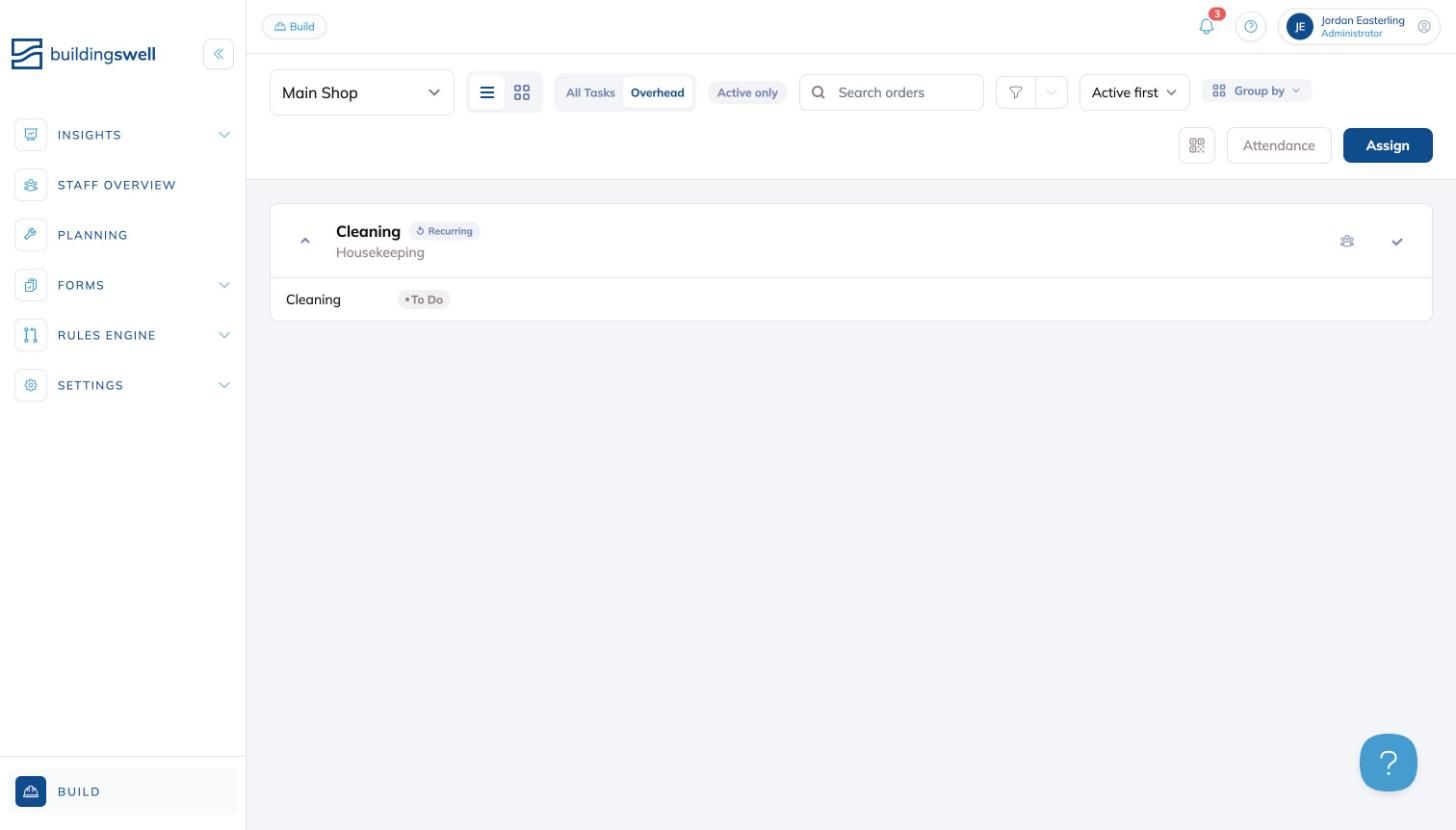
Located at the bottom of the navigation bar, the Build page is your shop floor command center. Here you can view all tasks and overhead items, switch between department views, toggle between list and grid layouts, manage attendance, and assign tasks to workers. It provides a clear snapshot of active and upcoming work across your shop.
Searching and Filtering
Most list pages have a search box and a Filters button in the top right. Both hold more than one value at a time, so you can pull up several things in one pass instead of running the same page three times over.
Searching for more than one thing
Type in the search box and the list narrows as you type. To keep that term and start another, press Enter, type a comma, or click the + beside the box. The term you kept moves into a Search chip below the toolbar, and the box empties for the next one.
Terms match as "any of these". Searching 2002, 2004 and 2011 returns every row matching one of them, so three unit numbers take one search rather than three. Click a term in the chip to edit it, or its × to drop it. Pasting a comma separated or line separated list turns each entry into its own term.
Your search is in the address bar. Copy the URL and send it to someone and they open the same list. The back button steps back through the terms you added rather than leaving the page.
Search works this way on Planning, Build, Projects, Overhead, Roles, Users, System Log and Geolocation.
Filters hold more than one value
Open Filters and pick as many values as you want inside a single filter. A filter holding several values matches rows with any of them, so choosing three stages shows work sitting in any of the three. Each further filter you set narrows the list again, and the chips along the top of the list show what is applied.
Navigation on a Phone or Tablet
On a small screen there is no left sidebar. Navigation moves to a bar at the bottom of the screen.
The bar holds your main destinations: Insights, Staff Overview, Planning, and Forms.
Build is always in the bar, since it is the page shop teams live in. Normally it sits in its own circle on the right. When the AI assistant is on screen, Build moves inline into the bar and Forms moves under More to make room.
Everything else is behind More. Tap it to reach Logistics, Documents, Rules Engine, Integrations, and Settings.
Controls that sit in the top right on a computer are grouped under a Controls button on a small screen. On the Build page that opens a "View & controls" tray holding View, Show, Filter, Sort, Group by, Scan, and Attendance.
Prefer the computer layout on a tablet? See Requesting the Desktop Site on Mobile.
Profile
The top right corner displays your name and role. Clicking on it opens a dropdown menu with options to Switch organization (if you belong to multiple organizations), access Your Profile to change your name, your password, and whether the app follows light, dark, or your device setting, or Sign out of the platform. You'll also find a notifications bell and a help button in this area.
Tips or Best Practices
Familiarize yourself with the primary navigation bar first; it's your gateway to most features.
Use the Build page to stay on top of daily shop floor tasks and assignments.
Click the expand/collapse arrow at the top of the sidebar to toggle between icon-only and full label views. On a phone or tablet, use the bottom bar and the More menu instead.
Press Ctrl+F, or Cmd+F on a Mac, to jump straight to the search box on a page that has one.
Conclusion
With a strong grip on general navigation, you'll be primed to maximize the benefits of Building Swell. As always, if you have questions, we're here to help!
Video walkthrough
General Navigation
Still need help? Ask the team