Daily Team Planning
Check attendance and assign your shop crew to stages from the Build page.
Last updated About 1 month ago
Introduction
Building Swell makes it easy to plan your shop crew's day. This guide walks through checking who is in, then getting the right people onto the right stages.
Shop planning happens in 4 steps:
- Open Build
- Check attendance
- Assign people to stages
- Plan work ahead for tomorrow's crew
Step-by-Step Guide
1. Open Build
Click the hard hat icon at the bottom left of the screen. On a phone or tablet, tap the Build circle in the bottom navigation bar.
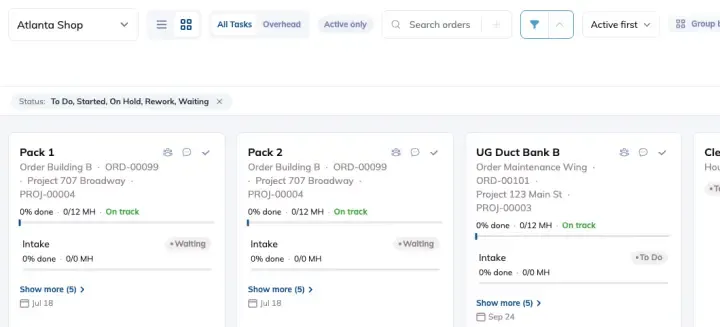
Build is your shop floor command center. It shows every active order, the stages on it, and who is working each one.
2. Check Attendance
Click Attendance in the Build toolbar to see who is checked in and who is absent. On a phone or tablet, tap Controls and pick Attendance.
You do not have to check people in before assigning them. Assigning checks them in for you. See the Attendance guide if you want the full check-in and check-out flow.
3. Pick Your View
Use the View toggle to switch between List view and Grid view.
- List view shows each order as a collapsible row with its stages underneath.
- Grid view shows each order as a card with its stages and assigned workers visible at a glance. This is the view to use when you are balancing a whole crew.
4. Assign People to Stages
There are three ways to do it. Pick whichever suits what you are doing.
The Assign panel
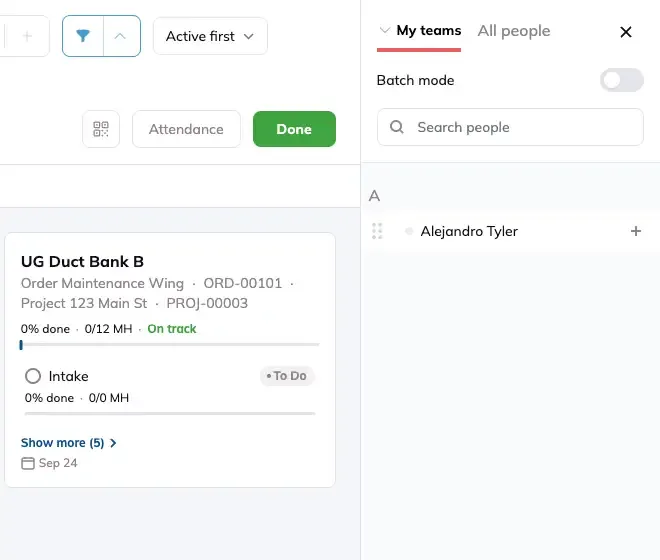
- Click Assign in the toolbar. A panel slides in showing your team.
- People already assigned appear at the top with a remove (×) next to them.
- Click (+) next to a name to add them to the selected stage.
- Click Done when you are finished.
Assign from an order card
Each order card has an Assign people button. Click it to jump straight into assigning for that order. Building Swell preselects the order's first unfinished stage, so you skip hunting for it in the list. This is the fastest route on a phone or tablet.
Batch mode, for several stages at once
- Click Assign, then turn on Batch mode.
- Check the stages and overhead you want to include.
- Select the team members from the right panel.
- Click Create batch to apply, or Cancel to back out. It stays greyed out until you have picked at least one stage and at least one person.
While batch mode is on, the Attendance and QR buttons are hidden. They come back when you leave it.
Assigning someone who is absent
If you assign a person who is not checked in, Building Swell asks whether to check them in as part of the same action.
5. Plan for Tomorrow
You can assign people who have not clocked in yet. The assignment waits for them, and they will see their work as soon as they check in.
Departments can also do this automatically. Turn on Daily Planner auto-assignment in a department's Settings tab and workers are assigned to planned orders as they check in. See the Departments guide.
Tips and Tricks
- Use Grid view to balance a crew. Seeing every card at once makes it obvious where you are thin.
- Use the stage (+) when you already know the stage. It skips the panel entirely.
- Batch mode is for repeat work. If the same two people cover four stages, batch it rather than assigning eight times.
FAQ
Can I assign tasks to someone who is not clocked in?
Yes. They will see the work as soon as they check in.
Do I need to check people in first?
No. Assigning checks them in for you.
How do I put one person on several stages?
Turn on Batch mode in the Assign panel, check the stages, then pick the person. One action covers all of them.
How do I know who is already working?
Assigned people show on the stage in both List and Grid view, and appear at the top of the Assign panel with a remove (×).
Can I reassign someone if plans change?
Yes. Remove them from the stage with the (×) in the Assign panel, then add them to the new one.
How do team members get notified?
Anyone signed in gets an alert in the app.
I am doing this on a tablet and the toolbar looks different.
That is expected. On a small screen the toolbar collapses into a Controls button. See Assigning People on Mobile for the tablet and phone walkthrough.
Conclusion
Building Swell's Build page helps you get the right people on the right stages, today and tomorrow.
Need help? Hit the chat button or click "Ask" in the app. We've got your back.
Still need help? Ask the team