Assigning People on Mobile
Assign people to orders and stages from a phone or tablet using the new mobile assignment tray.
Last updated 3 days ago
Introduction
Building Swell now has a mobile layout for assigning people to work. Bigger buttons, less side-scrolling, and an assignment tray that rolls up from the bottom of the screen. It's built for the phone or tablet you're already using on the floor.
Assigning people on mobile happens in 4 steps:
Open the assignment tray
Confirm which stage you're assigning to
Pick your people
Hit Done
Before you start.
The mobile layout appears automatically on phones and tablets. There's no setting to turn on.
Your desktop view hasn't changed. If Building Swell looks one way on your iPad and another way on your computer, that's expected. The layout follows the size of the screen you're on.
Anyone you assign gets checked in automatically, so you don't have to check them in first.
Step-by-Step Guide
1. Open the Assignment Tray
There are two ways in.
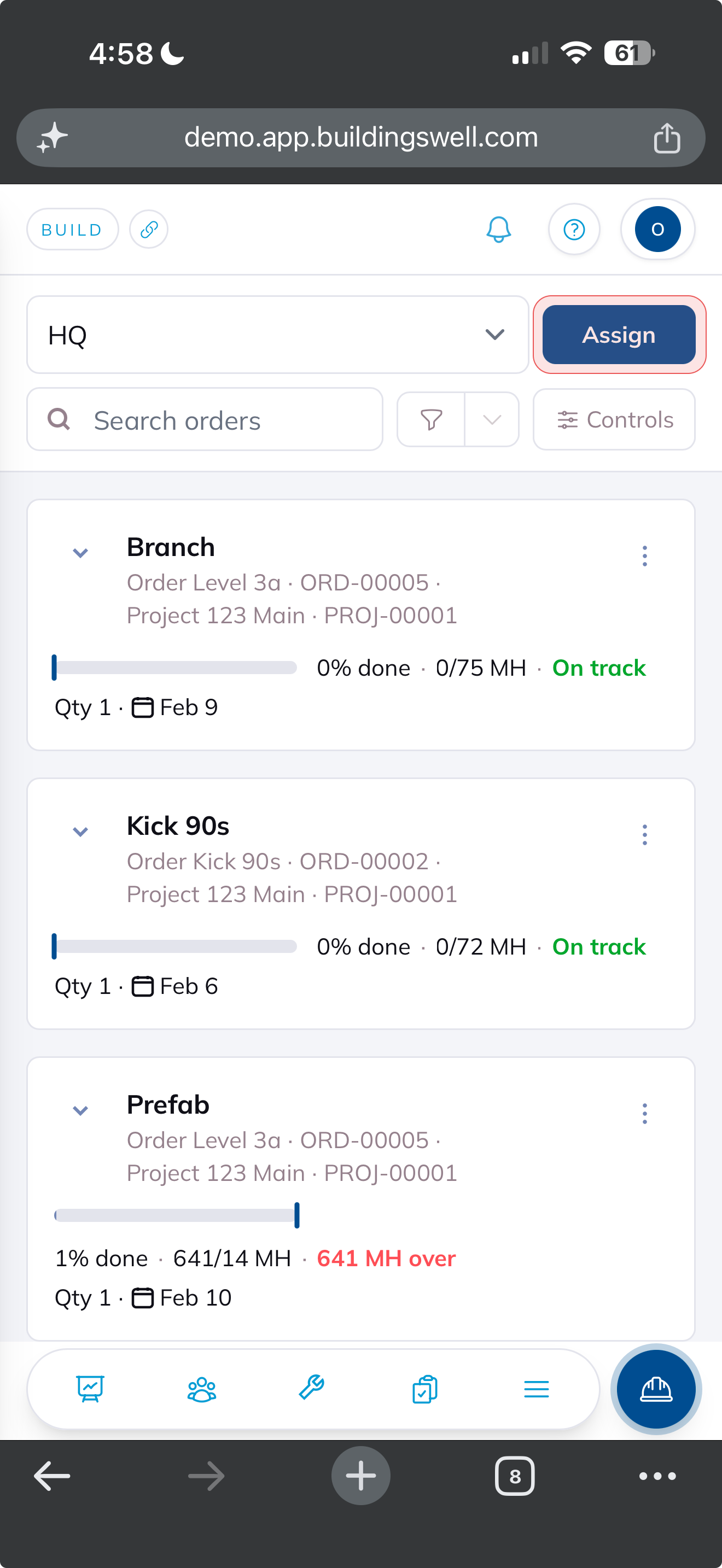
From the top of the screen
Tap the Assign button at the top.
The assignment tray rolls up from the bottom.
From a specific order
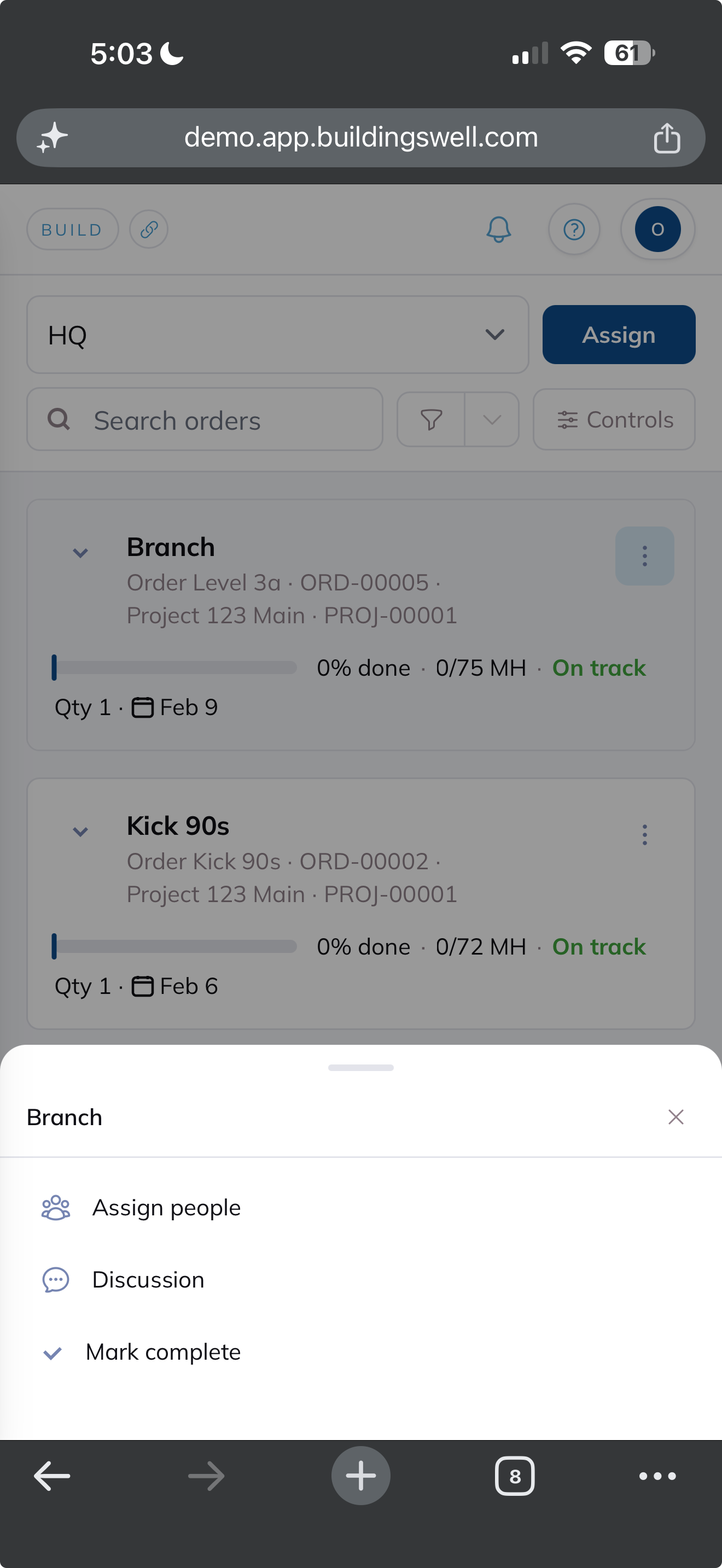
Scroll until you find the order you want.
Tap the ellipsis icon (…) on that order.
A drawer will appear from the bottom with three options. Select the first one: Assign people.
The assignment tray rolls up from the bottom.
2. Confirm Which Stage You're Assigning To
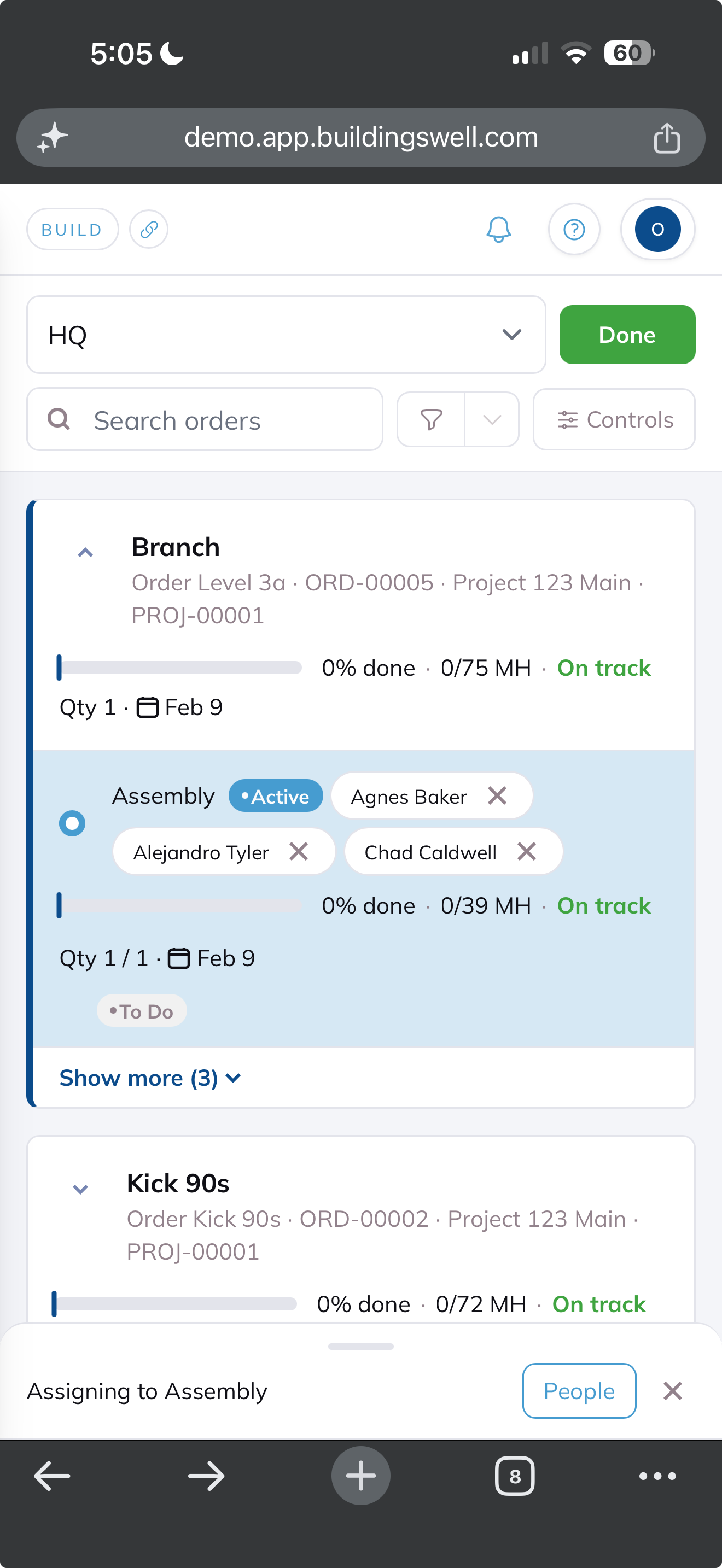
When the tray opens, it assumes the next stage in line for that order. That's usually what you want, but not always. Check it before you start picking people.
If it's the right stage, move on to step 3.
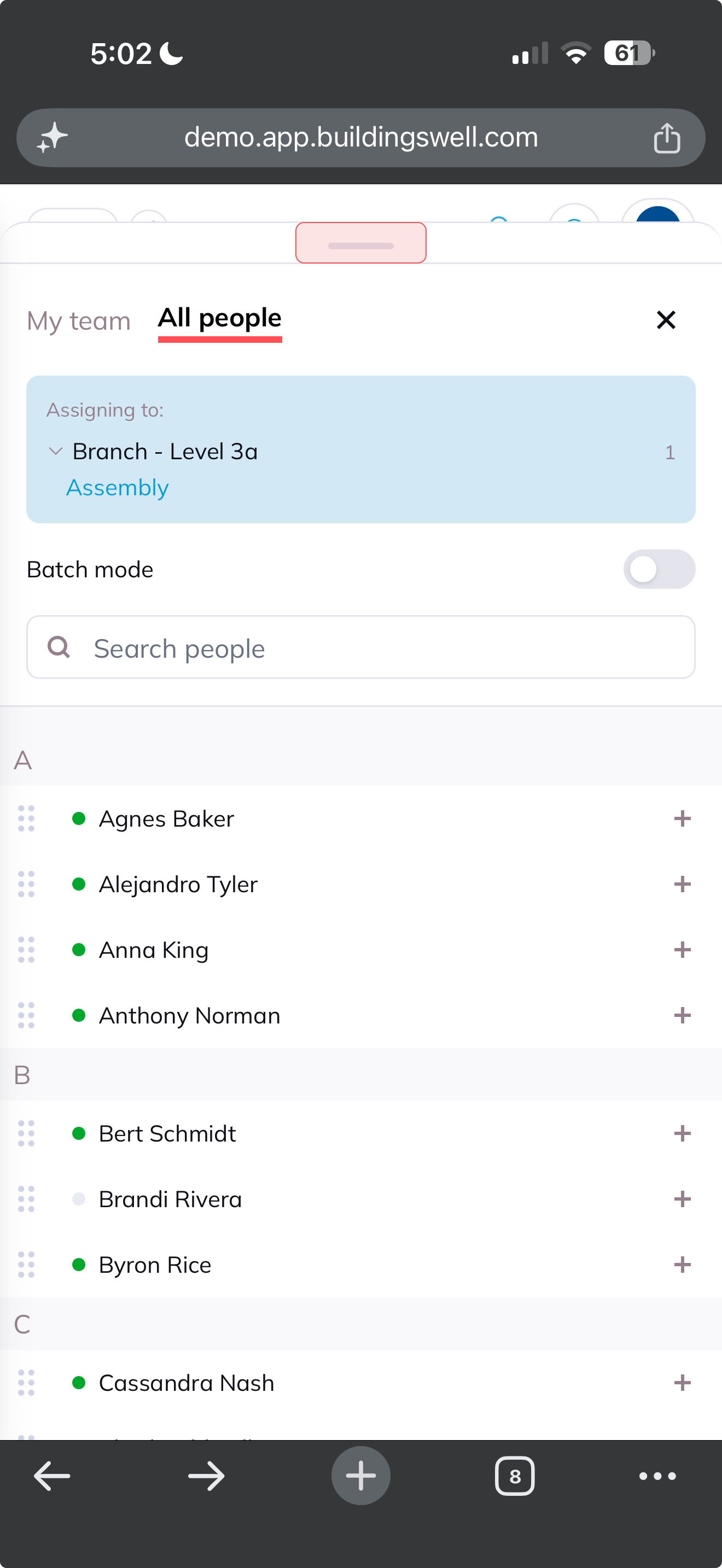
If it's not the right stage, shrink the tray and pick the stage yourself:
Either drag the tray down, or tap the dash at the top of the tray to shrink it to the bottom of the screen.
Scroll to the stage you actually want.
Tap the people icon on that stage.
The tray opens again on the stage you picked.
Common mix-up
If the tray opened on a stage you didn't want, it isn't locking you out. Every stage on the order is still available. You just need to shrink the tray and tap the people icon on the stage you want first.
3. Pick Your People
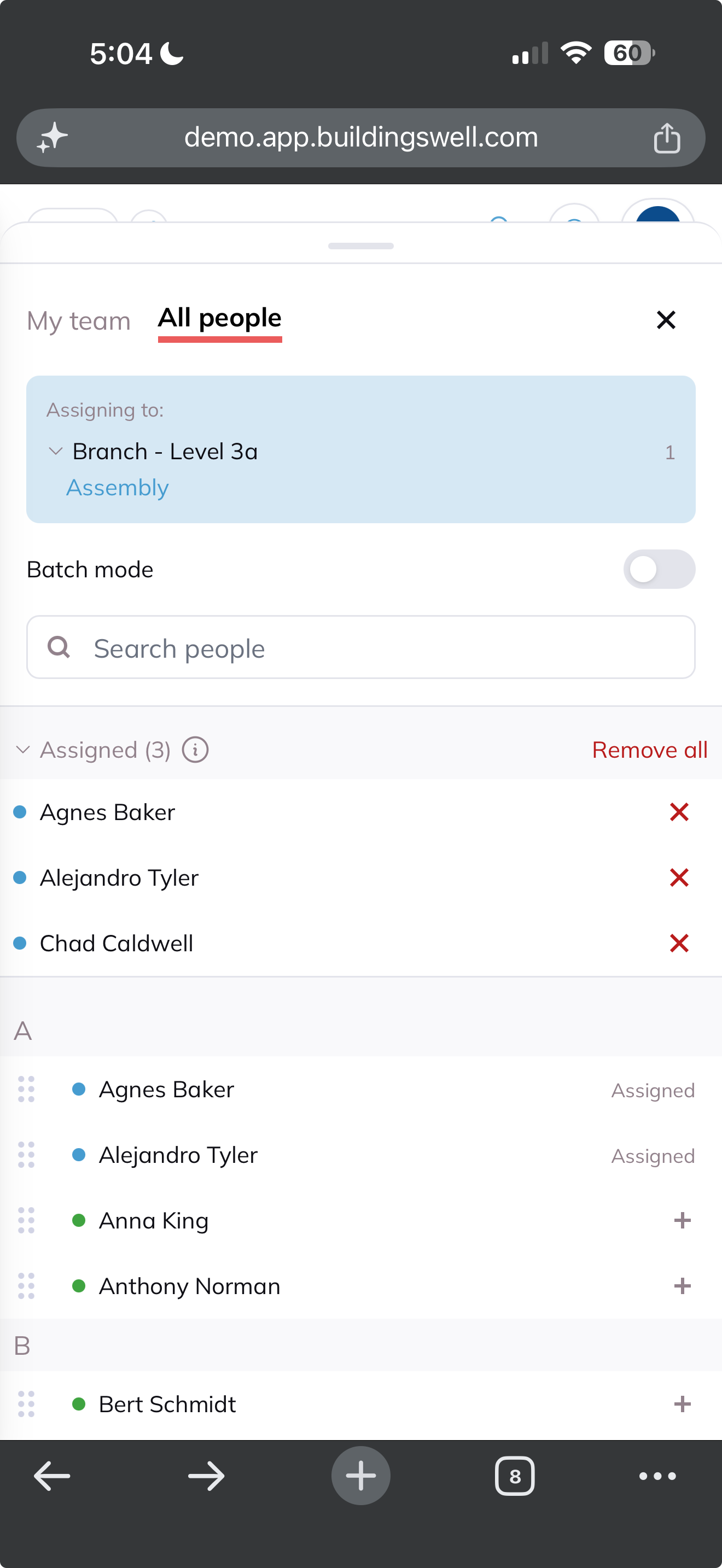
Tap each person you want on the work. Tap again to remove someone. You can pick as many people as you need before saving.
4. Hit Done
Tap Done to save. Everyone you picked is now assigned to that stage.
If they weren't checked in yet, they get checked in at the same time.
If they were already checked in, they stay checked in and pick up the new assignment.
Anyone signed in gets notified in the app.
Tips and Tricks
Assign from the stage when you already know it. Tapping the people icon on a specific stage skips the guesswork in step 2 entirely.
Dedicate a tablet to the floor. Same recommendation as Attendance. One device parked in the shop makes assigning a habit instead of a hunt.
You can assign people who haven't clocked in. They'll see the work as soon as they check in.
FAQ
Why does Building Swell look different on my tablet than on my computer?
The mobile layout only applies to small screens. Your desktop view is unchanged. Nothing is missing from either one, they're the same features in a different layout.
Can I still assign people to any stage I want?
Yes. Every stage on the order is available. The tray just opens on the next stage in line as a starting point. Shrink the tray, scroll to the stage you want, and tap the people icon there. See step 2 above.
Do I need to check someone in before assigning them?
No. Assigning checks them in for you.
Can I go back to the layout I'm used to?
Yes. Your mobile browser can request the desktop version of the site. See Requesting the Desktop Site on Mobile.
Can I assign more than one person at a time?
Yes. Tap everyone you want before you hit Done.
How do I plan a whole crew's day rather than one stage at a time?
Use the Daily Planner on a larger screen. See Daily Team Planning.
Conclusion
The mobile layout is there so you can assign work from the floor without pinching and zooming. The one thing worth remembering is step 2. Check the stage before you pick your people, and shrink the tray if you need a different one.
Need help? Hit the chat button or click "Ask" in the app. You can also reach us at support@buildingswell.com.
Video walkthrough
Assigning People in Mobile Workflow
Was this helpful?
Still need help? Ask the team