BSWL Assistant
Ask the built-in AI assistant about your shop, and approve the actions it proposes before they run.
Last updated 25 days ago
Introduction
The BSWL Assistant is a chat assistant built into Building Swell. Ask it about your shop in plain language: what is in progress, who is on what, where an order stands. It answers from your organization’s own orders, routes, people, and projects rather than from general knowledge.
It can also do a few things for you, such as updating progress or adding a comment. It never does them quietly. Anything that changes your data is proposed first and waits for you to approve it.
Not seeing the assistant? Reach out to your company admin to update your permissions. See the Roles guide.
Step-by-Step Guide
Open the Assistant
On a computer, click the round button in the bottom right corner. It is there on every page.
On a phone or tablet, tap the assistant in the bottom navigation bar.
Expand assistant widens the panel and Shrink assistant puts it back. Close assistant closes the panel without losing the conversation.
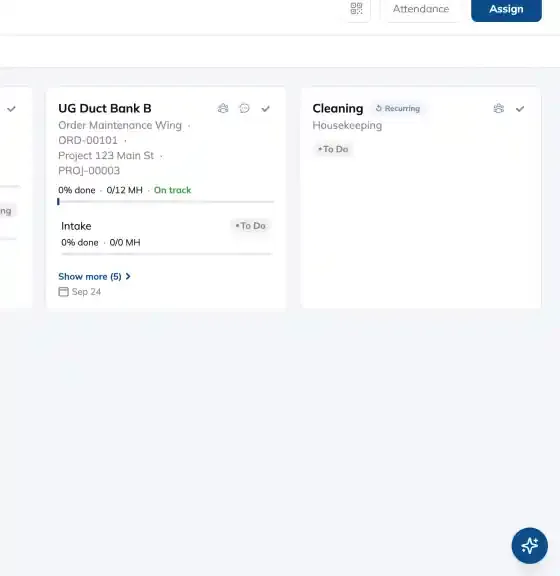
The assistant changes the bottom bar on a small screen
When it is shown, Build moves into the bar next to More, and Forms moves under More. Nothing is lost, it just sits one tap further away. See the General Navigation guide.
Ask a Question
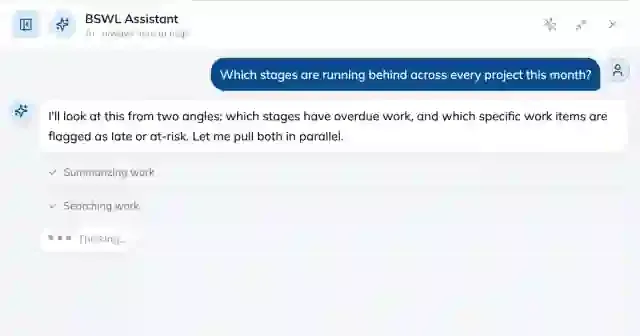
Type into the box reading Ask the assistant… and press Enter, or click Send.
While it works it shows what it is doing: Searching work, Reading order, Querying projects, Summarizing work, and so on. Those labels are the assistant looking things up, so you can see what the answer is built from.
Click Stop generating to cut an answer short.
Approve or Deny an Action
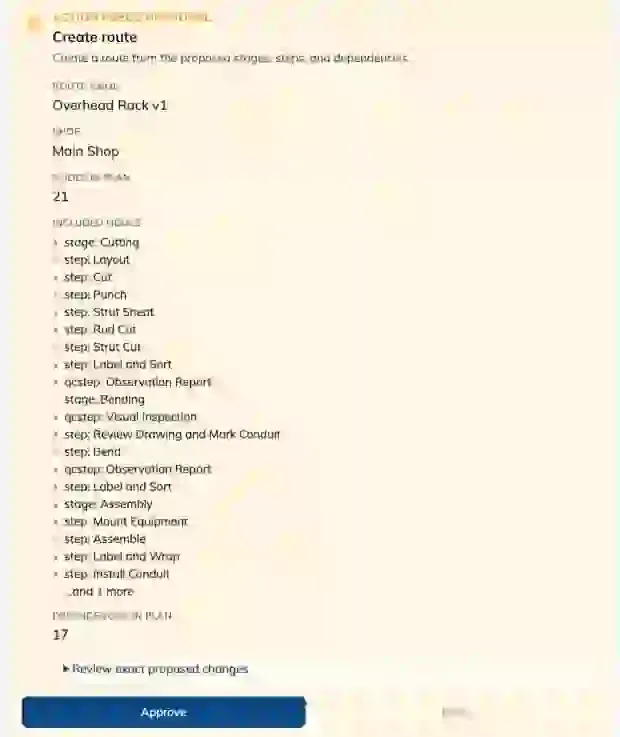
When the assistant wants to change something it stops and shows a card headed Action needs approval, or Plan needs approval when several changes go together.
Read what it proposes. Review exact proposed changes shows the detail rather than the summary.
Click Approve to let it run, or Deny to refuse it.
The card reads Applying… while it runs and Completed when it is done. A refused card reads Denied, and one that could not run reads Failed.
Route plans delete what they leave out
A proposed route change tells you that route nodes left out of the plan will be deleted. Read a route plan properly before approving it, because it is the whole route being rewritten, not just the part you asked about.
Manage Your Conversations
Click New chat to start fresh.
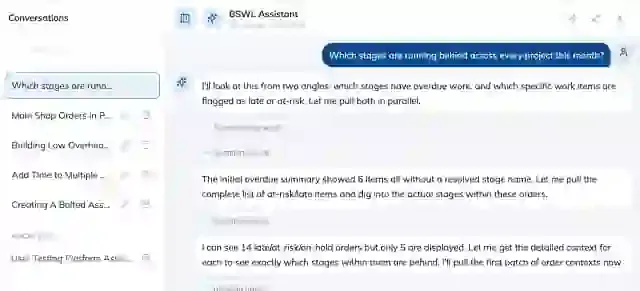
Open Conversations to switch between earlier ones. They are kept, so you can come back to an answer later.
Rename a conversation to something you will recognise, or use Archive conversation to clear it out of the list.
In a long conversation, Load older messages pulls in earlier ones and Scroll to bottom jumps back to the newest.
Tell It When It Is Wrong
Every answer carries Good response and Bad response. On a bad one you can say what went wrong, for example that it used the wrong order or missed the context. That is the feedback that makes it better at your shop, so it is worth the two seconds.
Tips
Be specific. "Show orders in progress in Main Shop" gets a better answer than "what is happening".
Read the activity labels. They are the quickest way to spot that it took your question the wrong way, before you act on the answer.
Approve nothing you have not read. That card is the last check before your data changes.
Every action you approve is recorded, including who approved it and what it touched. If you are ever unsure who changed something, that record exists.
FAQ
Can it change something without asking me?
No. Anything that writes to your data goes through an approval card, and nothing happens until you click Approve.
Where did Forms go on my phone?
With the assistant in the bottom bar, Build takes the place next to More and Forms sits under More.
Are my conversations kept?
Yes. Open Conversations to find earlier ones, and archive the ones you are finished with.
It gave me a wrong answer. What do I do?
Mark it Bad response and say what was wrong. Then check the activity labels on that answer, because they usually show where it went off.
Conclusion
Treat the assistant as a quick way to ask your own data a question, and as something that proposes changes rather than making them. The approval card is the part that matters: read it, then decide.
Was this helpful?
Still need help? Ask the team