Updating Your Info
Change your display name, choose a theme, and update your password. Your email address is read-only.
Last updated 3 days ago
Use your profile to change your display name, choose a theme, or update your password. Your email address is shown here, but you cannot edit it on this page.
Video walkthrough
1. Open your profile
Open your account menu in the top-right corner and select Your Profile.
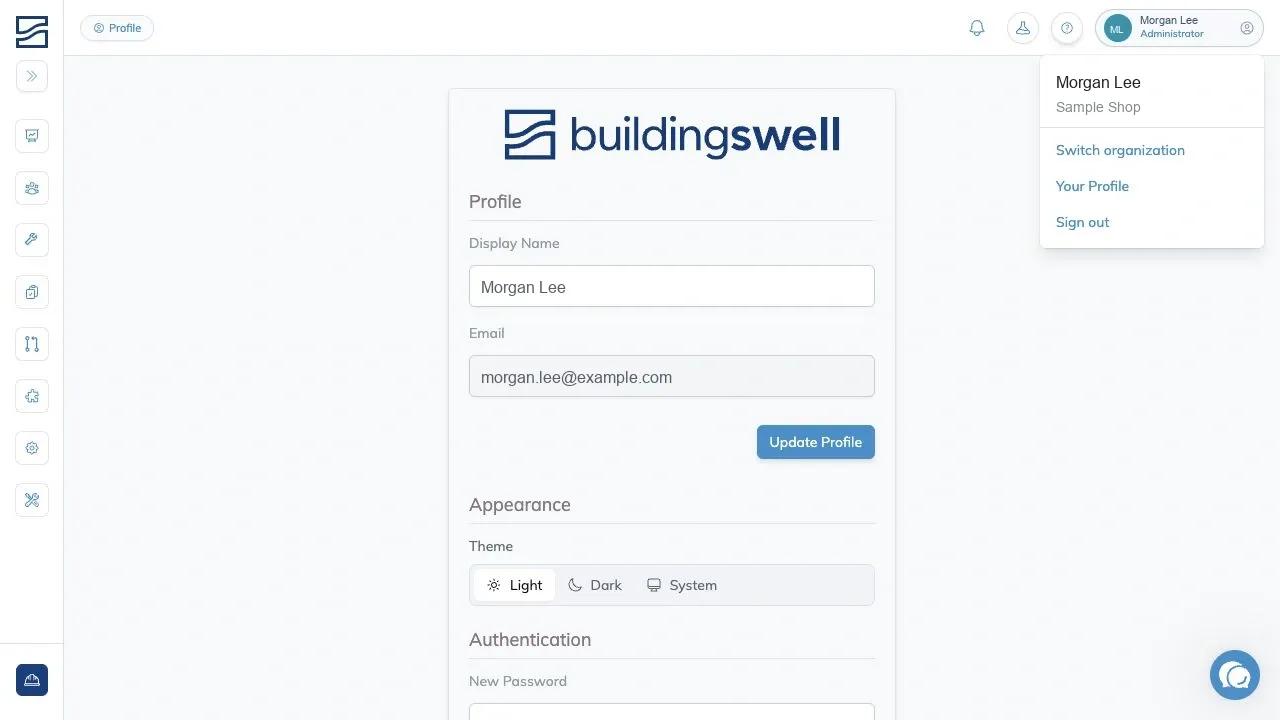
2. Update your display name
In Display Name, enter the name your team recognizes. This is one field for your full display name.
Select Update Profile. A Saved message confirms the change.
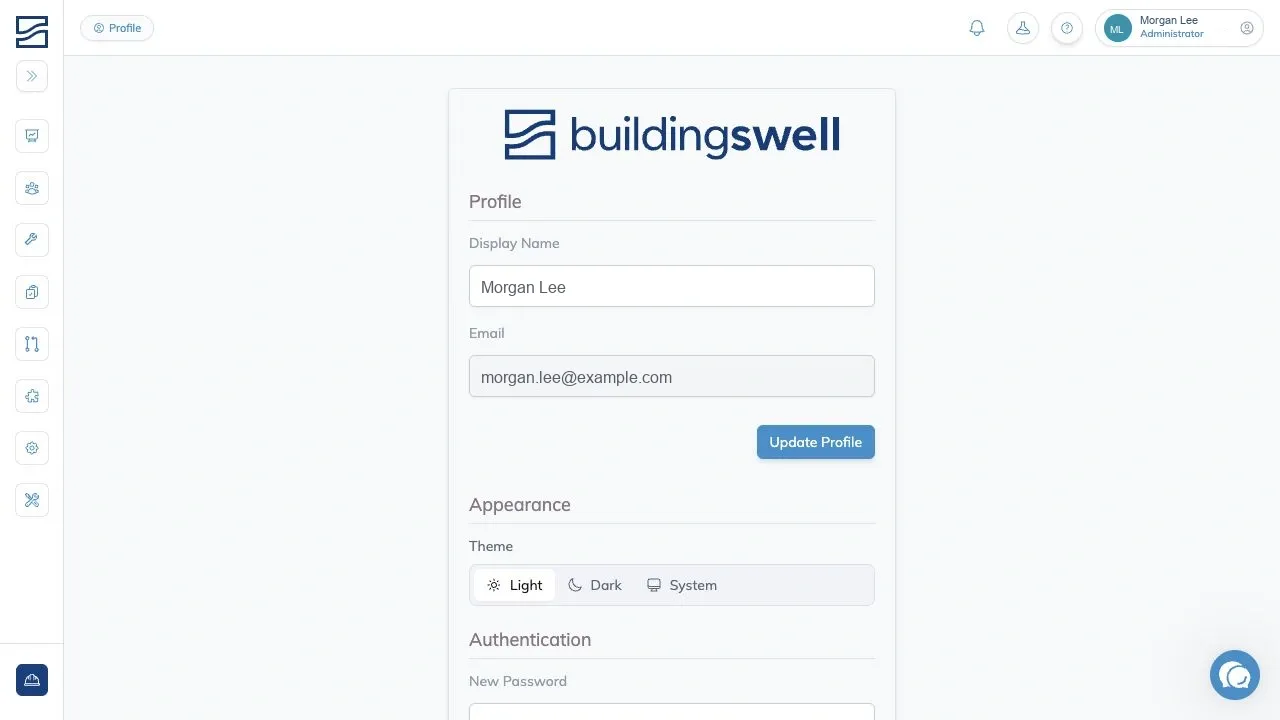
3. Check your email address
The Email field is read-only. If your email address needs to change, contact support rather than entering it in the display name field.
4. Choose your theme
In Appearance, find Theme and choose an option:
Light keeps the light theme.
Dark keeps the dark theme.
System follows your device's appearance setting.
The change applies immediately. You do not need to select Update Profile to save your theme.
5. Change your password
In the password section, enter your new password in New Password and repeat it in Confirm Password. Select Change Password and look for the Saved message.
If the entries do not match, correct them and try again. Do not share your password in a support message.
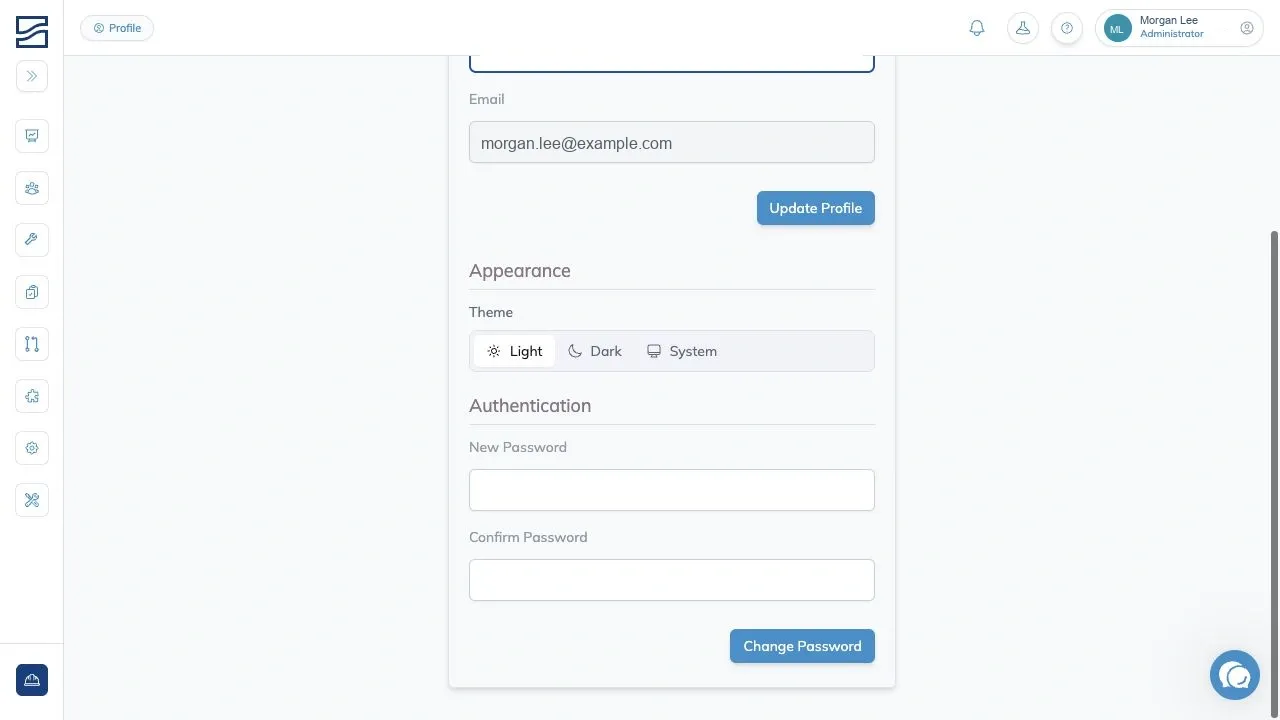
On a phone, use the Profile, Appearance, and Security tabs to open each section.
Was this helpful?
Still need help? Ask the team