Smartsheet Integration
Sync a Smartsheet with Building Swell both ways: fields, statuses, files, and comments.
Last updated 29 days ago
Introduction
The Smartsheet integration keeps a Smartsheet and Building Swell in step. It works both ways: a pull brings changes from the sheet into Building Swell, and a push writes Building Swell progress back out to the sheet.
It is for shops whose schedule already lives in Smartsheet and is going to keep living there. Nobody has to retype a date twice, and the office keeps the view it is used to.
Set-up is a real piece of work, mostly because you are teaching two systems to agree on what a row means. Budget an hour and do it once, properly.
Before you start. You need access to Integrations, which your role has to grant. If you cannot see it, ask your company admin to update your permissions. See Roles.
Step-by-Step Guide
1. Connect the account
Open Integrations and pick the Smartsheet card.
Use Add connection and sign in with your Smartsheet credentials.
The card reads Connected when it is live, along with Last synced and Last validated.
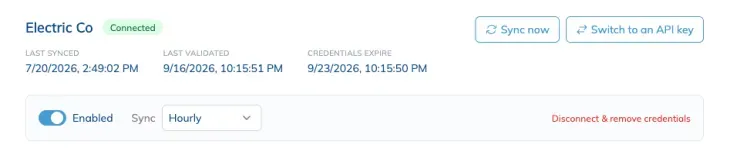
A connection can also read Degraded, Needs reconnect or Disconnected. Credentials expire, so a healthy integration will need reconnecting eventually. Use Reconnect and give it fresh credentials: your configuration is preserved, so you are not rebuilding the mapping.
2. Point it at a sheet
Pick the sheet under Sheet, then tell Building Swell how to read a row.
Order. The column that identifies a Building Swell order. Choose whether the column holds the ID or the Name. This is the decision everything else depends on, so get it right first.
Project. The column that identifies the project, again by ID or by name.
Default project. Where rows land when the sheet does not name one. See Projects.
Sync gate. Nominate a checkbox column and only rows with it ticked will sync. This is the safest way to pilot on part of a sheet.
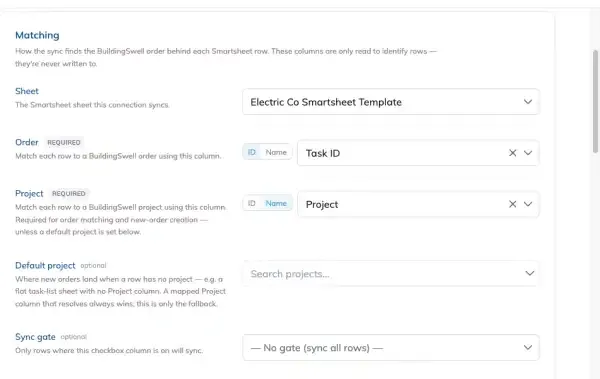
Match on ID where you can. Names are not unique. When you match on name, Building Swell scopes the search to the project and skips any row two records could answer to, so a duplicate name quietly stops syncing rather than attaching to the wrong order.
3. Map the fields
Field mapping is where you say which Smartsheet column carries which piece of Building Swell data, and which system wins. Each row of the mapping is one field, one column, and a direction:
Pull. Smartsheet is the source of truth for that field.
Push. Building Swell is the source of truth.
Two-way. Both sides can change it, and the most recent edit wins.
A field you do not map is not synced at all. These are the fields available:
Why some fields only push
Building Swell owns the schedule. It works out an order's start date, end date and percentage from the phases and stages underneath it, so those are calculated here and written out to the sheet. Smartsheet's own dates are never read back, even when the sheet computes them from its own dependencies. Due date is the date that goes both ways, because that one is a commitment somebody makes rather than a number the system derives.
BSWL ID is worth mapping even though nothing reads it in the sheet. It stamps the order's internal id onto the row, so the link survives if you later change which column identifies an order.
Route is pulled once
Route behaves differently from the other fields. On pull it is applied only when the row creates a brand new order, and it is never re-applied afterwards. After that it is push only, writing out the route the order is actually on. Two settings change that:
Pull route changes lets a later change to the sheet's route column move an existing order onto a different route.
Re-route orders with progress allows that even when work has already started on the order.
Leave both off unless you specifically want the sheet driving routes. See Managing Routes.
Columns that do not exist yet
Tick Create new column on a pushed field and name it. Building Swell adds that column to the sheet on the next run rather than dropping the value because there was nowhere to put it.
For everything you did not map, turn on Preserve unmapped columns in notes. The rest of the row is kept on the order's notes instead of being dropped.
4. Map the statuses
This is the heart of it. Your sheet has its own status words. Building Swell has phases and stages. Status mapping is where you say what each of your words should do.
For each status value in the sheet, pick the Building Swell meaning:
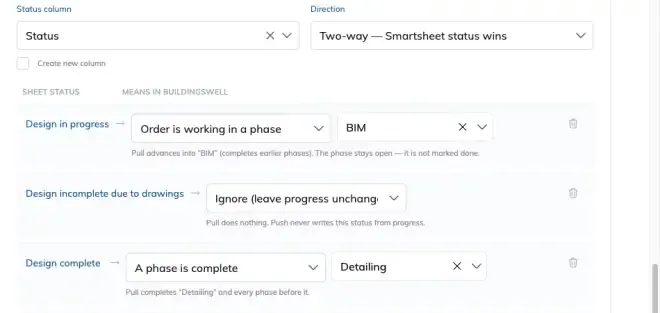
Use Ignore generously
Any sheet has status words that are not really progress: a review flag, a waiting-on-somebody note, one person's shorthand. Map those to Ignore. A status left mapped to real progress will move work in Building Swell every time somebody types it into the sheet.
Nested sheets use a shorter list
The meanings above are for a sheet whose rows are orders. Turn on Import row hierarchy and the list changes, because each row is then a phase or a component rather than the whole order. A status then says where that row has got to, and nothing about the rest of the order.
The choices become To Do, Started, On Hold and Done. Each one is also available as "in a stage" when you want to name the stage the row reached, and Ignore works exactly as it does above.
Rows with children are written, not read. A row with nothing under it owns its status. A row that has child rows is a container, so Building Swell works its state out from the rows beneath it and writes that back to the sheet rather than reading what is in the cell.
Revisit the mapping if you turn hierarchy on for a connection that already had one. A status still set to one of the order-level meanings is not applied on a nested sheet, and shows as Ignore until you pick one of the row choices.
The status column has its own direction, and its two-way setting asks which side wins a disagreement: the Smartsheet status, or Building Swell's own progress. You can also have Building Swell create a status column in the sheet if there is not one to push into.
Phases are the unit most of this maps onto, so it is worth having them settled first. See Phases and Stage and Project Progress.
5. Nested sheets and phase order
Turn on Import row hierarchy and the sheet's indentation comes across instead of being flattened. A parent row becomes the order, and the rows indented under it become its components and phases. Without it, every row is an order in its own right.
Two columns do fixed jobs on a nested sheet. You do not pick them in the mapping, and they are matched by name:
Template holds the name of the Building Swell phase template a row should become. A sheet with no Template column treats every nested row as a phase.
Successor holds the identifier of the sibling row that comes after this one, comma separated when several do. Building Swell turns those into finish-to-start dependencies inside the order, so the phases run in the order the sheet says.
Successor values are matched against the row's own siblings, by identifier only. A value that two siblings answer to is reported and skipped rather than guessed at, and a chain that loops back on itself writes nothing and says so in the run log.
The sheet owns the phase chain. Building Swell remembers which dependencies each Successor cell created. Clear the cell and those dependencies go with it, including ones somebody had also drawn by hand. A dependency the sheet never named is left alone.
Dates on nested sheets controls whether dates flow to the rows underneath an order or only to the order row itself.
6. Set the scope and the guardrails
Each direction has its own switch and its own scope. Under Push to sheet and Pull from sheet you can turn the direction off entirely, or narrow it to particular projects and particular assignees. Narrow scopes are how you run one connection per project team without them treading on each other.
You can also scope the whole integration to particular departments rather than all of them.
Then the guardrails:
Block auto-create outside pull scope. A row naming a project that does not exist yet is skipped instead of creating that project.
Block auto-create workers. Names in the sheet stay names, instead of becoming people in Building Swell. See People.
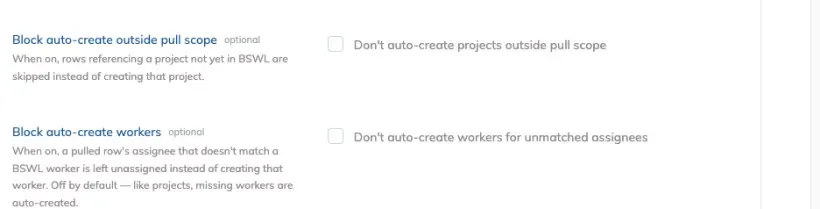
Both are worth having on for a first run. A sync that quietly creates a hundred workers from a name column is a bad afternoon.
7. Choose how often it runs
Sync frequency runs from Every 15 minutes through Every 30 minutes, Hourly, Every 3 hours, Every 6 hours and Every 12 hours, to Daily. You can also pause a connection without disconnecting it.
Frequent is not automatically better. A 15 minute sync on a sheet several people edit live will move work in Building Swell all day. If your sheet gets worked in bursts, hourly or daily is calmer and much easier to reason about when something looks wrong.
8. Sync files
Under Sync documents, each direction is a separate checkbox and both start off:
Pull files from Smartsheet. A file attached to a row becomes a document on whatever that row is in Building Swell: the order on a flat sheet, or the component or phase itself when hierarchy is on. Turning this on imports the sheet's existing attachments in the background.
Push files to Smartsheet. Building Swell documents go out as attachments on the row.
Two more appear once you pick a direction. Include link attachments brings in Drive, Box, OneDrive and URL attachments as references rather than copies. The archiving option lets archiving a file in Building Swell remove it from Smartsheet, and only ever for files that came from Building Swell in the first place.
Nothing is deleted by the sync. Re-upload a file to a row under the same name and it lands as a new version of the existing document, not a second copy. A file removed from the sheet is archived here rather than lost, marked Removed from Smartsheet, and you can restore it. If the file comes back to the sheet, the sync undoes its own archive. A document a person archived stays archived.
Files land on the order's Documents tab either way. See Documents Hub.
9. Sync comments
Under Sync comments, Pull comments from Smartsheet and Push comments to Smartsheet are again separate and both start off. A row's Smartsheet discussion and its Building Swell comment thread become one conversation, on whatever that row is: the order, or the component or phase when hierarchy is on. Turning pull on imports each row's existing history on the next sync, keeping the original dates.
A top-level Building Swell comment becomes its own discussion in Smartsheet. Only a real reply becomes a reply.
Who the comment comes from
A comment pulled in from Smartsheet is attributed to the person who wrote it, matched on their email address against your Building Swell members. Somebody with no Building Swell account keeps their name in the comment text instead.
Going the other way, Smartsheet stamps every write with the account that made it, so by default a comment pushed from Building Swell shows under the account the integration is connected with, with the real author's name in the comment text.
To fix that properly, each person connects their own Smartsheet account once from the Smartsheet Accounts card in the Integration Hub, either by signing in with Smartsheet or by pasting a personal API key. Their comments then reach Smartsheet under their own name and avatar.
You connect only yourself. Nobody can register an account in somebody else's name. An admin can see who has connected one and revoke any of them, and revoking destroys the stored credential rather than just switching it off.
Expect attribution to be mixed for a while. Somebody who has connected their account posts as themselves, and a colleague who has not still posts through the connection.
10. Watch it run
The Activity log shows each run and how it went: Running, Partial or Failed, with the Errors behind a failure. File runs are listed separately, tagged Documents.
Partial is the one to read. It means some rows synced and some did not, which usually points at a mapping that does not cover something the sheet contains.
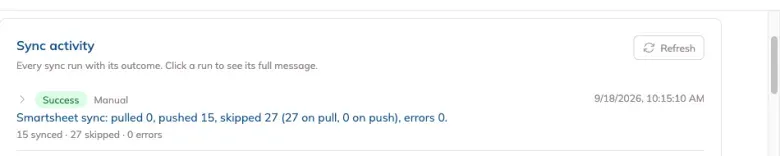
Read the summary line on a successful run too. It counts what moved, and it will tell you about status mapping warnings, dependencies written from the Successor column, and rows whose Order ID was left alone because the sheet already had one.
A run that has jammed can be abandoned and re-run, which clears the lock and lets the next one start.
For scheduled jobs across the rest of Building Swell, the System Log is where you check whether they ran.
Tips
Pilot with the sync gate column. Tick ten rows, sync those, check what happened. Far better than pointing it at a whole sheet and finding out.
Map every status, even the ones you do not care about. Ignore is a real answer and the safest default for anything ambiguous.
Map BSWL ID early. It stamps the order's id onto the row, so the link holds even if you change which column identifies an order later.
Turn on files and comments one direction at a time. Pull first, look at what arrived, then push. Both start off for a reason.
Start slow on the schedule and speed it up once you trust it.
Reconnect rather than rebuild when credentials expire. Your mapping survives.
Check Activity after the first few runs. Partial runs are the early warning that something is unmapped.
FAQ
Which direction does it sync?
Both, and you choose per field. A pull brings the sheet into Building Swell, a push writes Building Swell out to the sheet, and two-way lets the most recent edit win.
Why will it not pull my start and end dates?
Building Swell works those out from the phases and stages under the order, so they only push. Due date is the date that goes both ways.
Will it change my whole sheet?
Only rows in scope. Nominate a sync gate checkbox column and only ticked rows sync, which is how you keep a pilot small.
A status in my sheet keeps moving work it should not.
It is mapped to real progress. Change it to Ignore.
The connection says Needs reconnect.
Credentials have expired. Use Reconnect and provide fresh ones. Your configuration is kept.
A run came back Partial. What does that mean?
Some rows synced and some did not. Open the run in Activity and read the errors. It is usually something in the sheet the mapping does not account for.
What happens to columns I did not map?
Turn on Preserve unmapped columns in notes and they are kept on the record rather than dropped.
Somebody re-uploaded a drawing to a row. Did it replace the old one?
It became a new version of the same document, so the earlier one is still there in the version history.
Why do pushed comments show under one person's Smartsheet account?
Smartsheet stamps a comment with the account that wrote it, and the connection holds one. Have each person connect their own account under Smartsheet Accounts and their comments go out under their own name.
My phases came in the wrong order.
On a nested sheet the Successor column sets the order. Check the run log: a value that two sibling rows answer to, or a chain that loops, is reported and skipped rather than guessed at.
Conclusion
Connect the account, decide which column identifies an order, then spend your time on the field and status mapping, because that is what actually moves work. Pilot with the sync gate column, keep the guardrails on for the first runs, add files and comments once the rows are behaving, and read Activity until you trust it.
Need help? Hit the chat button or click "Ask" in the app. You can also reach us at support@buildingswell.com.
Was this helpful?
Still need help? Ask the team