Categories
Build the reason list captured when work is reworked or put on hold.
Last updated About 2 months ago
Introduction
Categories are your reason codes. When work is sent back for rework or put on hold, the form that fires captures why, and the options it offers come from this list.
The list is two levels deep. Top-level rows are categories, and each can hold subcategories beneath it. That's deliberate: broad enough to report on, specific enough to act on.
Before You Start
- Reasons are only captured if a form trigger is set up to ask for them. See the Form Triggers guide.
Step-by-Step Guide
Add a Category
-
From the left-hand menu, go to Rules Engine → Categories.
-
Click Add category.
-
Enter the Name and save.
Add a Subcategory
-
Find the category it belongs under.
-
Click Add subcategory.
-
Enter the Name and save.
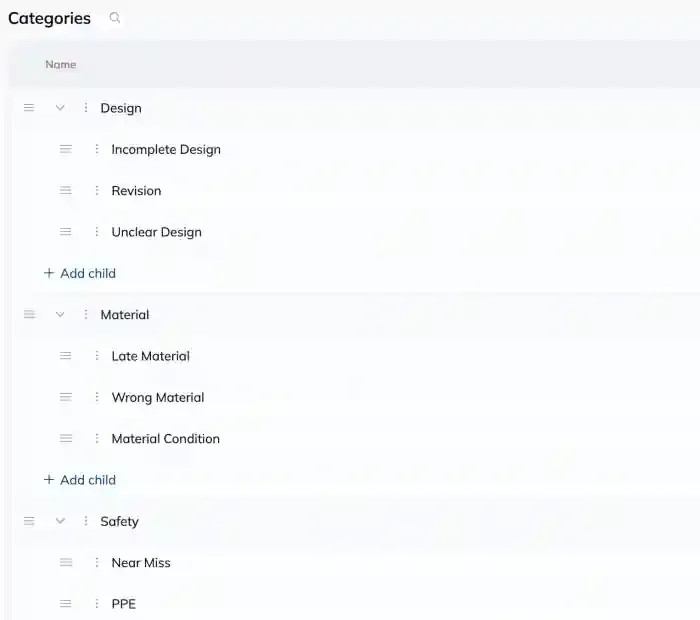
Reorder
Drag rows to change the order. The order here is the order people see when picking a reason, so put the common ones near the top. Reordering is safe and changes no history.
Archive
Click Archive to retire a category or subcategory. It stops being offered on new forms and stays on every record that already used it.
Tips
-
Keep the top level short. Six to ten categories that everyone reads the same way beats thirty nobody can choose between.
-
Push the detail into subcategories. That's what they're for, and it keeps reporting rollups clean.
-
Write them as causes, not blame. "Drawing revision" gets picked honestly. "Shop error" doesn't.
FAQ
Can I go more than two levels deep?
No. Categories and subcategories, and that's it.
Where do the captured reasons show up?
On the form submission the trigger created, and on the work it relates to. Your form entries are under Forms → Entries.
Do I need separate lists for rework and hold?
It's one list. If a reason only makes sense for one of them, its wording usually makes that obvious.
Conclusion
A short, honest, well-ordered category list is what turns rework and hold events into something you can actually report on. Get the top level right early.
Need help? Hit the chat button or click "Ask" in the app. You can also reach us at support@buildingswell.com.
Was this helpful?
Still need help? Ask the team