Intro to Orders
Find your way around the Orders page and what it shows you.
Last updated 27 days ago
Adding Fabrication Work to Building Swell
Introduction
Understanding the layout and functionalities of the Orders section is fundamental to efficient production management in Swell. This introductory guide provides insights into navigating and working with your orders in Planning.
Before you start. Setup your shop digitally in Building Swell, including shifts, shops, projects, stages and steps. Ensure that you have at least 1 active route.
Step-by-Step Guide
Finding Your Orders
- Open Planning from the left sidebar.
- Your orders are listed on the left, with a Gantt timeline on the right showing how they sit across the schedule.
Overview of the Orders List
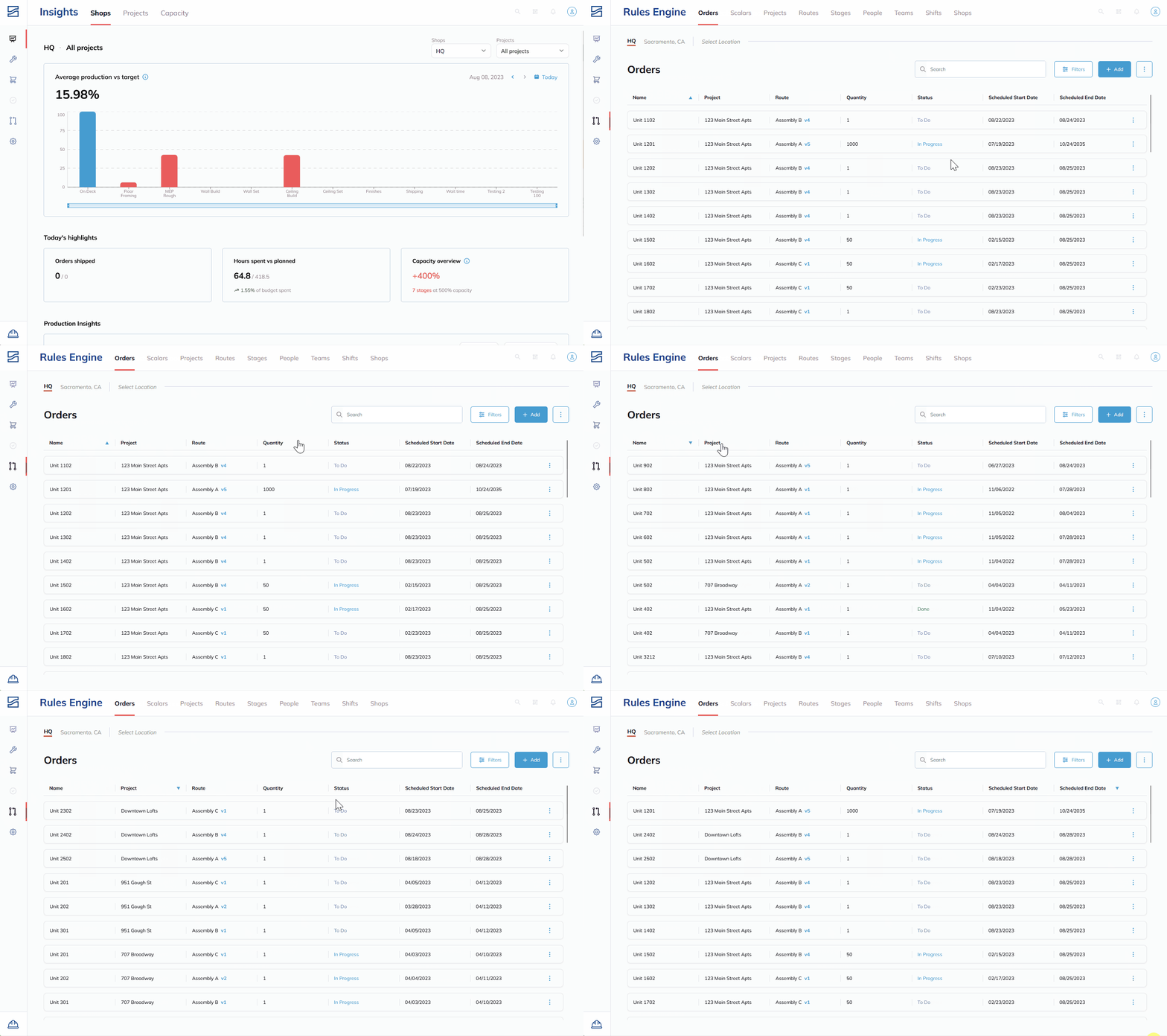
Work Packages/Orders Display: The page displays various work packages or orders organized by different parameters.
Location Filter: You can differentiate orders based on locations, such as HQ or Sacramento.
Sorting Options: Orders are sorted by parameters like name, project affiliation, associated route, quantity, and status. Click on any header to sort the orders accordingly.
Tips
- Sorting for Efficiency: Utilize the sorting feature to quickly identify orders based on their priority, start date, or any other crucial parameter.
Conclusion
Being well-acquainted with the orders list in Planning and what it can do ensures a streamlined production management process within Building Swell.
Video walkthrough
Orders Overview
Order Details
Still need help? Ask the team