Pick Lists
Build a list of material to pull, walk it by location, and stage it for the work that needs it.
Last updated 28 days ago
Introduction
A pick list is the material somebody has to go and pull: what to get, where it is, and where to put it when they have it. It is the bridge between material sitting on a shelf and material staged ready for the work that needs it.
Every list has a staging location, which is where picked material lands. Picking moves stock out of the shelf it was on and into staging, so the numbers follow the material.
Not seeing this page? Reach out to your company admin to update your permissions. See the Roles guide.
Creating a Pick List
Open Inventory and pick Pick Lists, then start a New pick list.
Give it a Name. It will not save without one.
Set the Kind: Prefab, Install or Rework.
Set the Staging location. This is where everything picked onto this list ends up.
Set Assigned to if you know who is picking it. One person owns the picking, and it can be left as Not set for now.
The faster route is From an order, which builds the list from the material an order already needs rather than making you add every line by hand. Use Add material to add anything it missed.
A list itself moves through To Do, In Progress and Done.
What Each Line Is Doing
Lines have their own lifecycle, separate from the list. This is the part to learn, because it is how you tell material that is promised from material that has actually moved.
Reserved is the same word the stock figures use, and it means the same thing in both places: promised, not moved. See Materials and Parts.
Picking
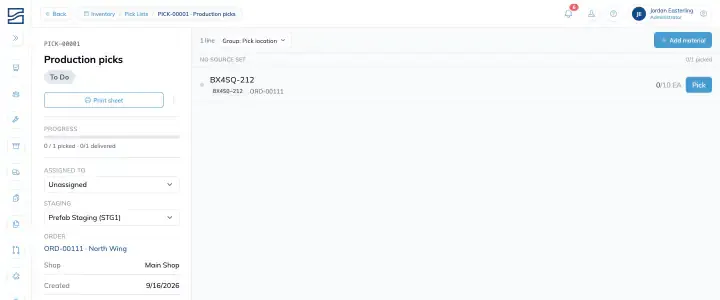
The detail page groups lines by Pick location by default, which is deliberate: that order is the floor walk. You work a location, clear what is there, and move to the next one instead of criss-crossing the yard.
You can regroup the same lines by Staging location, Order, Sub-order, or turn grouping off. Regrouping never hides anything, it just moves what sits in the headings and what sits on each row.
Enter the quantity you actually pulled and pick the line. The material transfers to staging and the line moves to In Transit.
Two things stop a pick
A line needs both a source location and a staging location before it can be picked. If either is missing you are told so rather than left guessing.
And the quantity has to be positive. Zero is not a pick.
Lines can also be picked from the other direction, standing at the shelf: the Picker view on a location shows the lines that pull from it. See Storage and Locations.
Taking a Paper List to the Floor
Pick lists print. The print sheet groups by rack so the sheet reads rack by rack, with anything not assigned to a rack collected at the end under No rack.
Blocking a List
If a list should not be worked yet, block it and say why. Blocking notifies your managers, so it is a signal rather than a private note, and the Pick buttons switch off while it is blocked.
Unblock it when whatever caused it is resolved.
Changing a List
Add material adds a line.
The required quantity, the staging location and the assignee can all be changed after the fact.
A line’s own staging location can differ from the list’s. Left alone, it inherits the list’s.
Removing a line releases its reservation, so the material goes back to being available for something else. That is the clean way to cancel part of a list.
Tips
Set the staging location before anyone picks. It is the one field a pick cannot proceed without, and chasing it mid-walk wastes a trip.
Leave the grouping on Pick location while picking. The other groupings are for planning and checking, not for walking.
Build from an order rather than by hand. It is quicker and it will not miss a line the order needs.
Block rather than delete when a list should wait. Blocking tells somebody; deleting tells nobody.
Remove lines you are not going to pick. A reservation left in place holds material away from work that could use it.
FAQ
Why can I not pick this line?
Either its list is blocked, or the line is on Backorder, or it is missing a source or staging location. Backorder lines are never pickable, because the stock is not there.
What is the difference between Reserved and In Transit?
Reserved means promised and still on the shelf. In Transit means picked and now sitting in staging. Only In Transit has actually moved stock.
I removed a line by mistake. What happened to the material?
Its reservation was released, so the material is available again. Add the line back and it will reserve again.
Can two lines stage to different places?
Yes. A line can carry its own staging location. Without one it uses the list’s.
What does blocking actually do?
It notifies your managers and switches the Pick buttons off. Treat a blocked list as one not to work.
Conclusion
Build lists from the orders that need the material, set a staging location up front, and leave the grouping on Pick location so the list reads as a walk. Reserved means promised, In Transit means moved, and removing a line gives the material back.
Need help? Hit the chat button or click "Ask" in the app. You can also reach us at support@buildingswell.com.
Was this helpful?
Still need help? Ask the team