Documents Hub
Upload documents, attach them to work, and control which version the crew sees.
Last updated 25 days ago
Introduction
The Documents module is one place for the files your shop works from: drawings, specs, cut sheets, submittals. Put a document here once, attach it to the work it belongs to, and add a new version when it is revised without breaking anything pointing at it.
It is the difference between wondering which revision the crew is building from and knowing.
Not seeing this page? Reach out to your company admin to update your permissions. See the Roles guide.
Step-by-Step Guide
Add a Document
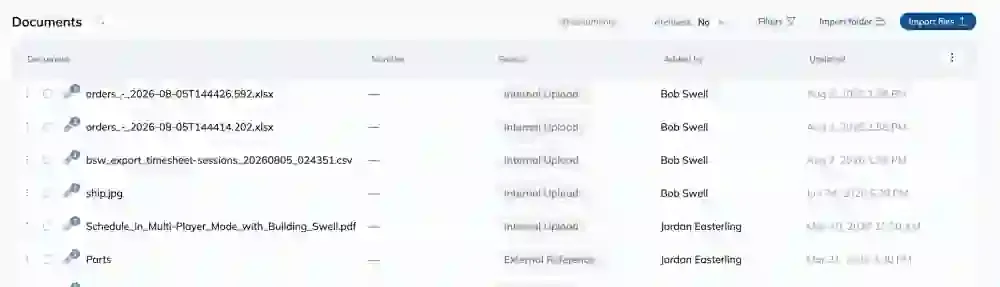
Open Documents and choose how the file gets in.
-
Import files or Import folder brings them in from your computer. A folder keeps its structure.
-
Import URL pulls one in from a link.
-
Give it a Name, and a Number if your shop numbers drawings. People search by number, so fill it in.
Attach a Document to Work
A document sitting in the hub does nothing on its own. Attaching it is what puts it in front of the crew.
-
From the document, use Attach to… and pick the work it belongs to.
-
Or from the work itself, use Attach existing to pick something already in the hub. Anything already attached shows as Already attached, so you cannot double it up by accident.
-
Detach removes it from that work. The document itself stays in the hub.
Work With Versions
When a drawing is revised, add the new file as a version rather than uploading a second document. Everything already attached keeps working.
-
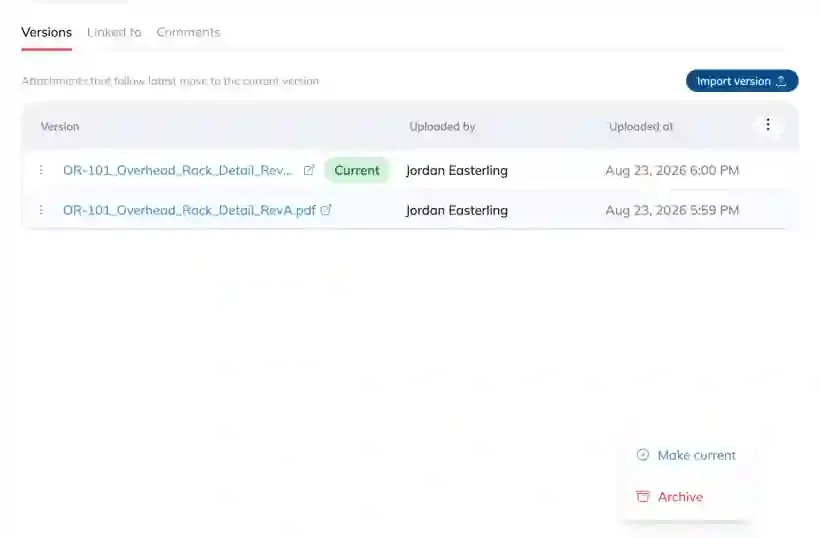
Open the document and go to Versions.
-
Use Import version to add the new file.
-
On the version people should see, choose Make current. You get Current version updated to confirm it.
-
Archive version puts an old one out of the way without throwing away the history.
Know Which Version the Crew Sees
This is the part worth understanding. Open the Linked to tab and read the Version column against each place the document is used.
-
Follows latest. That attachment always shows whatever is current. Make a new version current and this work picks it up.
-
Pinned. That attachment is held on one specific version and will not move when you make a new one current.
So when you have revised a drawing and a crew is still on the old sheet, Linked to is where you find out why.
Find a Document
Use Search the Documents Hub… to search by title, number, or who added it, and the filter drawer to narrow the list. The Used on column tells you where each document is in play, which is the quickest way to find the drawing for a job whose name you cannot remember.
Archive or Restore
-
Archive document takes it out of circulation. An archived document no longer appears on builds.
-
Restore brings it back.
Tips
-
Version, do not re-upload. A second copy of a revised drawing splits the history and leaves crews on different sheets.
-
Fill in the Number. It is how people find drawings.
-
Pin a version when a crew must build from exactly that sheet whatever gets revised later. Leave it on Follows latest the rest of the time.
-
When you duplicate work that carries documents you are asked whether to Include a copy or Reference the original. Reference keeps one document in one place. Take a copy only when the new job’s sheet will genuinely diverge.
FAQ
I made a new version current but the shop is still on the old one.
That attachment is Pinned rather than following the latest. Check the Version column on the Linked to tab.
If I detach a document, is it deleted?
No. Detaching removes it from that one piece of work. It stays in the hub, and stays attached anywhere else it is used.
What happens to an archived document?
It stops appearing on builds. Use Restore to bring it back.
Can I see everywhere a document is used?
Yes. That is the Linked to tab, and the Used on column in the list.
Conclusion
Add the file once, attach it to the work, and add versions as it is revised. If you remember one thing, make it the Linked to tab: it is where you confirm the crew is looking at the sheet you think they are.
Was this helpful?
Still need help? Ask the team