Managing Users
Invite people to Building Swell, set their role, and deactivate them when they leave.
Last updated 24 days ago
Introduction
Building Swell provides a straightforward process for inviting, editing, deactivating, and reactivating users. This guide will walk you through the steps to effectively manage your organization's members from the Settings area..
Step-by-Step Guide
Navigating to Users
- Click the Settings icon (gear icon) in the left sidebar.
-
In the Settings submenu, click 'Users'.
Inviting a New User
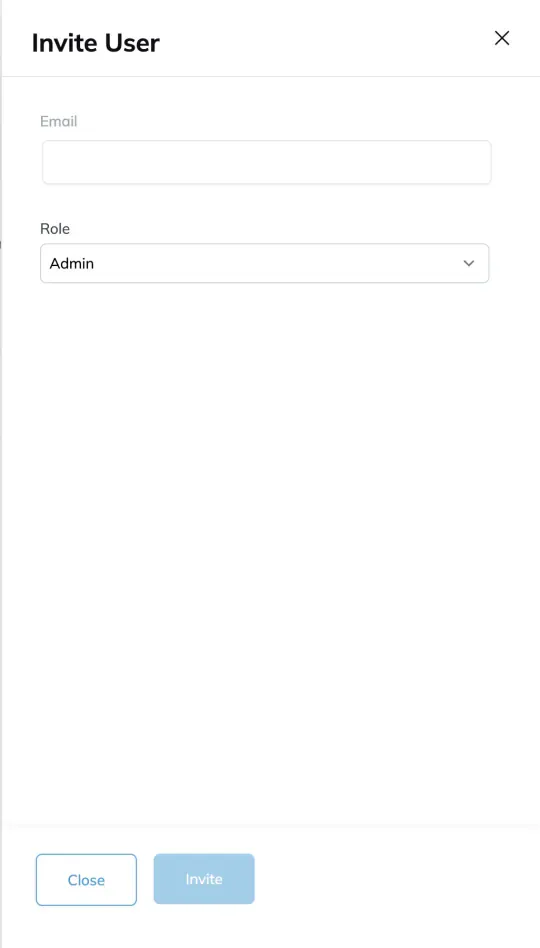
- Click the 'Invite' button at the top right corner of the screen.
- Enter the user's email and select their role from the dropdown. A standard setup has Admin, Design, PM, Shop Manager, and Shop Team. Roles are configured per organization, so your list may differ from this one.
- Click 'Send'.
Resending an Invitation
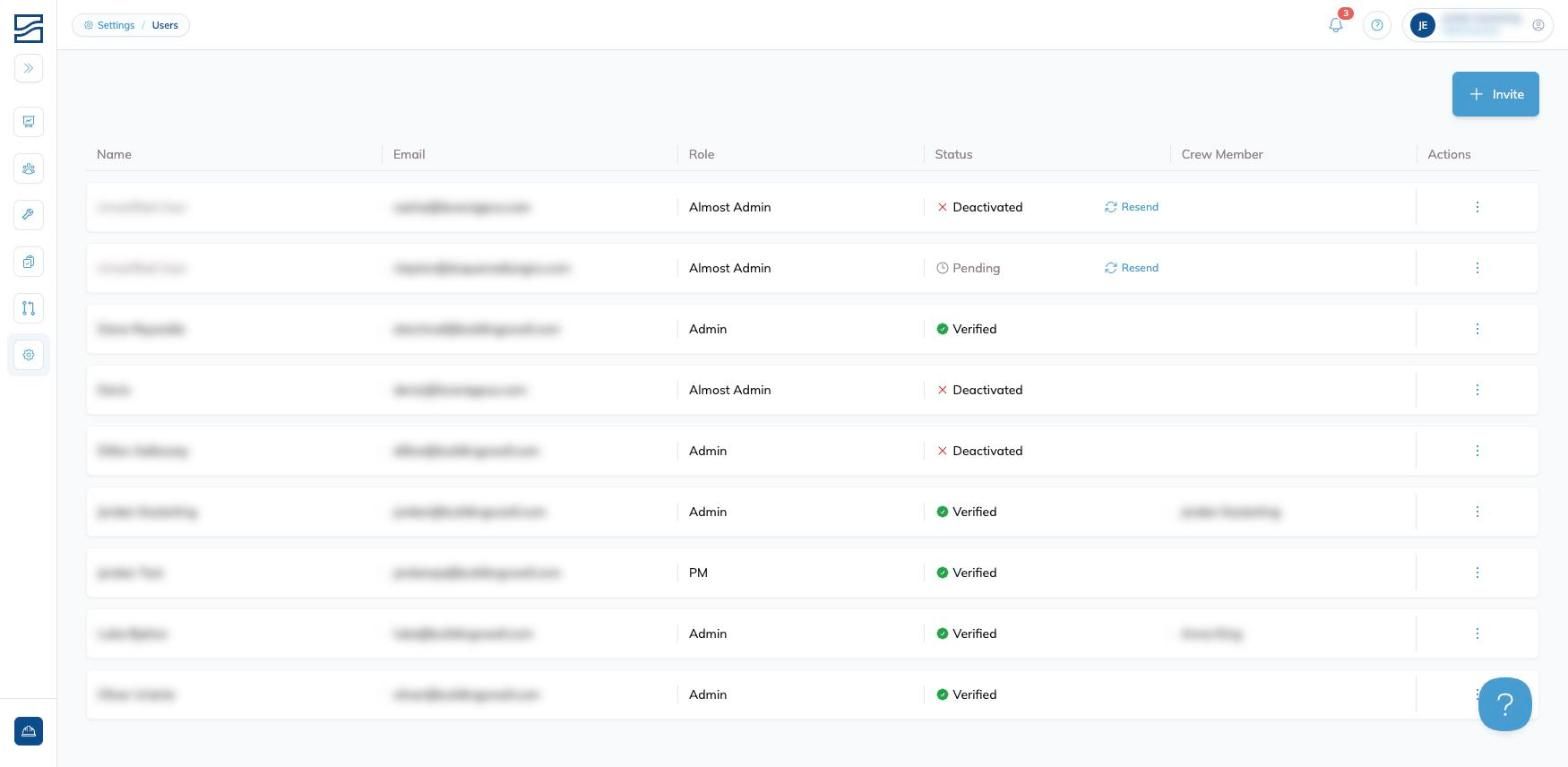
- Find the user with a 'Pending' status.
- Click the 'Resend' button that appears next to their status.
Deactivating a User
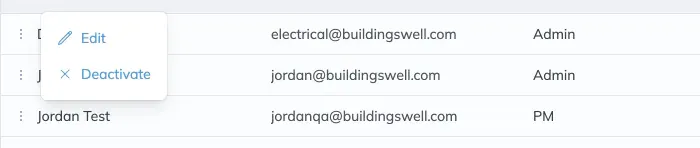
- Locate the user you wish to deactivate.
- Click the three-dot menu (⋮) in the Actions column and select 'Deactivate'.
- Confirm the deactivation.
Editing a User
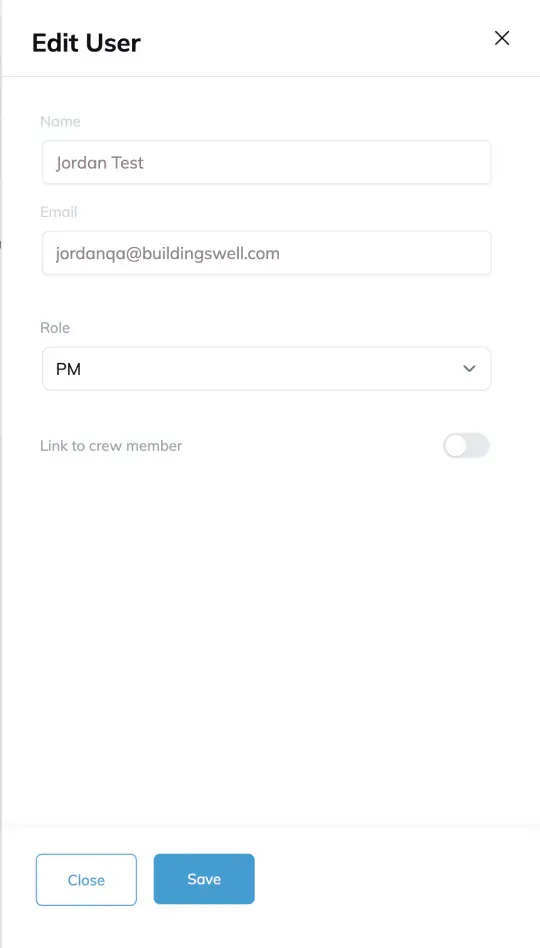
- Locate the desired user in the Users list.
- Click the three-dot menu (⋮) in the Actions column and select 'Edit User'.
- In the Edit User panel, you can update the user's Name, Email, Role, and optionally link a Crew Member. Click 'Save' when done.
Tips & Tricks
- Give each user the right role. A wrong role either blocks someone from work they need, or opens up more than you meant.
- Regularly review and update the users list to maintain an organized system.
FAQ
Can I reactivate a deactivated user?
Yes. Click the three-dot menu (⋮) on the deactivated user and select 'Activate' to reactivate them.
Conclusion
Keep the user list current. Check it when people join, change jobs, or leave, so everyone has the access their work needs and nothing more.
Video walkthrough
Managing Users
Still need help? Ask the team