In Transit and Receiving
Start transit, work the stops from the no-login driver page, confirm what arrived, and cancel or archive a trip.
Last updated 26 days ago
Introduction
A delivery in transit has two sides. Your crew works it in Building Swell, and the driver works it from a page that needs no login and no account. Both sides are here, from the one decision to make before you roll deliveries out, through to archiving a finished trip.
Most of this happens on a phone at the dock, so the screens here are shown the way a crew sees them.
Deciding Who Signs Off
Answer this before you roll deliveries out to a crew. It is the one decision that causes trouble later.
-
The driver signs off. They scan the QR, work the stops, and confirm at the drop. Best for busy sites where coordinating with whoever happens to be unloading is not realistic. Drivers are a small, consistent group you can hold to a process.
-
Dispatch signs off. The office confirms in the app once the driver reports in. Best when drivers are not going to touch a phone reliably.
Pick one per crew and be explicit about it. When it is left ambiguous, both sides assume the other did it, and trips sit open until someone chases them.
Starting Transit
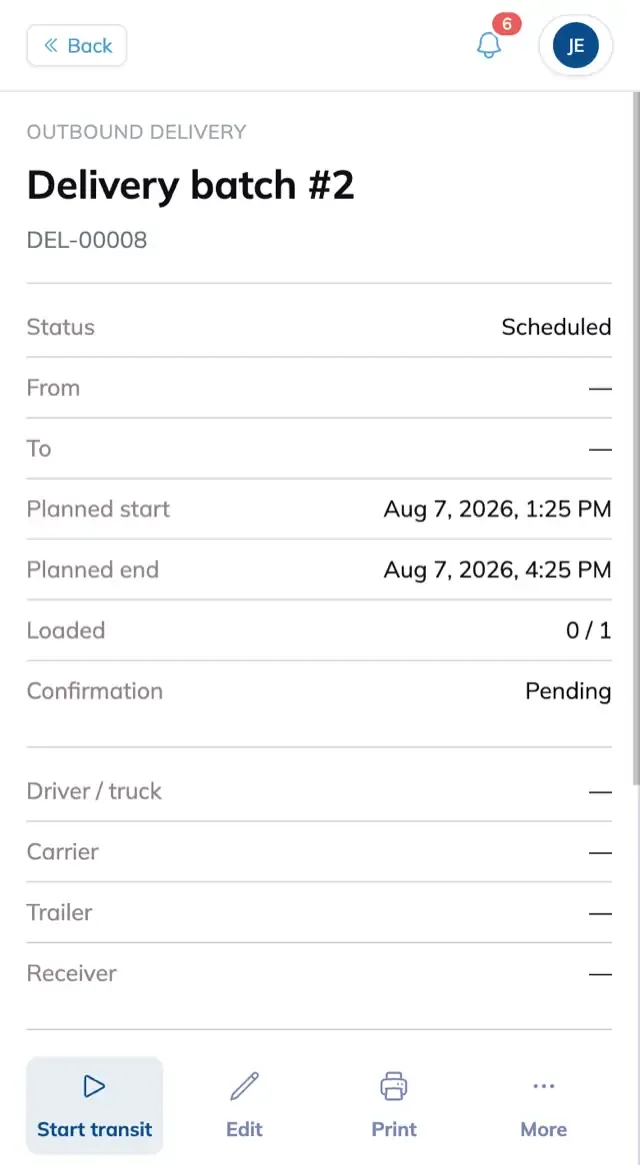
Open the delivery and tap Start transit in the action row. It is available once the trip is Scheduled.
If cargo has not been marked loaded, you will see which rows are outstanding before you confirm. It is a warning, not a block. Trucks leave with paperwork behind sometimes, and Building Swell does not pretend otherwise.
The Driver and Receiver Page
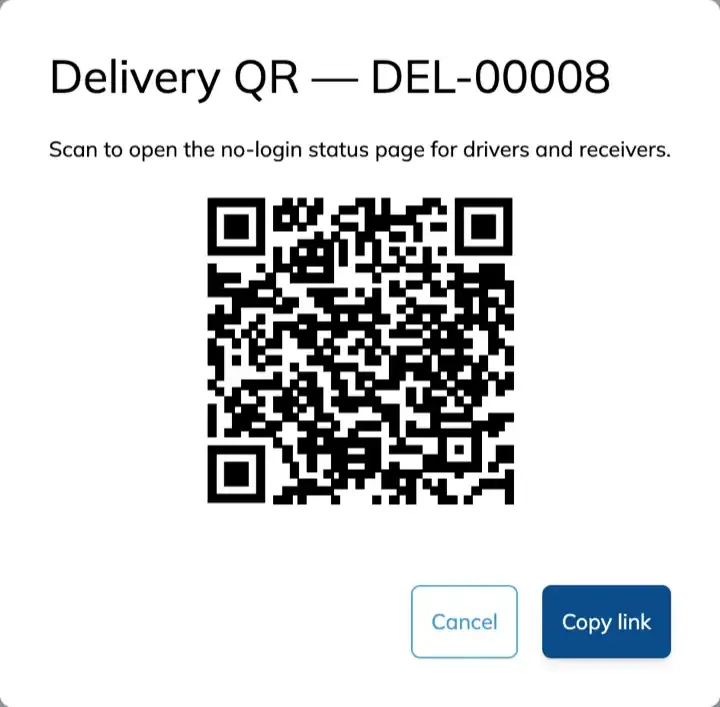
Every delivery has a page anyone can open on a phone with no login and no account. Scan a QR code or tap a link and the whole trip is there. This is how drivers and receiving crews work a delivery without being users in Building Swell.
Sharing the Link
Three ways to get it into someone’s hands.
The printed sheet is usually the easiest. It goes with the load, and anyone who ends up handling the trip can scan it.
What the Driver Sees
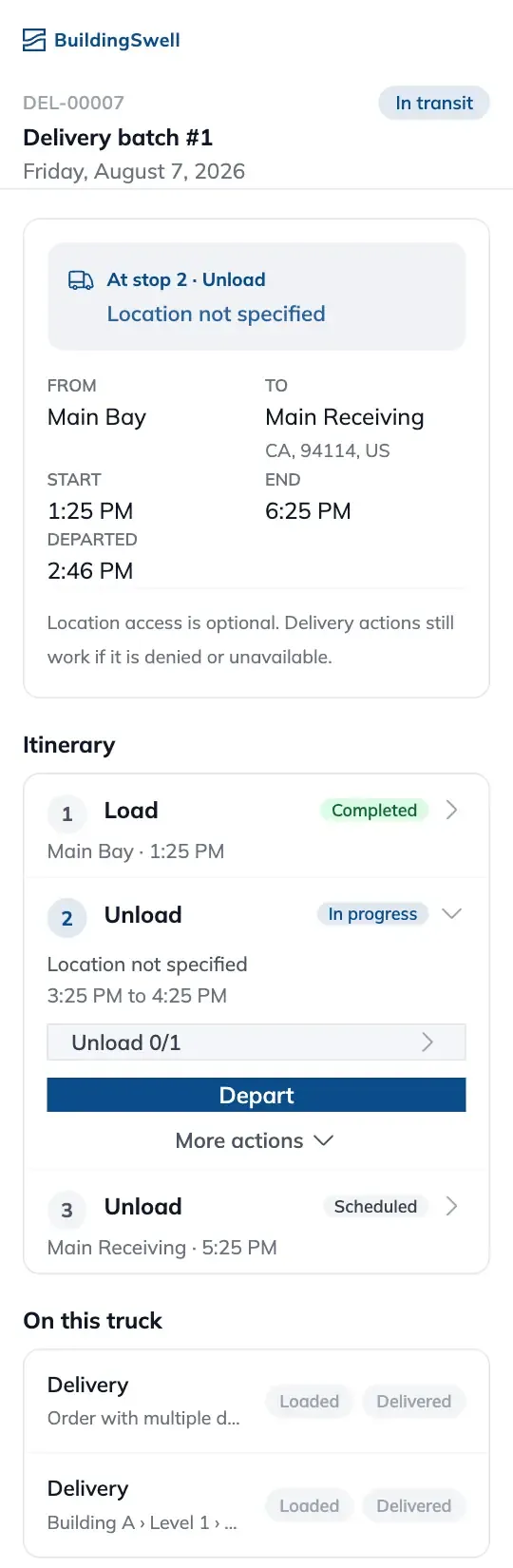
The page shows the delivery, its stops in order, and what is on the truck. Each stop lists the cargo loading or unloading there, and a Navigate button opens directions.
Working a Stop
Each stop follows the same shape.
-
Arrive. The button reads Start loading or Start unloading depending on the stop, and stamps the arrival time.
-
Tick the cargo. Packs and materials get marked Loaded or Delivered. There is a mark all option per section.
-
Depart. Stamps the departure time and moves the trip on.
The gap between arrive and depart is time on site, not unload time. It includes waiting at the gate.
Logging an Issue
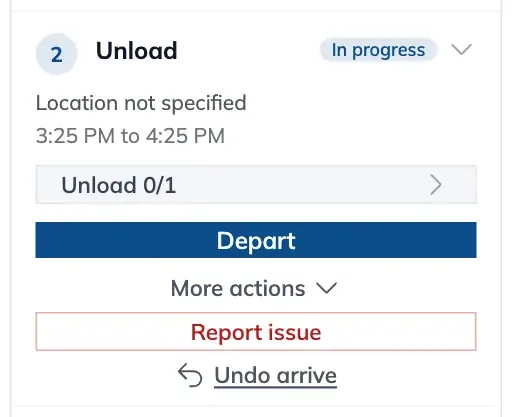
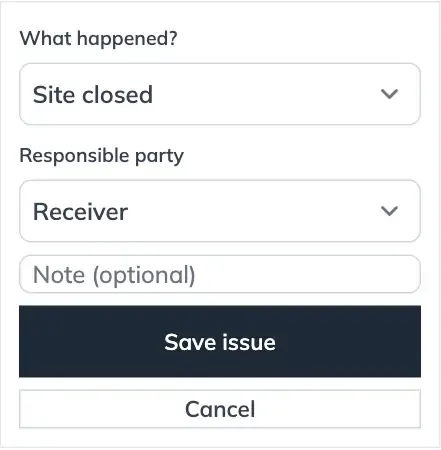
If a stop does not go to plan, record it. Pick a reason and who carries the cost.
Responsibility is Carrier, Shipper or Receiver. A free text note rides alongside.
Fixing a Mistake
Every mark can be undone from the same screen. Undo arrive, Undo depart, Clear issue, and individual cargo ticks all reverse. A mis-tap in a cab does not need a call back to the office.
The Confirmation Form
If the delivery has a confirmation form, the driver or receiver fills it in at the drop. It captures a signature, a photo and the location where it was submitted.
Wrong location scans still go through. They are recorded rather than blocked, so a bad GPS read never strands a driver. Location history shows on the Timeline tab in the app, which only appears for people with permission to view location data.
Confirming the Delivery
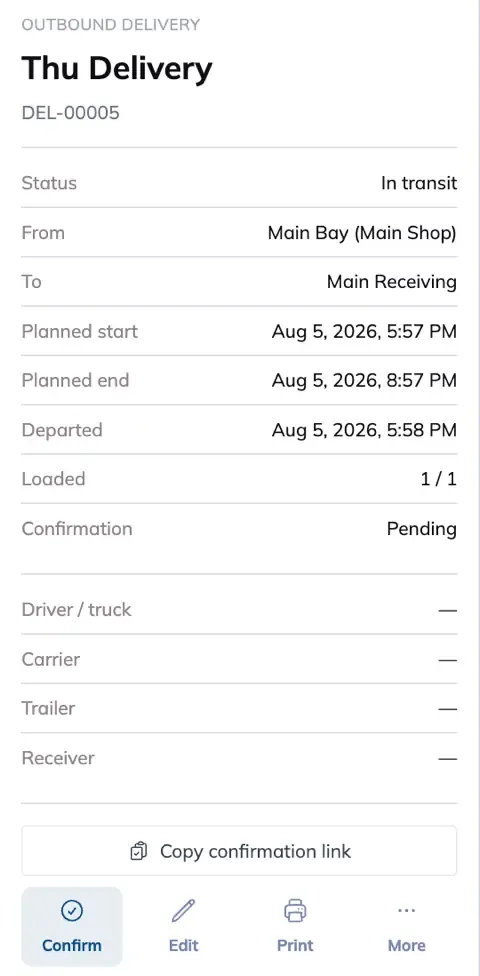
Tap Confirm in the action row while the trip is in transit. On a wider screen the same button reads Confirm delivered…. Carried phases advance, and delivered materials are recorded against the trip.
Material lines can be adjusted before you confirm, so if eighteen of twenty arrived, enter eighteen. The short ship is recorded rather than smoothed over.
The driver or receiver can also confirm from their own page, with no login and no account.
Cancelling a Delivery
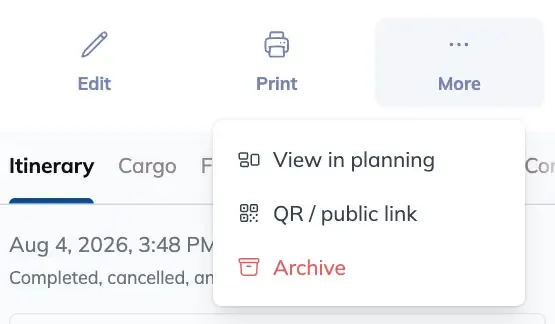
Tap More in the action row and pick Cancel delivery for a trip that will not complete: refused at site, turned around, or scrapped before it left.
Cancelling cannot be undone. The cargo locks, the trip cannot be started or completed, nothing posts to stock, and packs stay where they were.
Archiving and Restoring
Once a delivery is Delivered, Received or Cancelled, Archive appears under More. Archiving clears finished trips off the board while keeping the record and its history. Archived deliveries can be restored from the bin if you need one back.
Cancel and Archive swap places
While a trip is live you can cancel it but not archive it. Once it is finished you can archive it but not cancel it.
Tips
-
Decide who signs off before rollout. Ambiguity here is what leaves trips sitting open.
-
Use the printed sheet. It rides with the load, and anyone handling the trip can scan it. No app to install and no account for the driver.
-
Sweep for stale In transit trips. They are the ones that quietly turn into month end cleanup.
-
Archive as you go rather than in batches. A board showing only live work is much easier to read at a glance.
-
Enter what actually arrived. A recorded short ship is worth more than a clean number that is not true.
FAQ
Does the person confirming need a Building Swell login?
No. The driver and receiver page opens on any phone with no account.
Can I undo a cancellation?
No. Cancelling is final. If the trip might still run, leave it in transit instead.
What if only part of the load arrived?
Adjust the material lines before you confirm. Enter what actually turned up, and the short ship is recorded against the trip.
Why can I not archive a delivery that is still in transit?
Archive only appears once a trip is Delivered, Received or Cancelled. While it is live you get Cancel instead.
I archived the wrong delivery. Is it gone?
No. Restore it from the bin.
A driver mis-tapped something. Do I need to fix it in the office?
No. Every mark reverses from the driver page itself.
Conclusion
Decide who signs off, start transit when the truck rolls, let the driver work the stops from their own page, and confirm what actually arrived. Archive as you go so the board only shows live work.
Have additional questions? Reach us at support@buildingswell.com.
Was this helpful?
Still need help? Ask the team