Tracking Time
The ways hours get logged in Building Swell, from the Build page to Timesheets, and when to use each.
Last updated 4 days ago
Introduction
Use Build to record time while your crew works, or Timesheets to enter and review hours afterwards. Check people in when they arrive, record time against their tasks, and check them out when they leave.
Before you start. Shop, projects, orders, routes, stages, and steps are set up in Building Swell. Shop team members have active user accounts (or QR badges, if scanning).
Step-by-Step Guide
Choose the method that fits how your crew records work. The steps below cover live task tracking in Build and entering or correcting time in Timesheets.
Build
Use Build to record time against the task you are working on. Check in for the day, then assign yourself to a stage or overhead task. Switch the assignment when you move to different work.
Best for: live, self-service time capture for shop team members who move between tasks.
Clock in for the day (reference the Attendance Guide for more information).
Head to Build
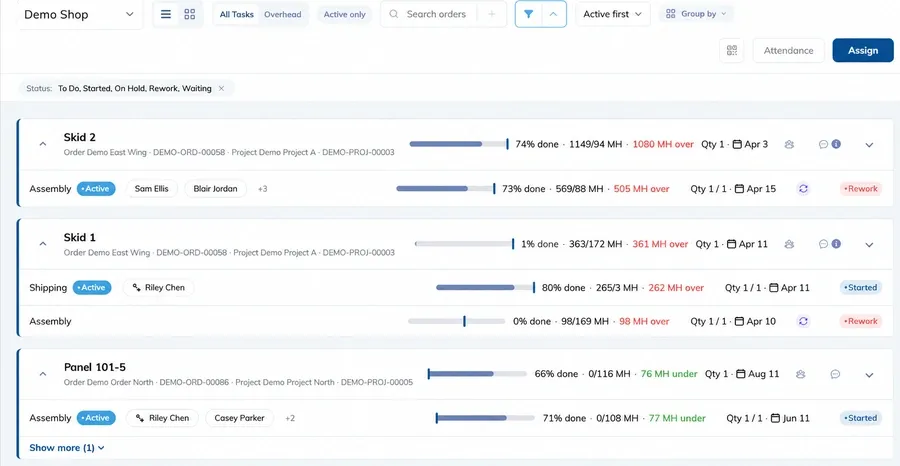
Select your work by choosing the Project / Order you’ll start on so subsequent tasks map to the right job.
Or start tracking directly by tapping Assign, then
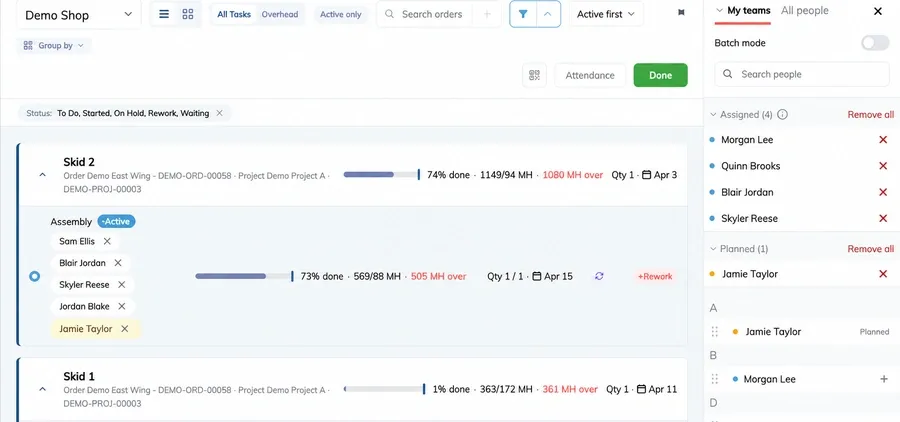
Pick the Build / Job at the top
Select the Stage or Overhead task
Assign who is working from the list of people
Click Save. A live timer begins.
Switch tasks on the fly. When you move, repeat Assign → Task → Save. Building Swell records time against each task you work on.
Clock out at shift end by heading to Build → Attendance → tap your name again.
Grid View
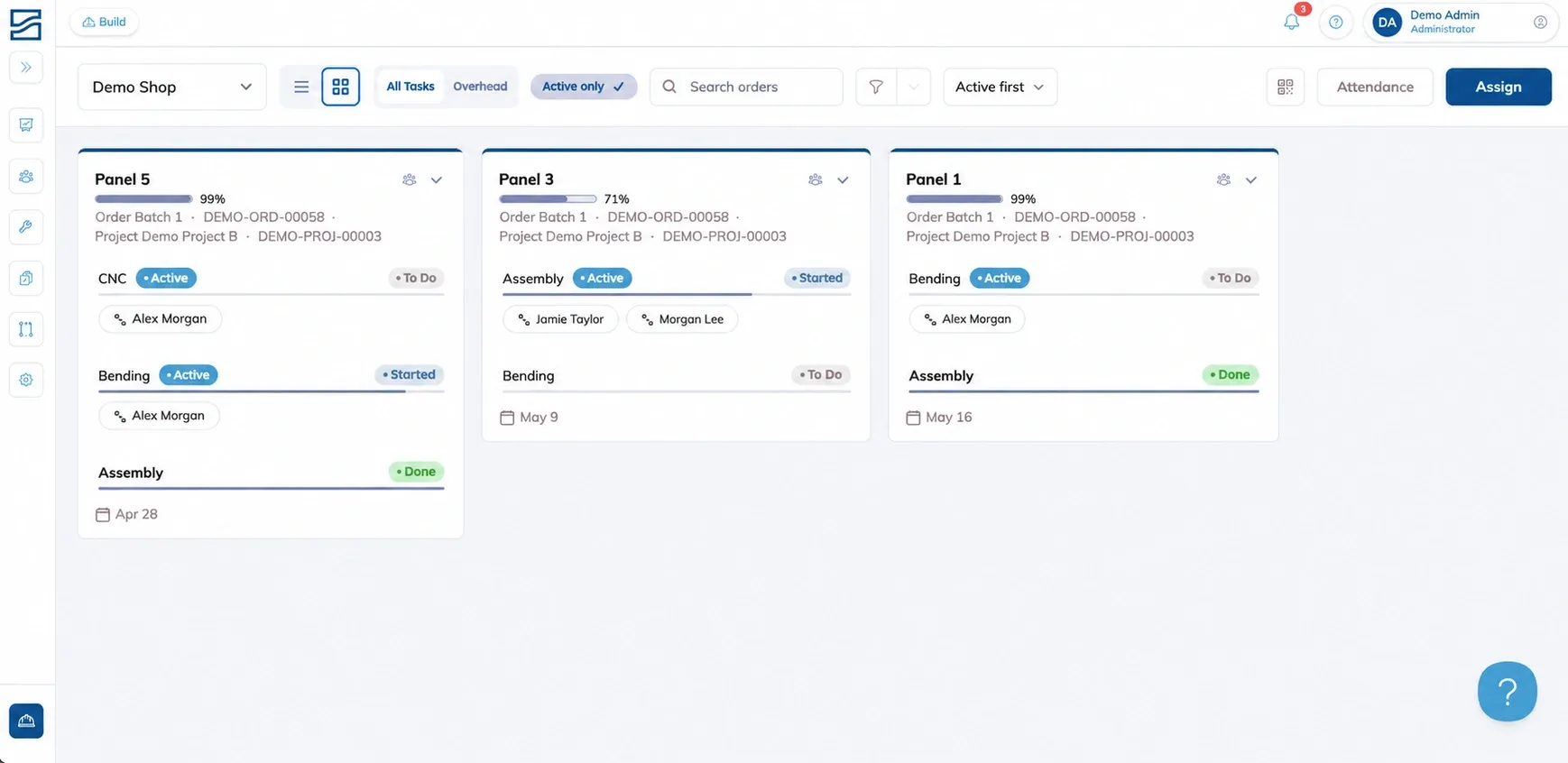
Grid View shows work and the people assigned to it. Use it to move people between tasks as the work changes.
Best for: fast, bulk reassignment for crew leads balancing headcount in real time.
Head to Build

Select the Grid View.
Assign or move a shop team member: drag a Person tile onto a Task, or select from the dropdown in the row.
Timesheets
Use Insights > Timesheets to enter hours after the work, correct a day, or review and export time.
Choose Check in/out for the weekly grid or Sessions for individual task records.
Set the period. Open Filters and choose one or more departments, then narrow by person or task as needed.
In the weekly grid, expand a person and enter the hours against each task. Open a day's details to edit exact check-in or session times.
Compare the person's Check-in Total with Sessions total. Turn on Gap in table settings to see the difference.
Review flagged days, correct any entries that need changing, then approve the day.
Use Export to download the filtered period. You can edit the file's detail rows and use Import to bring corrections back.
The Check in/out export also includes a Summary sheet with totals per person. Import reads the first, detail sheet.
For task entry, gap examples, approvals and export columns, see Timesheets.
Tips
Clock in first. Attendance makes it easier to see who's in the shop today and available to work on different orders.
Use Timesheets to correct missed entries or split recorded hours across the tasks worked.
If your shop uses QR codes, scan an employee badge to check in or out and an order traveler to start or switch tasks. For setup, see the QR Guide.
FAQ
Should I use Build or Timesheets?
Use Build to record time while people work. Use Timesheets to enter hours afterward, correct a day, or review and export the period.
Why do attendance and task hours differ?
Check-in Total records attendance. Sessions total records time against tasks. Compare both in Timesheets and use Gap to see the difference. Open the day's records before changing any hours.
Can I import corrections from a spreadsheet?
Yes. Export the filtered period from Timesheets, edit the first detail sheet, then use Import to bring the corrections back. The Summary sheet is for reviewing totals.
Where do I set up work that is not tied to an order?
Set up those tasks under Overhead. See Overhead for the setup steps.
Conclusion
Record task time in Build as the work happens. Use Timesheets to enter or correct hours afterward, then review attendance and task time before approving and exporting.
Have additional questions? Contact Us
Was this helpful?
Still need help? Ask the team