
Forms
Introduction
Building Swell's Forms allows you to manage inspection documentation and processes across your projects. Inspection forms, whether planned or ad hoc, are built from templates, attached to orders, and filled out during inspections to ensure consistent tracking.
This guide covers the key concepts behind Forms in Building Swell, how to set up and manage templates, and how to access and complete Forms from various points in the application.
General Concepts
Templates
Templates are the foundation of all inspection forms. A template defines the set of questions and input types that inspectors will fill out. Templates are created and managed under Forms → Templates.
Each template can contain three types of form elements:
- Text: Basic questions that accept answers as text, numbers, or dates.
- Checklist: Questions with one or multiple answer choices.
- Table: Add multiple rows of structured content.
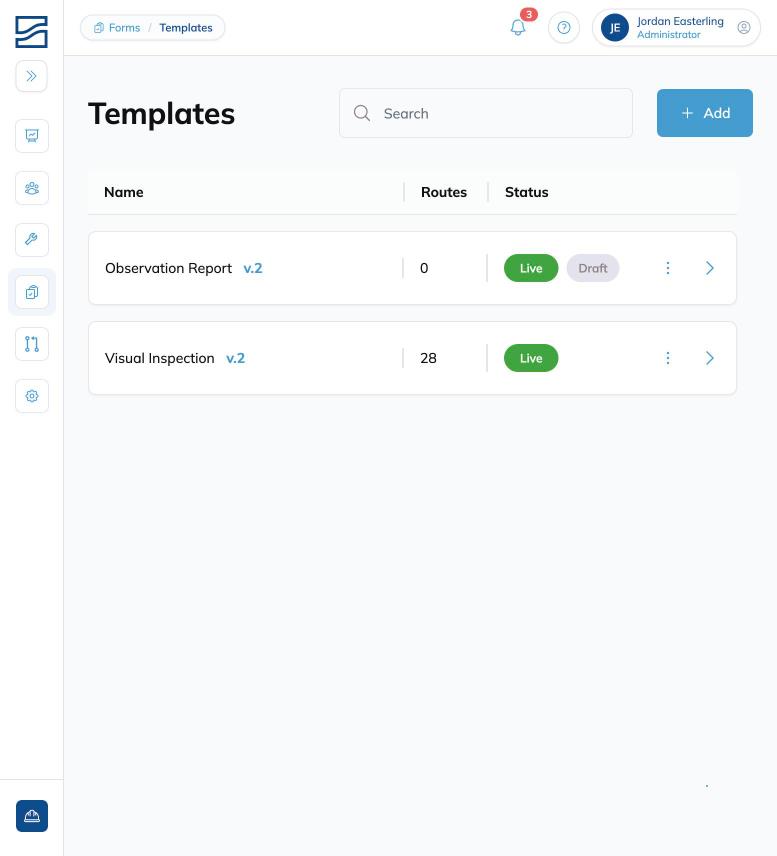
Once a template is ready, it must be sent live before it can be used in routes or ad hoc forms. Templates support versioning, so you can update questions over time without affecting previously completed inspections.
Planned Forms
Planned forms are inspection forms that are built into a Route. When you add a Forms template to a stage within a route, every order using that route will automatically include the inspection Form step at the appropriate point in the workflow.
The shop team will encounter the inspection step during the building process and be prompted to complete the form before moving forward (or they can skip it).
Ad Hoc Forms
Ad hoc forms are inspection forms that are started manually, outside of a route's predefined steps. They still draw from existing templates but can be created on the fly from several access points:
- Forms → Entries: Click the "Start Form +" button to begin a new inspection from the entries list.
- Planning View: Use the three-dot menu on an order and select "Start form."
- Order Details: Use the "More" menu or the "Start form" option to launch an ad hoc inspection tied to that order.
Ad hoc forms are useful for unplanned inspections, spot checks, or any situation where a inspection form is needed outside the normal route flow.
Step-by-Step Guide
Creating a Template
- Navigate to Forms → Templates from the left-hand menu.
- Click the "Add" button to create a new template.
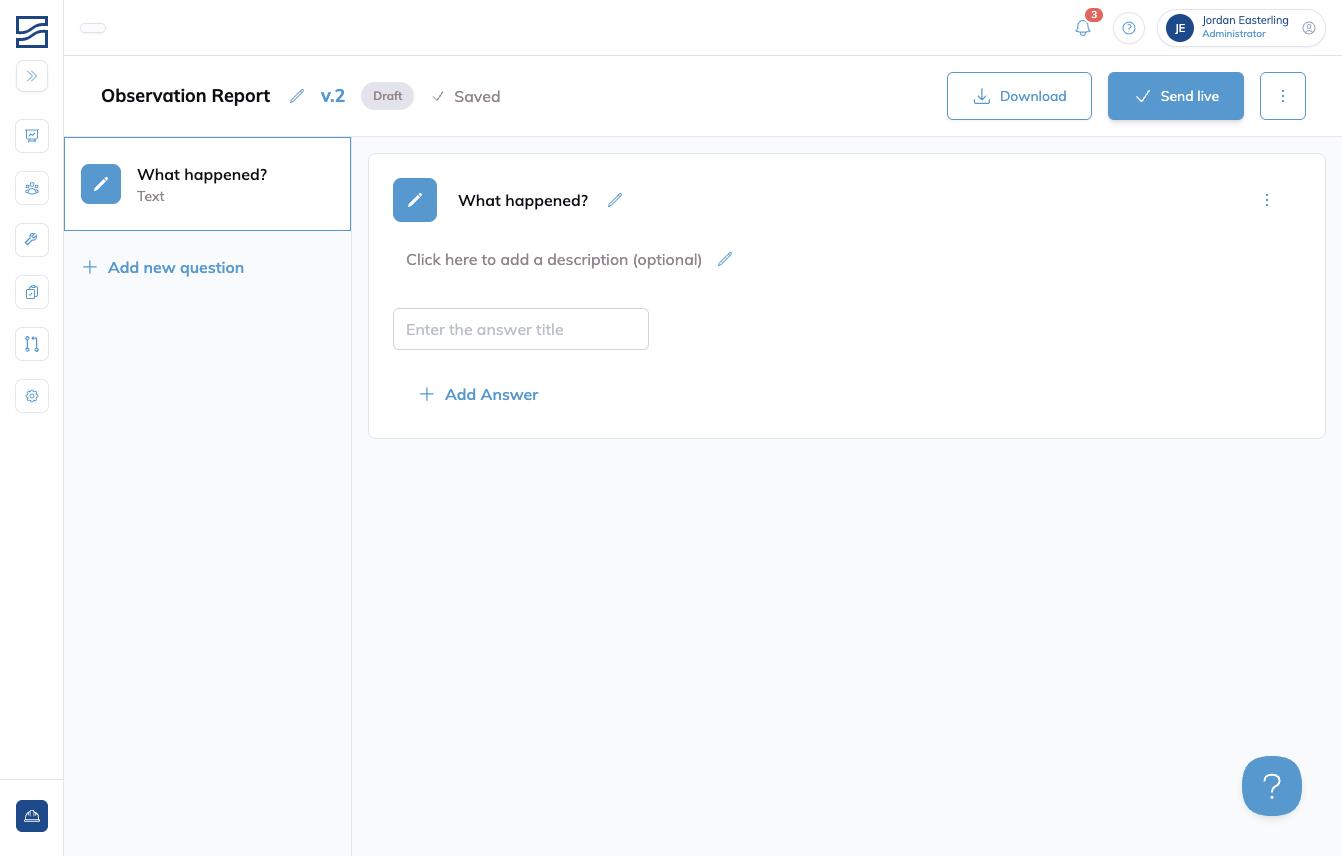
- Add questions using the "+ Add new question" button. Choose from Text, Checklist, or Table input types.
- Configure each question as needed.
- When your template is ready, click "Send live" to make it available for use.
Versioning a Template
- Open the live template you want to update from Forms → Templates.
- Click the "Create new version" button. This creates a new draft version while the current live version remains active.
- Make your changes to the draft version (add, edit, or remove questions).
- When ready, click "Send live" to publish the updated version. The previous version's completed inspections remain unchanged.
Adding a Template to a Route
- Navigate to Rules Engine → Routes.
- Find the Route you want to add the form template to. If the Route is already live, create a new version.
- Open the Stage where you want to add the inspection step.
- Click "+ Add QC step" at the bottom of the steps list.
- Select the form template you want to assign to that stage.
- Adjust the sequence by dragging and dropping. You can add more than one form template in a Route to customize the configuration to match your inspection process.
Starting an Ad Hoc Form
- Go to one of the ad hoc access points: Forms → Entries (click "Start Form +"), Planning view (three-dot menu → "Start form"), or Order Details ("More" menu → "Start form").
- Select the Template you want to use from the dropdown.
- Link the form to an order (required).
- Optionally assign an Assignee, Approvers, Category, and Subcategory.
- Click "Start" to begin the inspection.
Accessing Forms
Completed and in-progress inspection forms can be accessed from multiple locations:
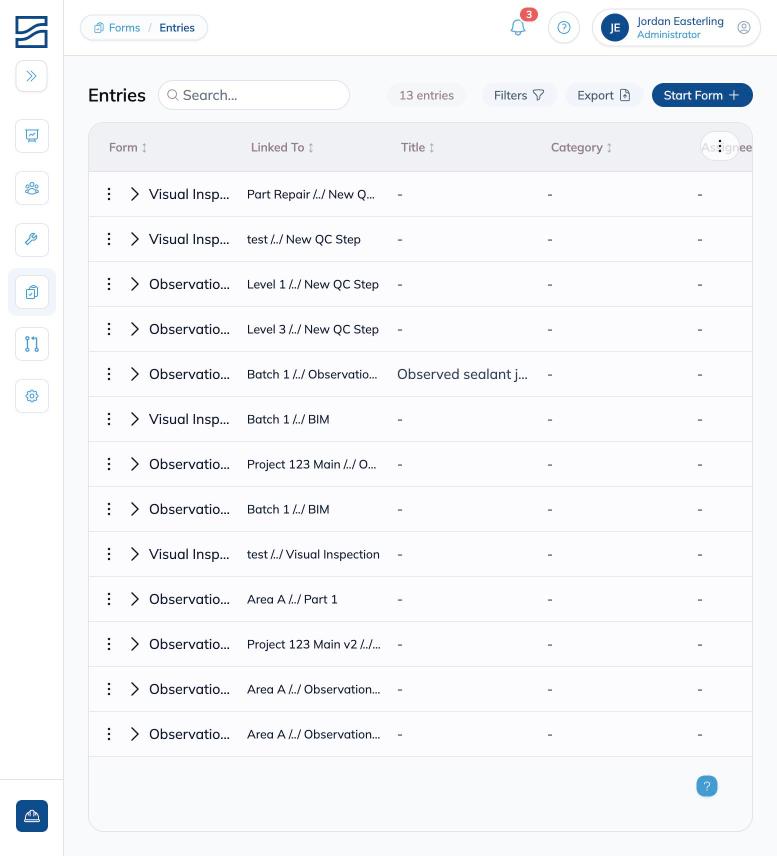
- Forms → Entries: The central list of all form entries across all orders. Use filters to narrow by status, assignee, category, and more. You can also export entries from here.
- Order Details → Quality Control tab: Shows all forms tied to a specific order.
- Planning → Update Progress side tray: Click "View details" on a unit to see associated forms.
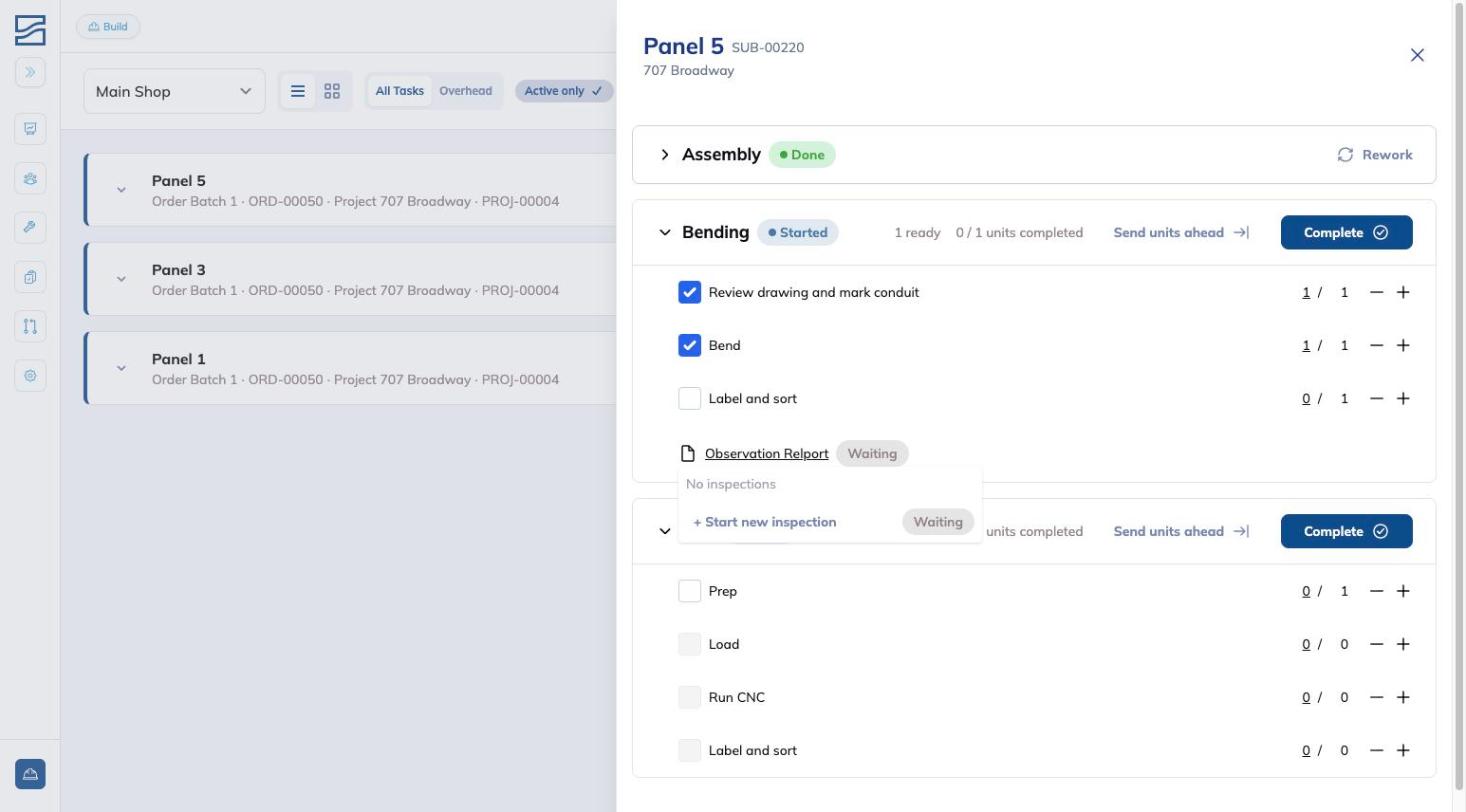
- Build View: QC steps appear inline with route stages. Click on a QC step to view or start an inspection.
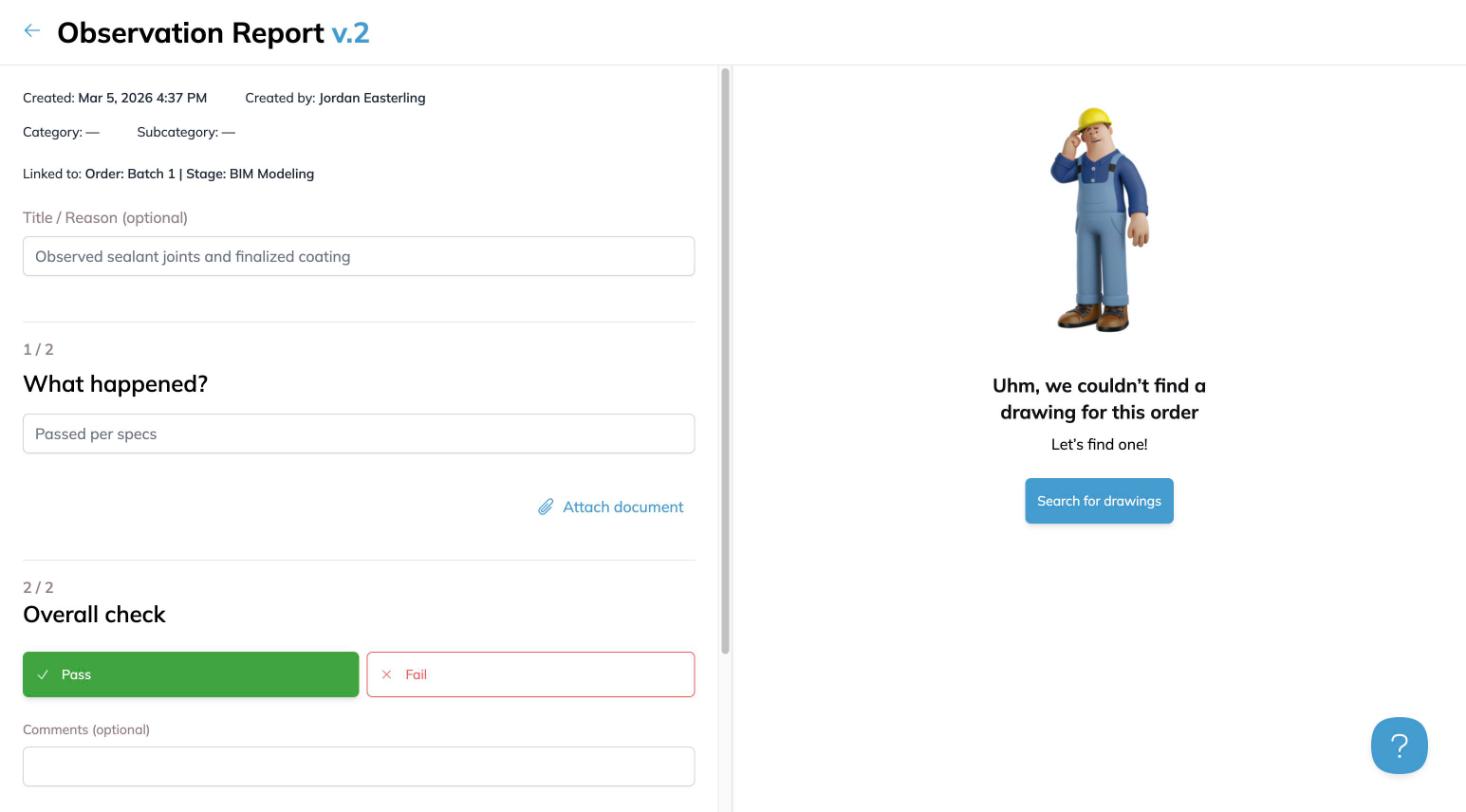
Filling Out an Inspection Form
- Open the form from any of the access points listed above.
- Fill in the Title/Reason field if applicable.
- Answer each question in the form. For each question, you have the option to attach documents or photos using the "Attach document" button.
- At the bottom of the form, select "Pass" or "Fail" to record the inspection result.
- Add any comments in the Comments field if needed.
- Click "Finish inspection" to complete and save the form.
FAQ
-
How do I edit a live form template?
You must create a new version of the template using the "Create new version" button on the template detail page. Edit the draft, then send it live when ready.
-
Can I add the same template to a Route more than once?
Yes. You can add the same form template to different stages of the Route. However, you cannot add the same template more than once within a single stage.
-
Is the Form inspection step required for orders on a Route with a QC step?
No. You can skip the inspection by selecting the "Skip for now" button at the bottom of the inspection form. The shop team can continue making progress.
-
Can I control who accesses the form template page or fills out QC forms?
Yes. Reach out to your account representative to set custom permissions for form access.
-
What is the difference between a planned form and an ad hoc form?
A planned form is automatically created as part of a Route's form step. An ad hoc form is started manually from Forms → Entries, Planning view, or Order Details when an inspection is needed outside the normal route flow.
Conclusion
The Forms feature in Building Swell gives you flexibility to manage inspections through both planned route steps and ad hoc forms. With templates, versioning, and multiple access points, you can integrate Forms seamlessly into your production workflow.
Have additional questions? Contact Us