
Build
Introduction
Your central hub for managing shop floor production. Build gives you a live view of every active order, who's working on it, and how far along it is, all in one place. This guide covers how to navigate the Build page, assign team members to stages, and track progress.
Step-by-Step Guide
Getting There
Click the hard hat icon in the bottom left of the screen to open Build.
General Menu
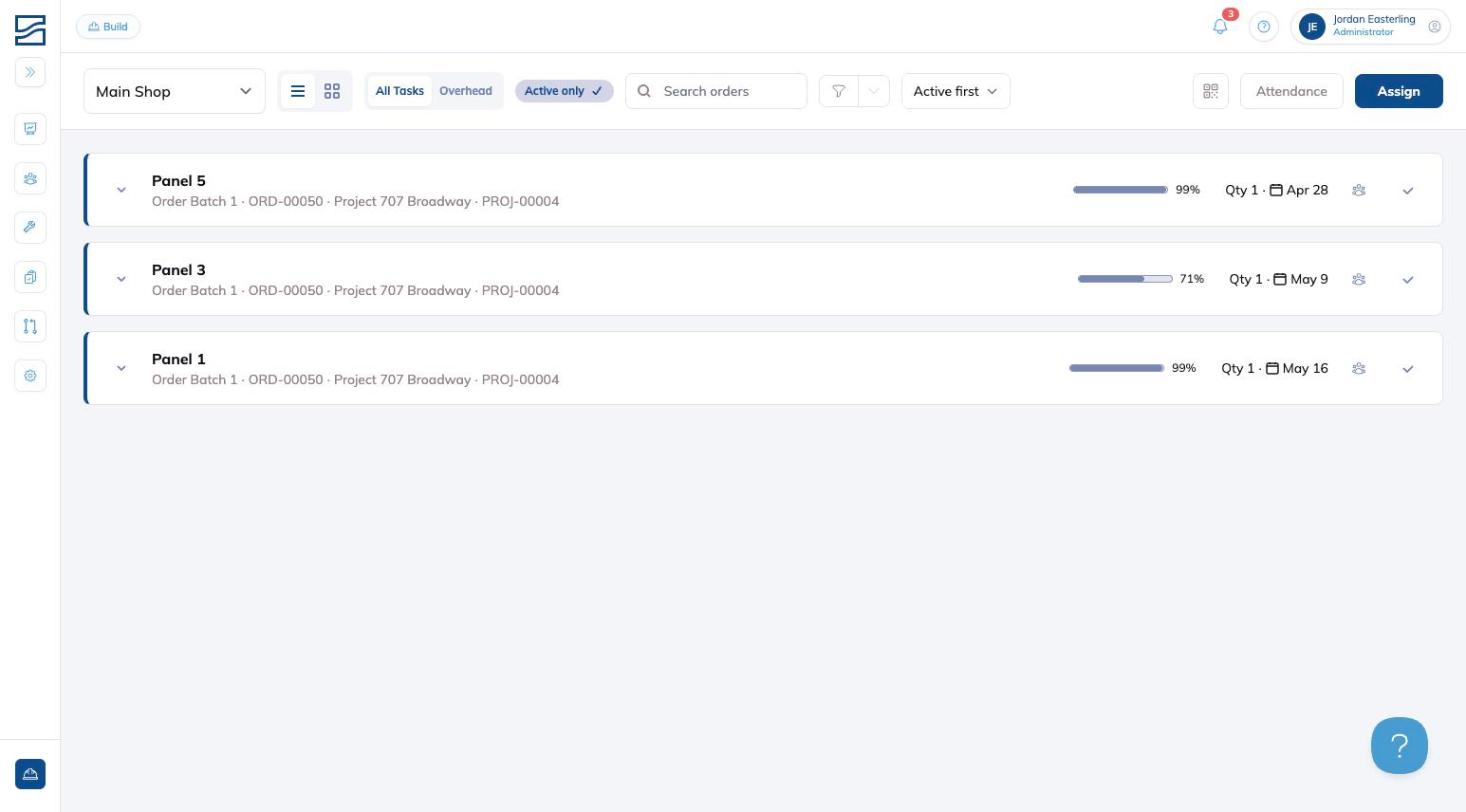
The Build page has a set of controls at the top that let you filter, sort, and navigate your work.
| Control | What it does |
|---|---|
| Shop selector | Switch between shops (Main Shop, Atlanta Shop, BIM/VDC, Material). The list updates to show only orders for that shop. |
| View toggle | Switch between List view and Grid view. List view shows each order as a collapsible row with stages below it. Grid view shows each order as a card with stages and assigned workers visible at a glance. |
| Task tabs | Toggle between All Tasks (production orders) and Overhead tasks. |
| Active only | When enabled, hides completed orders and shows only what's actively in progress. A checkmark indicates it's on. Toggle it off to see all orders. |
| Search | Find a specific order by name. |
| Filters | Filter by Project, Assigned person, Status, Phase, or a date range (From / Until). Click Apply to update the list, or Reset to clear your selections. |
| Sort | Change the order of results: Active first, Name, ID, Project, Phase, Date, Progress, Status, or Route. |
Notifications
The bell icon in the top right shows your notification feed. A badge appears when you have unread activity, such as mentions, comments, or status updates tied to your orders.
Tracking Time
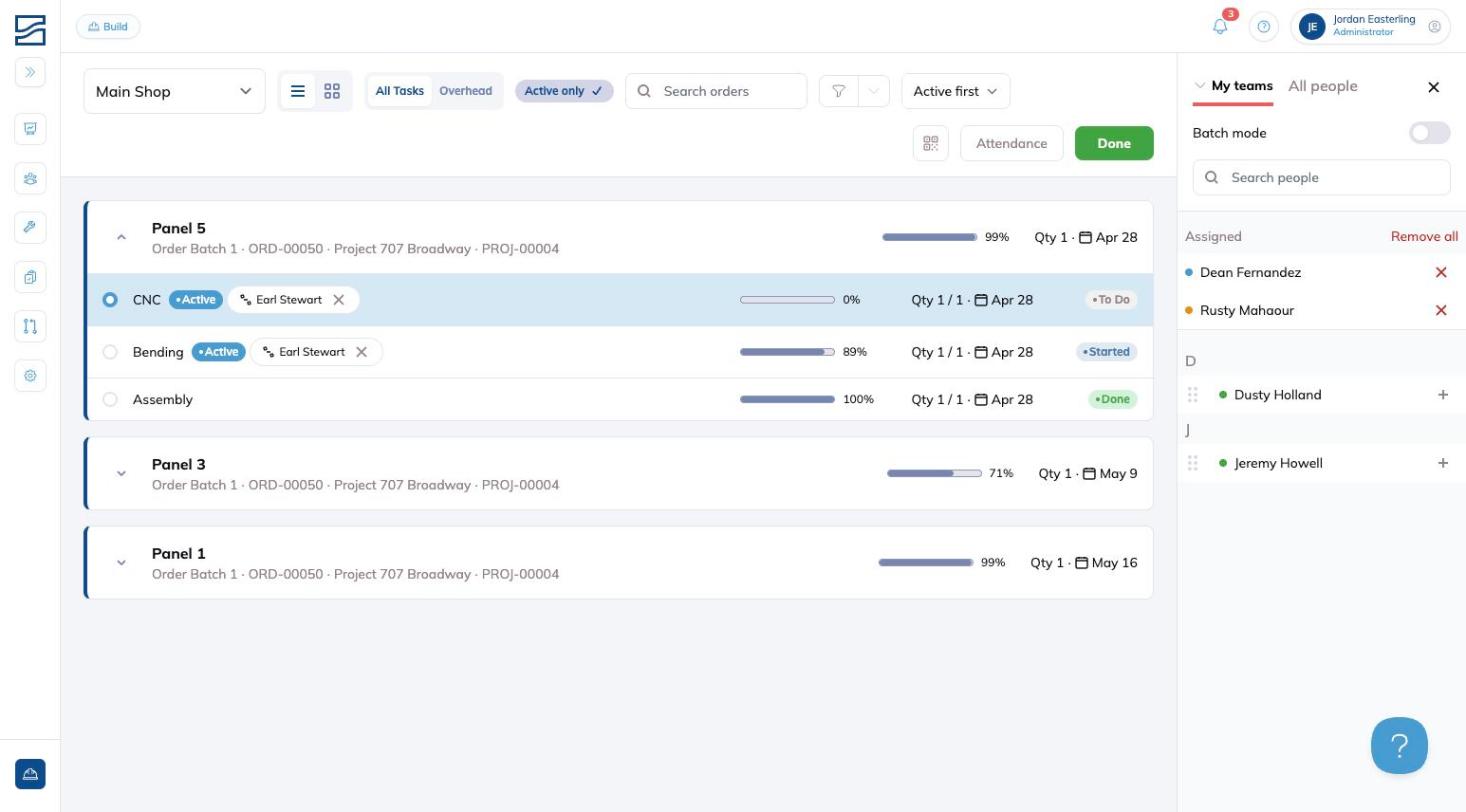
There are four ways to assign team members to a stage from the Build page.
- Via the Assign panel: Click the Assign button in the top right. A panel will slide in showing your team members.
- Those already assigned appear at the top with a remove (×) button.
- Everyone else appears below with a (+) button.
- Click (+) next to a name to add them to the currently selected stage.
- Via the + button on a stage (ideal for mobile): Each stage row shows a (+) button directly on it in both List and Grid view.
- Tap or click it to add a worker to that specific stage without opening the full Assign panel.
- This is the quickest option when working on a phone or tablet.
- Via drag and drop: With the Assign panel open, each unassigned team member has a drag handle to their left. Drag a name from the panel and drop it onto the stage you want to assign them to.
- Via QR code: Scan either the user or the order first, then scan the other. Click OK to confirm, and the time tracking session will start automatically.
Batch Mode
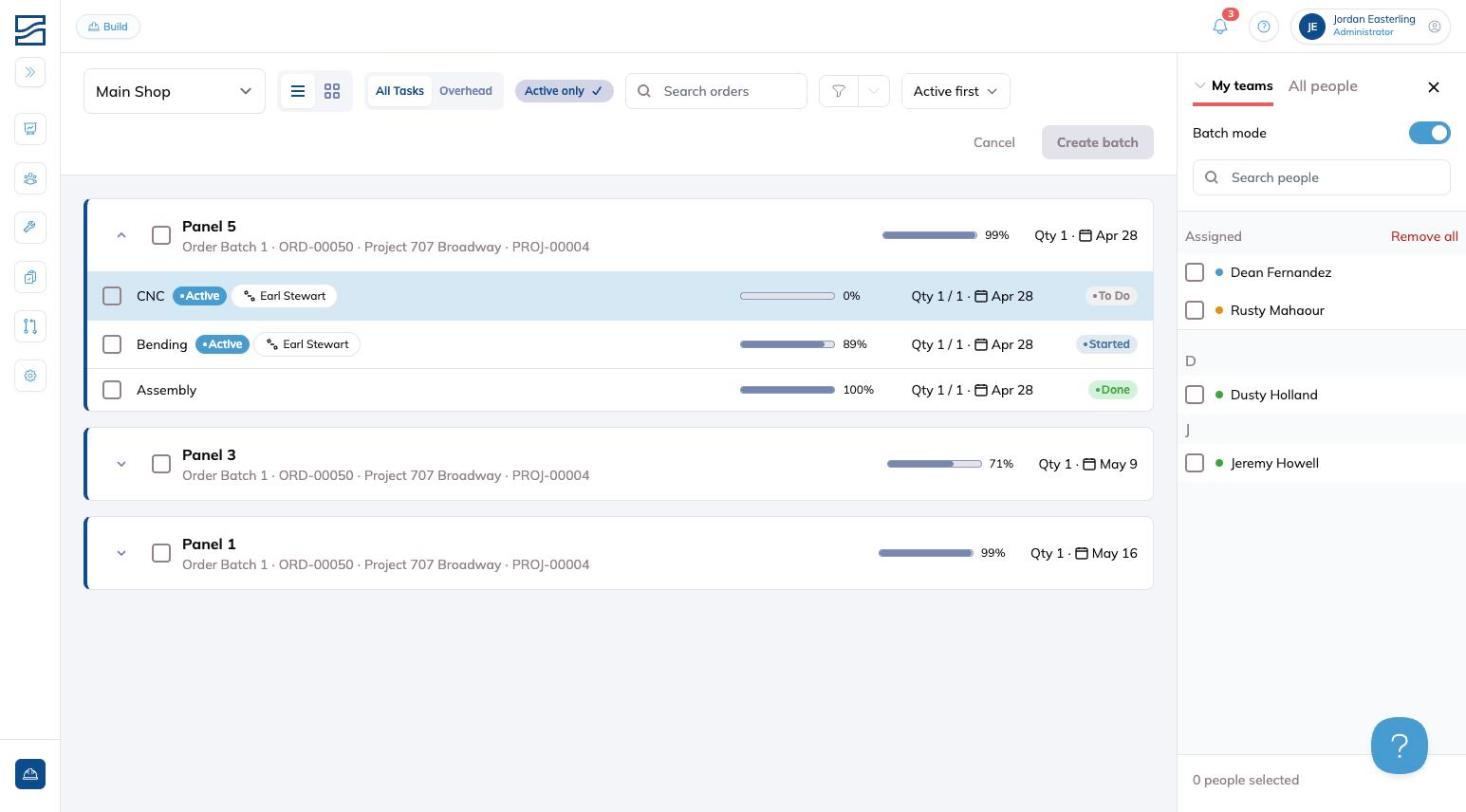
Batch mode lets you assign one or more team members to multiple stages across orders in a single action, useful when a worker is moving through several jobs at once.
- Click Assign to open the panel, then toggle Batch mode on.
- Checkboxes will appear on each stage in the order list, along with a "Select all Stages" option at the top of each order.
- Check the stages you want to include, then select the team members to assign from the right panel.
- A counter at the bottom tracks how many people you've selected.
- Click Create batch to apply the assignments, or Cancel to exit without saving.
Updating Progress
You can update stage progress without leaving the Build page.
- Expand an order by clicking its row (List view) or finding it in Grid view.
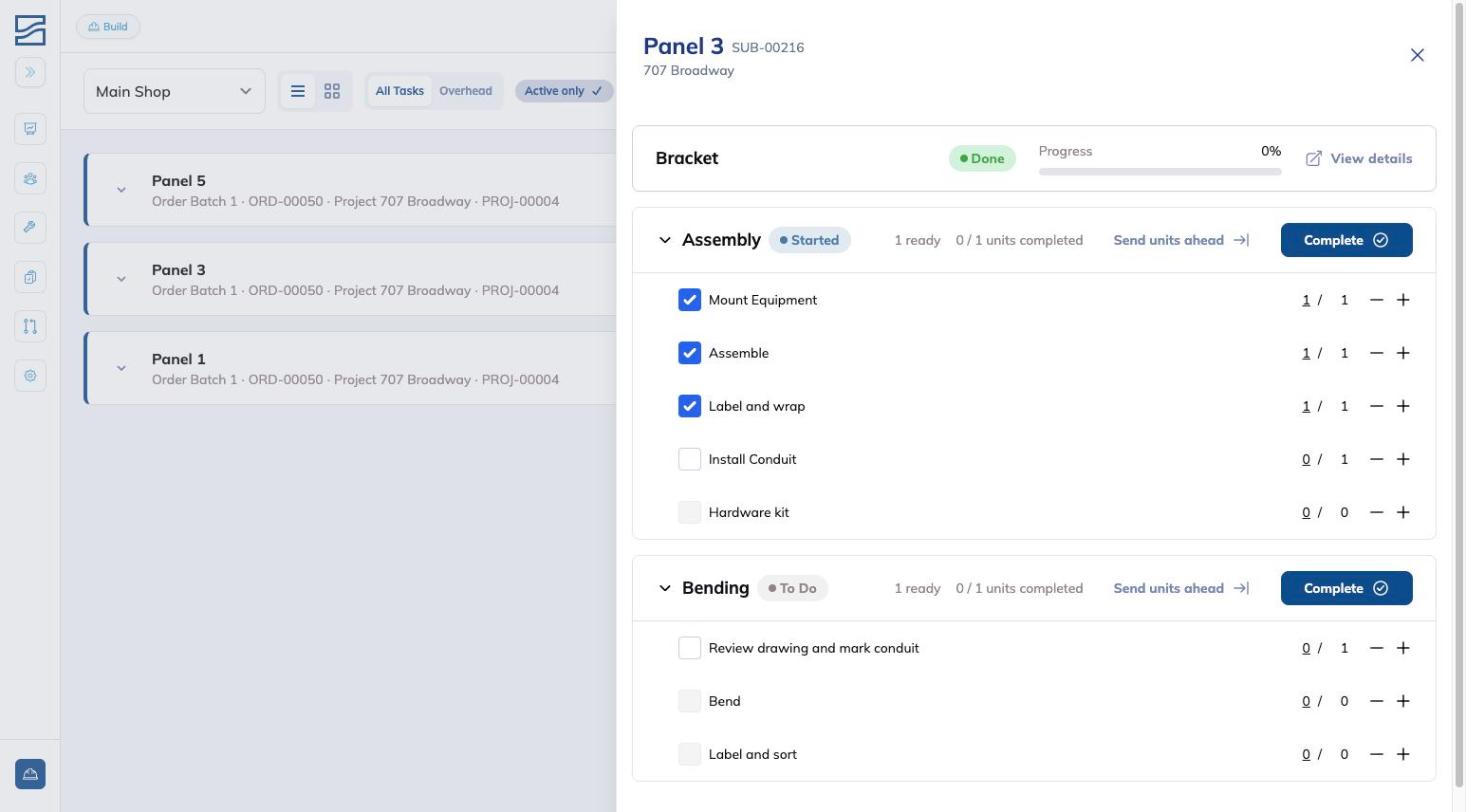
- Each stage has a checkmark icon on the right side. Click it to open the progress panel for that stage.
- You'll see each individual step listed with:
- A checkbox
- A quantity counter (e.g., 1 / 1)
- + / - buttons to adjust completed units
- Check the box next to a step to mark it complete, or use + / - to increment the count.
- Once all steps are done, click Complete to mark the entire stage as finished.
- QC Forms: Some stages have QC inspections or forms attached. When a form is required, it will appear as you update progress.
- Click the form to open it and fill it out.
- You can also start a new form at any time by clicking the three-dot and selecting Start Form.
- Flagging Rework: If a step or stage needs to be redone, click the rework button to open this up and trigger rework. This sends the stage back for correction and notifies the relevant team members.
Opening Order Details
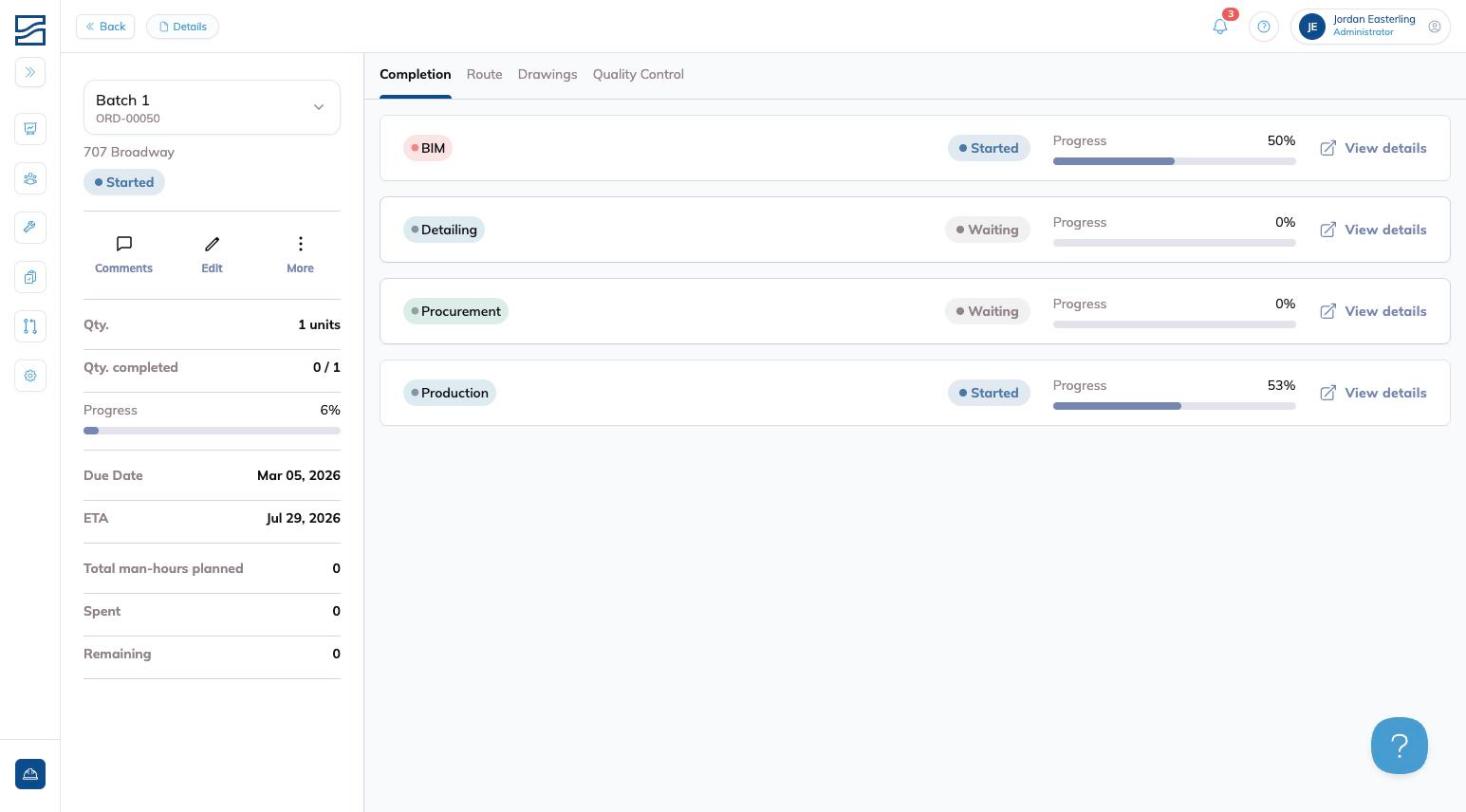
To view full details for any order, click the order title from either List or Grid view.
This takes you directly to the Order Details page, where you can review quantity, overall progress, ETA, and man-hours planned vs. spent.
From there you can also leave or read comments in the Discussion panel, edit order information, or put the order on hold using the More menu.
Tips and Tricks
- Use "Active only": Keep the view clean during a busy shift. It hides anything already done.
- Grid vs. List: Grid view is great for a visual overview; List view is better for walking through stages one by one.
- Batch mode: Most useful when a crew is working through multiple orders at the same stage simultaneously.
Conclusion
Build keeps your entire shop floor visible in one place. Use it to assign work, track stage progress, and stay on top of what's moving, all without leaving the page.
Have additional questions? Contact Us