
Staff Overview
Looking for a quick and easy glance at your shop's workforce?
Staff Overview provides a real-time view of what each worker is currently doing, their status, their active and planned tasks, and their check-in time, all in one place.
Prerequisites
- Setup your shop digitally in Building Swell, including shifts, shops, projects, orders, routes, stages and steps.
- Ensure that you have at least 1 active route.
Step-by-Step Guide
Select Staff Overview from the left navigation sidebar.
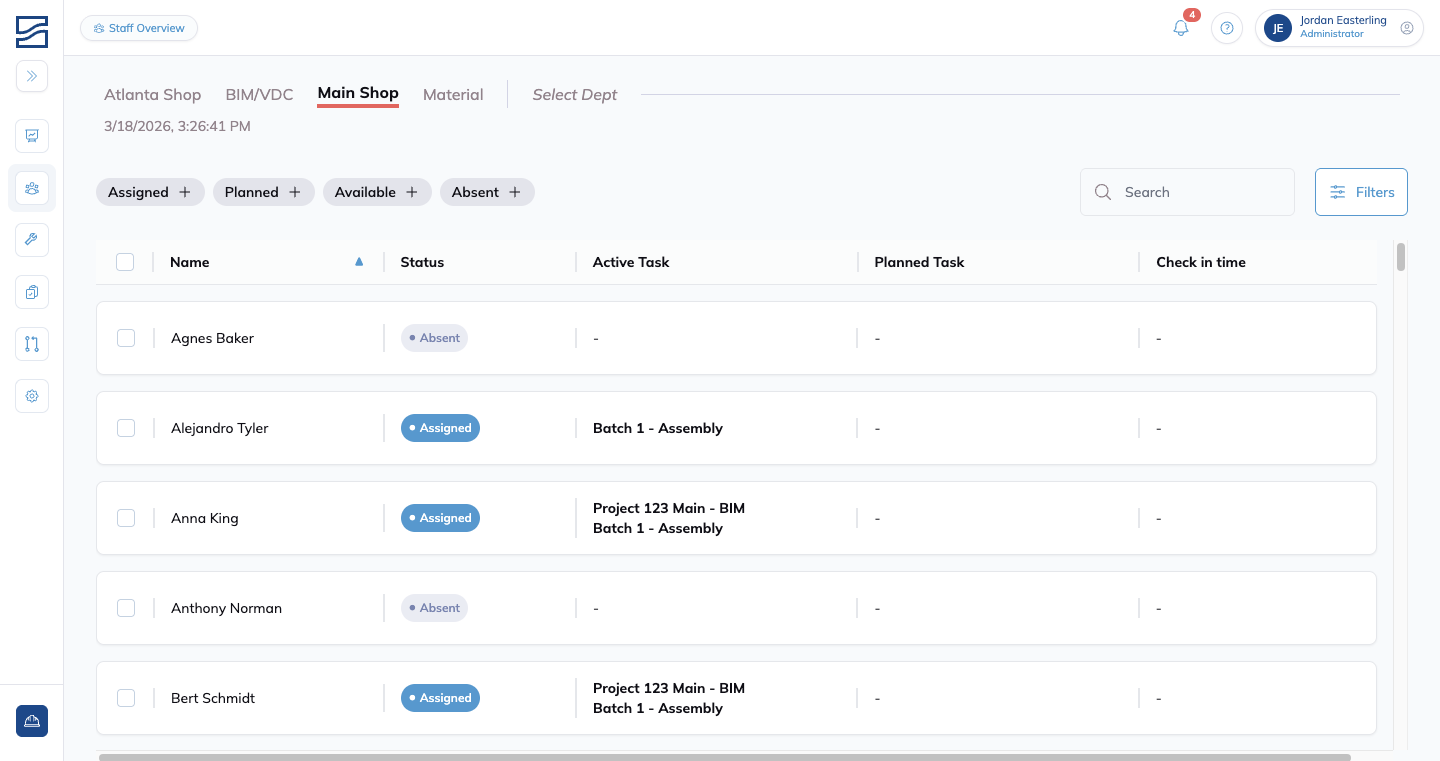
How to use Staff Overview
-
Departments: at the top of the screen, select a department tab (e.g., Main Shop, Atlanta Shop, BIM/VDC, Material) to limit the view to workers in that department. Use "Select Dept" for additional options.
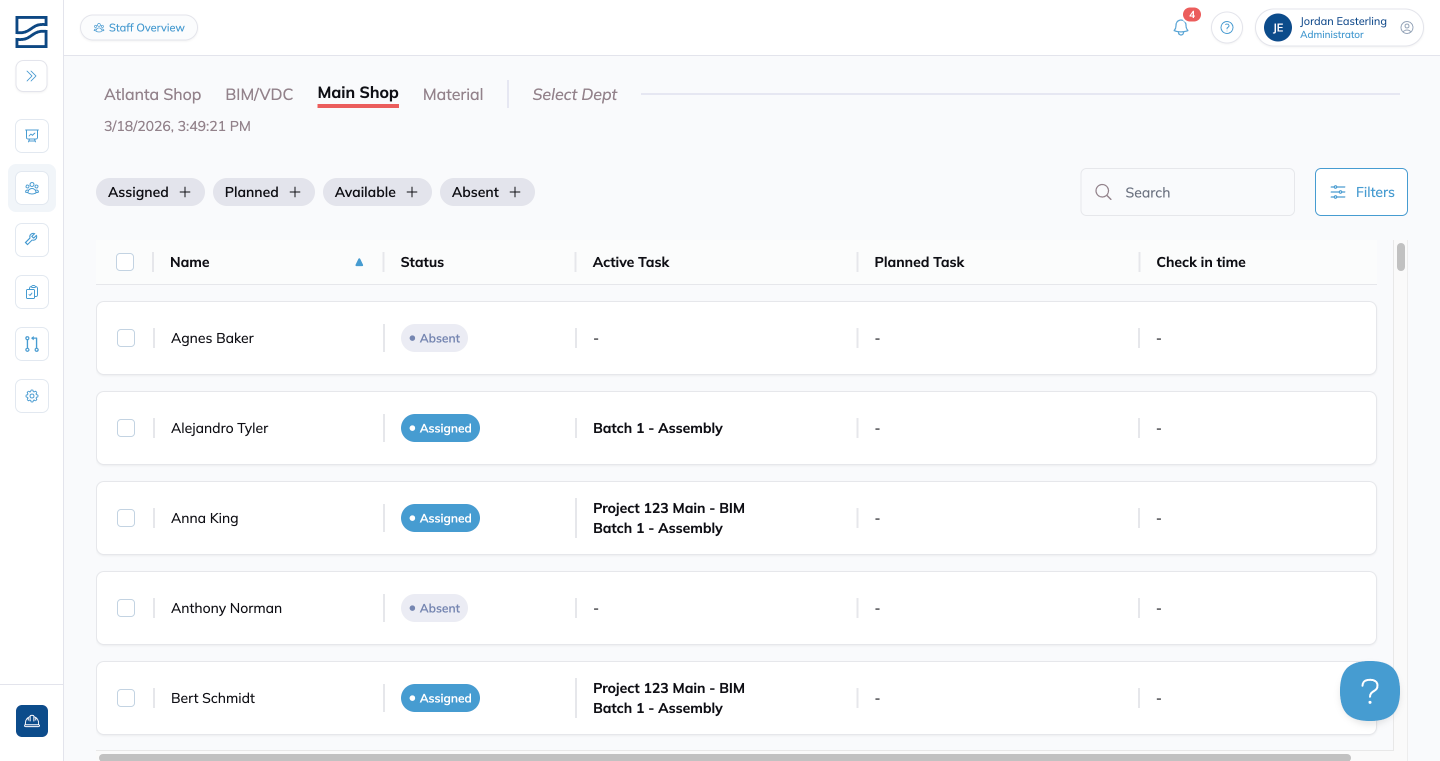
- Status filters: below the department tabs, use the quick-filter chips (Assigned, Planned, Available, Absent) to instantly show or hide workers by their current status.
-
Search: use the Search bar to find a specific person by name.

- Filters: click the Filters button to filter the list by Team or by specific Status values (Assigned, Planned, Available, Absent).
- Main View: all results are displayed in a table with the following columns:
- Name
- Status:
- Assigned in blue
- Planned in yellow
- Available in green
- Absent in gray
- Active Task: the task they are currently working on
- Planned Task: their next scheduled task
-
Check in time

- Check in / Check out: select one or more workers using the checkboxes on the left of each row. Buttons for Check in and Check out will appear at the top of the list, allowing you to quickly update their attendance status.


Tips
- Check in or check out multiple teammates at the same time. Click the check box next to their names then select Check in or Check out.
Conclusion
Staff Overview is a convenient way to see what your team is up to, without having to remember which step, stage or order they are currently working on.